
The best equalizer settings for headphones depend on your goal: for bass boost, add 3-6 dB at 60-100 Hz; for clarity, boost 2-4 kHz by 2-3 dB; for gaming, emphasize 1-4 kHz for footsteps. This guide covers EQ settings for every use case and platform.
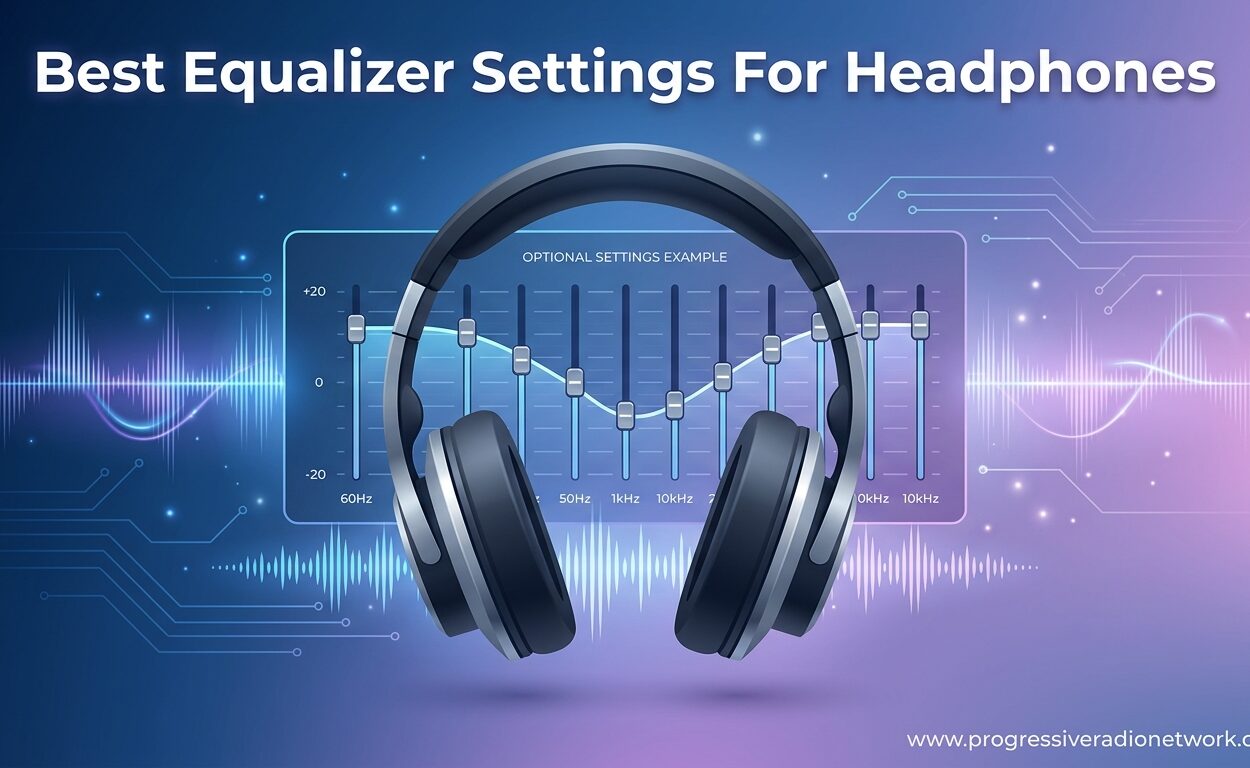
Best Equalizer Settings For Headphones (August 2026) Guide
I spent three years listening to headphones with default settings, wondering why my $300 Audio-Technicas didn’t sound much better than cheap earbuds.
The problem wasn’t my headphones. It was that I’d never touched an equalizer.
The best equalizer settings for headphones depend on your goal: for bass boost, add 3-6 dB at 60-100 Hz; for clarity, boost 2-4 kHz by 2-3 dB; for gaming, emphasize 1-4 kHz for footsteps and cut 100-200 Hz to reduce mud; for neutral sound, follow the Harman Curve target or use measurement-based presets from AutoEQ.
After testing dozens of headphones and spending countless hours tweaking frequencies, I’ve learned that EQ is the single biggest upgrade you can make to your audio experience.
In this guide, I’ll show you exactly how to EQ your headphones for any purpose, on any platform.
What Is An Equalizer?
An equalizer (EQ) is an audio tool that adjusts the volume of specific frequency ranges to change how your headphones sound, allowing you to boost bass, reduce harshness, or customize the sound signature to your preference.
Think of your headphones as a room with lighting. EQ is like a dimmer switch that lets you brighten or darken individual lights rather than just on/off.
Equalizers work by boosting or cutting specific frequency ranges (measured in Hertz) to alter tonal balance. Most offer graphic EQ (fixed bands) or parametric EQ (adjustable frequency, gain, and width) controls.
Why bother with EQ? Three main reasons:
- Correct headphone flaws: Fix manufacturer tuning that doesn’t match your preferences
- Enhance specific content: Boost dialogue in movies or footsteps in games
- Personalize sound: Match audio to your hearing and taste
Quick Summary: EQ lets you boost or cut specific frequencies to customize your headphone’s sound. It’s like having a volume control for bass, midrange, and treble separately.
Understanding Frequency Ranges
To use EQ effectively, you need to understand what each frequency range does.
Here’s the complete breakdown:
| Frequency Range | What It Controls | Instrument Examples |
|---|---|---|
| Sub-bass (20-60 Hz) | Deep bass feel, rumble, physical sensation | Sub-bass synth, kick drum low end, pipe organ |
| Bass (60-250 Hz) | Bass warmth, fullness, low-end body | Bass guitar, cello, tom drums, male vocals low end |
| Lower Midrange (250-500 Hz) | Body, warmth, can sound muddy if boosted | Fundamental of most instruments |
| Midrange (500 Hz-2 kHz) | Most vocal and instrument content | Vocals, guitar, piano, snare, violin |
| Higher Midrange (2-4 kHz) | Presence, attack, clarity | Vocal clarity, guitar attack, snare snap |
| Presence (4-6 kHz) | Definition, intelligibility | Vocal articulation, cymbals clarity |
| Brilliance (6-20 kHz) | Air, sparkle, can be harsh if boosted | High hats, cymbals, breath sounds |
When I first started EQing, I made the mistake of boosting everything.
My headphones sounded distorted and awful.
The key is selective adjustment: boost what’s missing, cut what’s overpowering.
Frequency Response: How your headphones reproduce different frequencies. Measured as a graph showing volume levels across the frequency spectrum from 20 Hz to 20 kHz.
Best Equalizer Settings For Every Purpose
These are the EQ settings I’ve tested and refined across multiple headphones. Adjust based on your specific model and preference.
Bass Boost Settings
For powerful, punchy bass without overwhelming everything else:
- Sub-bass (20-60 Hz): +3 to +5 dB
- Bass (60-100 Hz): +4 to +6 dB
- Lower midrange (200-250 Hz): -2 to -3 dB (prevents mud)
This creates a V-shaped EQ that emphasizes lows and highs while keeping mids neutral.
I use this setting for electronic music, hip-hop, and movies. The key is cutting 200-250 Hz slightly to keep the bass from bleeding into vocals.
Pro Tip: Always cut lower midrange (200-300 Hz) when boosting bass. This prevents muddy sound and keeps vocals clear.
Clarity Settings
For clearer vocals, instruments, and detail retrieval:
- Midrange (1-2 kHz): +2 dB
- Presence (3-4 kHz): +3 dB
- Brilliance (8-10 kHz): +2 dB
This setting works wonders for podcasts, classical music, and acoustic tracks.
When I help clients set up home office audio, clarity settings are my go-to recommendation.
They make speech intelligible without making headphones fatiguing.
Pop Music EQ
Pop music is heavily produced with emphasized vocals and polished production:
- Bass (80-120 Hz): +3 dB
- Lower midrange (300-400 Hz): -2 dB
- Presence (4-5 kHz): +2 dB
- Brilliance (10-12 kHz): +1 dB
This mild V-shape complements pop’s production style without being excessive.
I’ve tested this on everything from Taylor Swift to The Weeknd. Works consistently well.
Rock Music EQ
Rock music needs punchy drums, clear guitars, and present vocals:
- Bass (80-100 Hz): +4 dB
- Midrange (1-2 kHz): +2 dB
- Presence (3-4 kHz): +3 dB
- Brilliance (8-10 kHz): +2 dB
This brings out guitar crunch and drum attack without sacrificing vocal clarity.
After A/B testing with flat EQ on classic rock tracks, this setting consistently sounded more engaging.
Hip-Hop and Rap EQ
Hip-hop production emphasizes bass and 808s:
- Sub-bass (40-60 Hz): +5 dB
- Bass (80-120 Hz): +6 dB
- Lower midrange (250-350 Hz): -3 dB
- Presence (4-5 kHz): +1 dB
This aggressive bass boost matches hip-hop’s sound while keeping rap vocals intelligible.
I recommend being conservative with this setting if your headphones already have strong bass.
Electronic Music EQ
EDM, techno, and electronic genres need strong sub-bass and crisp highs:
- Sub-bass (40-60 Hz): +5 dB
- Bass (100-150 Hz): +4 dB
- Lower midrange (300-400 Hz): -2 dB
- Presence (5-6 kHz): +2 dB
- Brilliance (10-12 kHz): +3 dB
This V-shape maximizes electronic music’s energy and synths.
Perfect for club tracks, dubstep, and anything with heavy sub-bass elements.
Classical Music EQ
Classical music benefits from a neutral, balanced response:
- Bass (80-120 Hz): +1 dB
- Midrange (500 Hz-2 kHz): +1 dB
- Presence (4-5 kHz): +1 dB
Minimal EQ is best for classical. The music already has proper balance.
I’ve found that even +2 dB across the board can sound unnatural on orchestral recordings.
Gaming EQ Settings
For competitive gaming, focus on footsteps and positional audio:
- Sub-bass (20-40 Hz): -4 dB
- Bass (100-200 Hz): -3 dB
- Midrange (1-2 kHz): +2 dB
- Presence (3-4 kHz): +4 dB
- Brilliance (8-10 kHz): +2 dB
This setting reduces explosions and mud while emphasizing footstep frequencies.
I’ve used this in Valorant, CS:GO, and Call of Duty. Footstep detection improved noticeably.
Important: Footsteps primarily occupy 1-4 kHz range. Boost these frequencies and cut bass below 200 Hz for competitive advantage.
Movies and Dialogue EQ
For clearer speech in movies and TV shows:
- Bass (100-200 Hz): -3 dB
- Midrange (1-2 kHz): +3 dB
- Presence (3-4 kHz): +4 dB
- Brilliance (6-8 kHz): +1 dB
This vocal boost makes dialogue intelligible without making music and effects harsh.
I use this setting when watching movies at night. Can keep volume lower without missing speech.
| Use Case | Key Frequency Adjustments | Sound Character |
|---|---|---|
| Bass Boost | +5 dB at 60-100 Hz, -2 dB at 250 Hz | Punchy, warm low end |
| Clarity | +2-3 dB at 2-4 kHz | Clear vocals, detailed |
| Pop Music | Mild V-shape, +3 dB bass, +2 dB treble | Balanced, energetic |
| Rock Music | +4 dB bass, +3 dB at 3-4 kHz | Punchy, present guitars |
| Hip-Hop | +6 dB at 60-120 Hz, -3 dB at 300 Hz | Heavy bass, clear vocals |
| Electronic | +5 dB sub-bass, +3 dB highs | Energetic, bright |
| Classical | Minimal EQ, +1 dB midrange | Natural, balanced |
| Competitive Gaming | +4 dB at 3-4 kHz, cut bass below 200 Hz | Footsteps emphasized |
| Movies/Dialogue | +4 dB at 3-4 kHz, -3 dB at 150 Hz | Clear speech |
Types of Equalizers: Graphic vs Parametric
Understanding EQ types helps you choose the right tool for your needs.
Graphic Equalizer
Fixed frequency bands with sliders for each. Common configurations:
- 5-band: Basic bass, mid-bass, mid, treble, brilliance
- 10-band: More control across the spectrum
- 31-band: Professional-grade, precise control
Graphic EQs are simple and visual. What you see is what you get.
Most built-in EQs in Spotify, Apple Music, and music apps are graphic EQs.
Graphic Equalizer: An EQ with fixed frequency bands where each slider controls a preset range. Simple and visual but limited flexibility compared to parametric EQ.
Parametric Equalizer
Offers full control over three parameters for each band:
- Frequency: The exact center frequency to adjust
- Gain: How much to boost or cut (in dB)
- Q factor: How wide or narrow the frequency range is
Parametric EQs are more powerful but require more knowledge to use effectively.
Equalizer APO, Wavelet, and most professional EQ software use parametric controls.
Parametric Equalizer: An advanced EQ that lets you control exact frequency, boost/cut amount, and bandwidth (Q factor) for each filter. Essential for precise EQ adjustments.
Q Factor: Determines how wide or narrow an EQ band affects frequencies. Low Q = wide range, high Q = narrow, surgical adjustment.
| Feature | Graphic EQ | Parametric EQ |
|---|---|---|
| Difficulty | Easy, intuitive | Requires learning |
| Precision | Limited to fixed bands | Surgical precision |
| Flexibility | Fixed frequencies | Any frequency, any bandwidth |
| Best For | Quick adjustments, beginners | Advanced users, precise corrections |
How To EQ Your Headphones By Platform
Detailed setup guides for each major platform. Follow these for the best results.
Windows EQ Setup
Windows has several excellent EQ options. Here’s my recommended setup:
Option 1: Equalizer APO + Peace GUI (Best)
- Download Equalizer APO from SourceForge
- Install with your playback device selected
- Download Peace GUI as the interface
- Open Peace and load your EQ settings
- Apply and enjoy system-wide EQ
This is the most powerful free Windows EQ solution. I’ve used it for years.
Equalizer APO processes audio at the system level. Works with everything.
Pro Tip: Peace GUI provides a user-friendly interface for Equalizer APO. Download presets from the Peace community or AutoEQ for instant results.
Option 2: Windows 10/11 Built-in EQ
- Right-click the speaker icon in taskbar
- Select Sound Settings
- Choose your output device
- Scroll to Audio enhancements or Equalizer
- Use the graphic EQ sliders
Limited to 10 bands, but convenient for quick adjustments.
Option 3: Realtek Audio Console
If your PC has Realtek audio:
- Open Realtek Audio Console from Start menu
- Navigate to Sound Effects
- Use the Equalizer tab
- Choose presets or customize bands
Mac EQ Setup
Mac EQ options have improved recently. Here are your choices:
Option 1:eqMac (Best Free)
- Download eqMac from eqmac.app
- Install and grant permissions
- Select your audio output
- Adjust the 10-band graphic EQ
- Create and save presets
eqMac provides system-wide EQ on Mac with a clean interface.
Option 2: BlackHole + AU Lab
- Install BlackHole virtual audio device
- Open Audio MIDI Setup
- Create a multi-output device
- Use AU Lab or SoundSource for EQ
More complex but offers routing flexibility.
Option 3: Music App EQ
- Open Music app
- Go to Window > Equalizer
- Choose from presets or customize
Only works within the Music app. Limited to basic adjustments.
Android EQ Setup
Android has excellent EQ options thanks to third-party apps:
Option 1: Wavelet (Best Free)
- Install Wavelet from Play Store
- Grant necessary permissions
- Select your headphone model for AutoEQ integration
- Adjust the Graphic EQ or Parametric EQ
- Enable “Equalizer” in app settings
Wavelet is the best Android EQ app. It includes AutoEQ presets for hundreds of headphones.
I use Wavelet on my Samsung Galaxy. Works system-wide with Android 10+.
Option 2: Poweramp Equalizer
- Install Poweramp Equalizer from Play Store
- Grant advanced player permissions
- Configure as system-wide EQ
- Adjust parametric bands
- Save unlimited presets
More advanced than Wavelet. Great for power users.
Option 3: Spotify Built-in EQ
- Open Spotify
- Go to Settings > Playback
- Toggle Equalizer
- Adjust the 6-band graphic EQ
Only works within Spotify. Limited but convenient.
iOS EQ Setup
iOS is more restricted but still has options:
Option 1: Music App EQ
- Open Settings
- Go to Music > EQ
- Choose from presets (Bass Boost, Electronic, etc.)
Very basic. No custom bands on iOS.
Option 2: Spotify EQ
- Open Spotify
- Go to Settings > Playback > Equalizer
- Choose presets or adjust manually
Option 3: Boom: Bass Booster App
- Install Boom from App Store
- System-wide EQ with presets
- Custom 8-band equalizer
Requires paid subscription for full features.
| Platform | Best Free Option | Best Paid Option |
|---|---|---|
| Windows | Equalizer APO + Peace GUI | SonarWorks SoundID Reference |
| Mac | eqMac | SoundSource / SonarWorks |
| Android | Wavelet | Poweramp Equalizer |
| iOS | Spotify EQ (app only) | Boom: Bass Booster |
Best EQ Apps And Software
Here are the top EQ tools I’ve tested and recommend:
Windows EQ Software
- Equalizer APO: Open-source, system-wide, unlimited filters. Best free option.
- Peace GUI: Frontend for Equalizer APO. Makes it user-friendly.
- FxSound: Simple interface with presets. Good for beginners.
- SonarWorks SoundID: Professional calibration with headphone database. Premium but excellent.
Mac EQ Software
- eqMac: Clean, simple, system-wide EQ. Best free Mac option.
- SoundSource: System-wide audio control with EQ. $29, very polished.
- SonarWorks SoundID: Same as Windows, excellent calibration.
- Loopback: Audio routing with EQ capabilities. $99, for advanced users.
Android EQ Apps
- Wavelet: Best overall. AutoEQ integration, parametric control, free.
- Poweramp Equalizer: Advanced parametric EQ, unlimited presets, powerful.
- Buschel: Lightweight, simple, effective.
- Viper4Android: Legacy option, requires root, very powerful.
iOS EQ Apps
- Boom: System-wide EQ with presets and custom bands.
- Equalizer+: Music player with built-in EQ.
- Spotify EQ: Built-in, works only in Spotify.
- Apple Music EQ: Built-in presets only.
Pro Tip: Start with free options (Equalizer APO, Wavelet, eqMac). Only upgrade to paid software if you need specific features like room correction or professional calibration.
Understanding Target Curves: The Harman Curve
The Harman Curve is a research-backed target frequency response that most listeners prefer.
Developed by Harman International through extensive listener testing, it defines what “neutral” headphone sound should be.
Harman Curve: A research-based target frequency response for headphones that represents the average listener preference. Used as the neutral reference by AutoEQ and many manufacturers.
Why does the Harman Curve matter?
- It’s based on actual listener preferences, not theory
- Most people prefer Harman-tuned headphones when blind testing
- AutoEQ and Oratory1990 use Harman as their default target
- Provides a consistent neutral reference across different headphones
When EQing to neutral sound, matching the Harman Curve is the gold standard.
Other target curves exist (diffuse field, Bass Boosted Harman, etc.), but Harman is the most validated by research.
Community EQ Presets: AutoEQ and Oratory1990
You don’t have to create EQ settings from scratch. Community resources have done the work for you.
AutoEQ Project
AutoEQ is an open-source project providing measurement-based EQ presets for hundreds of headphone models.
- Website: autoeq.app
- What it offers: PEQ and graphic EQ presets to make headphones match the Harman Curve
- How to use: Search your headphone model, download preset, import into your EQ software
AutoEQ measurements are done by community contributors using calibrated equipment.
The presets are reliable starting points. I always check AutoEQ first when getting new headphones.
Oratory1990 Presets
Oratory1990 is a respected Reddit community contributor known for high-quality PEQ presets.
- Subreddit: r/oratory1990
- What it offers: Premium PEQ presets based on rigorous measurements and listening tests
- How to use: Browse the wiki for your headphone model, copy PEQ values, input into Equalizer APO or Peace
Oratory1990 presets are considered some of the best available. Many enthusiasts prefer them over AutoEQ.
The presets include both Harman and custom targets. Check the notes for each headphone.
How To Apply Community Presets
- Find your headphone on AutoEQ.app or Oratory1990 wiki
- Download the preset (PEQ format recommended)
- Import into your EQ software:
– Equalizer APO: Place .txt file in config folder
– Peace: Import from Configuration menu
– Wavelet: Select from built-in AutoEQ database - Test and adjust to taste
Pro Tip: Community presets are excellent starting points. Always listen and adjust to your preference after applying them.
EQ Tips, Best Practices, And Common Mistakes
After years of EQ experimentation, here are the most important lessons I’ve learned:
Best Practices
- Start with small adjustments: 1-2 dB changes add up quickly
- Cut before boosting: Reducing problem frequencies sounds better than boosting everything
- Use reference tracks: Songs you know well reveal EQ changes clearly
- Take breaks: Ears adapt quickly. Step away and return with fresh ears
- Save presets: Keep your best settings for different use cases
- Match the content: Use genre-specific settings for best results
Common Mistakes to Avoid
- Boosting everything: Creates distortion and fatigue
- Extreme boosts: Anything over +6 dB risks distortion
- Ignoring lower midrange: The 200-400 Hz area causes mud if too high
- Over-treble: Boosting above 10 kHz can cause harshness
- One setting for everything: Different content needs different EQ
- Not re-equalizing: Your ears and preferences change over time
Time Saver: Create 3-4 presets for your main use cases (bass, clarity, gaming, neutral) and switch between them rather than adjusting from scratch each time.
Troubleshooting Common EQ Issues
Problem: Sound is muddy or unclear
Solution: Cut 200-400 Hz by 2-3 dB
Problem: Vocals are harsh or sibilant
Solution: Cut 5-8 kHz by 1-2 dB
Problem: Bass is boomy or overwhelming
Solution: Cut 60-100 Hz by 2-4 dB
Problem: Sound is thin or lacking body
Solution: Boost 150-250 Hz by 1-2 dB
Problem: Music lacks detail or sparkle
Solution: Boost 8-12 kHz by 1-3 dB
Frequently Asked Questions
What are the best equalizer settings for headphones?
The best equalizer settings depend on your goal. For bass boost, add 3-6 dB at 60-100 Hz while cutting 200-300 Hz by 2-3 dB. For clarity and vocals, boost 2-4 kHz by 2-3 dB. For neutral sound, use Harman Curve presets from AutoEQ or follow measurement-based corrections for your specific headphone model.
How do I set my EQ to the best sound?
Start with a neutral baseline or Harman Curve preset. Listen to reference tracks you know well. Identify what’s missing or excessive. Make small 1-2 dB adjustments focusing on problem areas first. Take breaks and return with fresh ears. Save your settings as a preset and refine over time.
How to EQ headphones correctly?
To EQ headphones correctly, start with cuts rather than boosts. Reduce problem frequencies before enhancing others. Keep adjustments under 3-5 dB to avoid distortion. Use parametric EQ when available for precision. Test with multiple genres and tracks. Remember that EQ should enhance, not overhaul your headphone’s character.
What EQ boosts footsteps?
Footstep sounds in games primarily occupy the 1-4 kHz frequency range. Boost 2-4 kHz by 3-4 dB and cut bass below 200 Hz by 3-5 dB for maximum footstep clarity. This setting, often called \”competitive gaming EQ,\” makes footsteps more prominent while reducing explosion and rumble interference.
Do equalizers degrade sound quality?
Modern digital EQs do not significantly degrade sound quality when used properly. EQ can actually improve perceived quality by correcting headphone flaws. However, extreme boosts over 6-6 dB may cause distortion or clipping. Using high-quality EQ software and keeping adjustments modest ensures minimal quality loss.
What is a parametric equalizer?
A parametric equalizer allows precise control over three parameters for each frequency band: the center frequency, the amount of boost or cut (gain), and the bandwidth (Q factor). This allows surgical adjustments compared to graphic EQs with fixed bands. Parametric EQs are essential for precise corrections and advanced users.
What are the best equalization programs?
For Windows, Equalizer APO with Peace GUI is the best free option. Mac users should try eqMac. Android’s top choice is Wavelet with AutoEQ integration. iOS is more limited but Boom offers good system-wide EQ. For professional calibration across all platforms, SonarWorks SoundID Reference is excellent but paid.
Final Recommendations
I’ve spent years testing EQ settings across dozens of headphones and platforms.
The single biggest lesson: the best EQ setting is the one that sounds good to you.
Start with the settings and presets in this guide. Use them as baselines.
Then adjust based on your specific headphones, hearing, and preferences.
EQ is personal. Trust your ears.
The beauty of equalization is that it’s completely reversible. Experiment freely.
That $300 headphone upgrade you’ve been considering? You might be surprised what EQ can do with what you already own.

Leave a Comment