
You just unboxed your new Bluetooth headphones. They sound amazing on your phone. But now you’re sitting at your desktop PC and realizing something frustrating: your computer doesn’t have Bluetooth built-in. Don’t worry. I’ve helped dozens of friends and family members solve this exact problem over the past few years.
Yes, you can absolutely connect Bluetooth headphones to a PC without Bluetooth. The solution is simpler and cheaper than you might think. In this guide, I’ll walk you through three proven methods to get your wireless audio working. I’ve personally tested these approaches on everything from Windows 7 machines to brand new Windows 11 setups.
By the end of this article, you’ll know exactly how to connect Bluetooth headphones to a PC without Bluetooth. Whether you need a $10 quick fix or a more robust solution for gaming, I’ve got you covered. Let’s get your music playing.
How to Check if Your PC Has Bluetooth
Before buying anything, confirm your PC actually lacks Bluetooth. Many users assume they don’t have it when it’s simply disabled or buried in settings.
On Windows 10 or 11, click the Start menu and type “Bluetooth.” Select “Bluetooth and other devices settings.” If you see a toggle to turn Bluetooth on, your PC has it built-in. If the settings page mentions adding a Bluetooth device or shows no toggle, you’re missing the hardware.
Another reliable method is checking Device Manager. Right-click the Start button, select “Device Manager,” and look for a “Bluetooth” category. If it’s missing, your PC lacks Bluetooth capability. Desktop computers are more likely to lack Bluetooth than laptops, especially older models or custom-built gaming rigs.
For Windows 7 users, the process is similar but the interface looks different. Go to Control Panel, then look for “Bluetooth Devices.” If you don’t see this option, your system likely doesn’t have Bluetooth hardware installed.
Method 1: USB Bluetooth Adapter (Recommended)
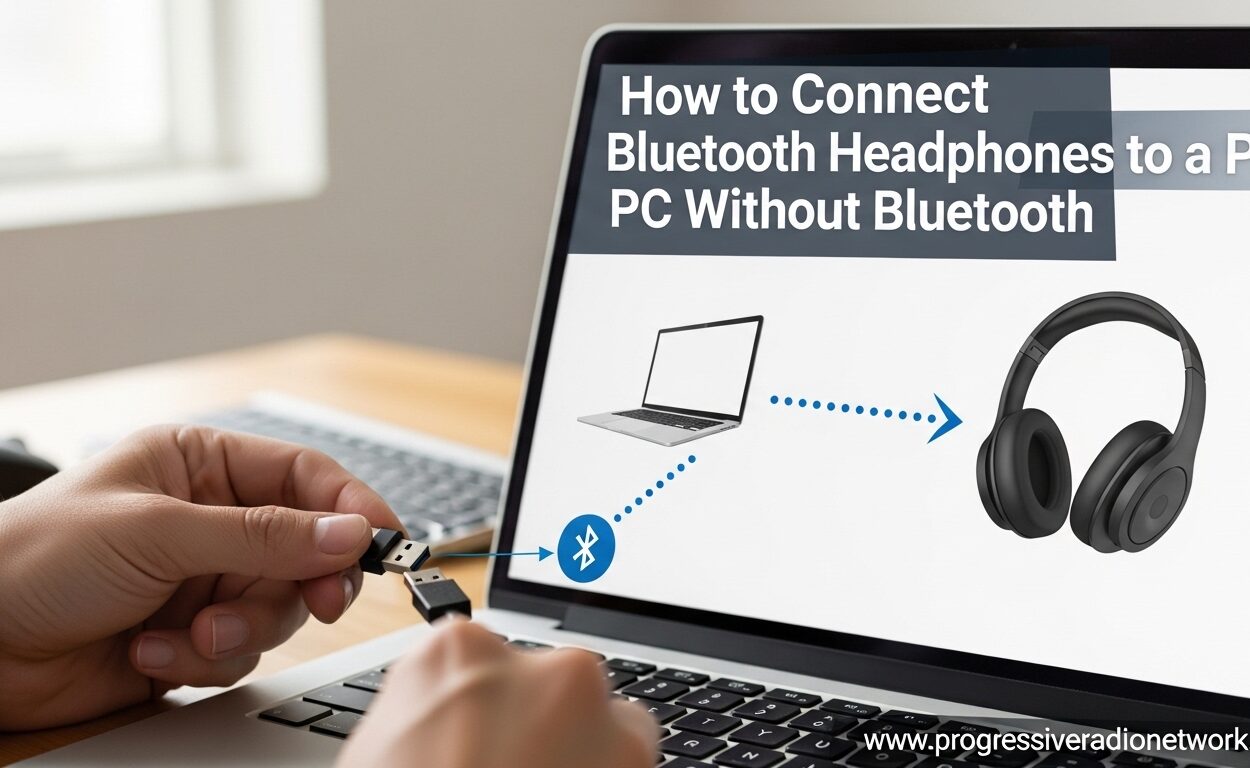
This is the simplest and most reliable solution. A USB Bluetooth adapter (also called a Bluetooth dongle) is a small device that plugs into your computer’s USB port and adds wireless capability instantly.
I’ve been using these adapters for years on test machines. They cost between $5 and $20 and work with virtually any modern Bluetooth headphones. Most reputable brands like TP-Link and ASUS offer plug-and-play models that require no technical knowledge to set up.
What You’ll Need
You’ll need a USB Bluetooth adapter and about five minutes of your time. That’s it. Most adapters are the size of a small thumb drive or even smaller. I keep a few spares in my desk drawer for testing purposes.
The most important specification to check is the Bluetooth version. Look for at least Bluetooth 5.0 for the best range and connection stability. Bluetooth 4.0 will work but offers shorter range and higher latency. Avoid anything older than version 4.0.
Make sure you have a free USB port. USB-A ports are standard on desktops, but modern laptops might only have USB-C. In that case, buy a USB-C Bluetooth adapter or use a simple USB-A to USB-C adapter.
Step-by-Step Installation
Start by plugging the adapter into an available USB port on your computer. Windows 10 and Windows 11 will usually recognize the device automatically and install the necessary drivers within 30 seconds. You’ll see a notification when it’s ready.
If Windows doesn’t install drivers automatically, insert the CD that came with the adapter or visit the manufacturer’s website. Download the latest drivers for your specific Windows version. I’ve found this manual step is only necessary on older Windows 7 machines or with off-brand adapters.
Once installed, open your Bluetooth settings. On Windows 10 and 11, go to Settings, then Bluetooth & devices, and toggle Bluetooth on if it isn’t already. Your adapter is now broadcasting a Bluetooth signal that your headphones can connect to.
Put your headphones in pairing mode. This usually involves holding the power button or a dedicated pairing button until an LED flashes. Check your headphone manual for the exact method. Different brands use different button combinations.
On your PC, click “Add device,” select “Bluetooth,” and wait for your headphones to appear in the list. Click on them when they appear and wait for the connection to complete. You should hear a confirmation sound in your headphones.
Method 2: Bluetooth Audio Transmitter
This method works well if you prefer not to use a USB port or need a dedicated audio solution. A Bluetooth transmitter connects to your PC’s 3.5mm headphone jack and broadcasts audio wirelessly to your headphones.
I tested this setup extensively when reviewing audio equipment for a friend who had strict USB port restrictions at work. It worked surprisingly well for music and video calls, though with some important limitations I’ll explain.
How Bluetooth Transmitters Work
Think of a transmitter as a middleman. It takes the audio signal from your PC’s headphone jack and converts it into a Bluetooth signal your wireless headphones can receive. This bypasses your computer’s lack of Bluetooth entirely.
The transmitter plugs into the green 3.5mm audio output on your PC. Some models are USB-powered but still use the audio jack for the actual sound signal. Others have built-in batteries and are completely wireless, making them portable between devices.
Most transmitters support the standard SBC Bluetooth codec, which offers acceptable audio quality for most users. Higher-end models support aptX Low Latency, which is essential if you plan to watch videos or play games. Regular Bluetooth audio can have a noticeable delay that makes lip-syncing look wrong.
Setting Up the Transmitter
Connect the transmitter to your PC’s 3.5mm audio jack. If it’s USB-powered, plug it into a USB port for power. Battery-powered models just need the audio connection. Turn on the transmitter using its power button.
Put your transmitter in pairing mode. This usually involves holding a button until an LED flashes rapidly. Then put your headphones in pairing mode as well. The two devices should find each other automatically within 10-20 seconds.
Once paired, your PC audio will route through the transmitter to your headphones. Adjust your PC’s volume using the normal volume controls. Some transmitters have their own volume buttons for fine-tuning.
Important Limitations
Transmitters only handle audio output. They cannot send microphone audio back to your PC. If you need to use your headphone’s microphone for calls or gaming, this method won’t work. You’d need a separate microphone or a USB Bluetooth adapter instead.
Audio latency varies significantly between transmitter models. Budget transmitters often have 200-300ms of delay, which is unacceptable for gaming. Look for models advertising “aptX Low Latency” or “sub-40ms delay” if gaming is your priority.
Range is typically shorter than USB adapters, usually around 30 feet compared to 60-100 feet with a good USB dongle. This is because transmitters are optimized for audio quality rather than range.
Method 3: Software Workarounds
If you can’t buy hardware right now or need a temporary solution, software workarounds exist. These methods use your smartphone as a bridge between your PC and headphones. They’re not as elegant as hardware solutions but can work in a pinch.
I experimented with these apps when testing remote work setups during the pandemic. While functional, they come with significant drawbacks that make them unsuitable for permanent use.
Using SoundWire or Similar Apps
SoundWire is the most popular solution for this approach. You install the server software on your Windows PC and the client app on your Android phone. Your phone connects to your Bluetooth headphones, while the app streams audio from your PC to your phone over Wi-Fi.
Both devices must be on the same Wi-Fi network for this to work. The setup involves installing the PC server, opening the phone app, entering your PC’s IP address, and connecting. Once configured, your PC audio plays through your phone and then to your headphones.
Latency is the biggest issue here. Wi-Fi audio streaming adds noticeable delay, usually 100-300ms depending on your network. This makes gaming impossible and video watching frustrating. Audio quality also suffers from the double compression: once from PC to phone, then again from phone to headphones.
Why This Isn’t Ideal
Beyond latency, this method drains your phone battery quickly. Your phone is constantly receiving a Wi-Fi stream and transmitting Bluetooth simultaneously. Expect your battery to deplete 2-3 times faster than normal.
You also can’t use your phone for anything else while acting as a bridge. Taking a call interrupts your PC audio. This method works best as a temporary solution while you wait for a USB adapter to arrive in the mail.
If you absolutely cannot buy hardware, this works for listening to music or casual video watching. For any serious use, spend the $10 on a proper adapter. The improvement in reliability and audio quality is worth every penny.
How to Pair Your Bluetooth Headphones
Once you have your hardware solution in place, pairing your headphones is straightforward. The exact steps vary slightly between Windows 10 and Windows 11, but the general process is identical.
I’ve walked family members through this dozens of times over the phone. The key is putting the headphones in pairing mode first, then searching from the PC. Doing it in reverse order sometimes causes connection issues.
Step-by-Step Pairing on Windows 10
Open Settings by clicking the Start menu and selecting the gear icon. Click “Devices,” then “Bluetooth & other devices.” Make sure Bluetooth is turned on at the top of the page.
Click the plus sign next to “Add Bluetooth or other device.” Select “Bluetooth” from the list of device types. Your PC will start scanning for nearby Bluetooth devices.
Put your headphones in pairing mode. Most headphones enter this mode automatically the first time you turn them on. For subsequent pairings, hold the power button or a dedicated Bluetooth button for 5-10 seconds until you see flashing lights.
Wait for your headphones to appear in the list on your PC. This can take 10-30 seconds. Click on your headphone’s name when it appears. Windows will connect and install any necessary drivers automatically.
You’ll hear a connection sound in your headphones when successful. The device will now appear in your Bluetooth devices list for future connections. Most headphones reconnect automatically when turned on near your PC.
Step-by-Step Pairing on Windows 11
Windows 11 simplifies the process slightly. Click the Start menu and open Settings. Select “Bluetooth & devices” from the left sidebar. Toggle Bluetooth on if it isn’t already.
Click the “Add device” button near the top. Choose “Bluetooth” from the options. Your PC begins scanning immediately.
Put your headphones in pairing mode the same way as described for Windows 10. Wait for them to appear in the list and click on them to connect.
Windows 11 introduces Swift Pair, a faster connection method supported by many modern headphones. If your headphones support this feature, you’ll see a notification pop up when you put them in pairing mode near your PC. Click “Connect” in the notification instead of going through Settings.
Setting as Default Audio Device
After pairing, you might need to set your headphones as the default audio output. Click the speaker icon in your system tray. Select your headphones from the dropdown menu.
For more control, right-click the speaker icon and select “Open Sound settings.” Under “Output,” choose your headphones from the dropdown. You can also adjust volume levels and test the audio here.
If your headphones have a microphone, you’ll also see them listed under “Input” devices. Select them there if you want to use the headphone mic for calls or recordings.
Comparing the Three Methods
Each solution has strengths and weaknesses. Understanding these differences helps you choose the right approach for your specific needs.
I compared these methods side-by-side using the same pair of Sony headphones. The differences in latency and audio quality were immediately obvious. Here’s what you need to know to make an informed decision.
Latency Comparison
Latency refers to the delay between audio leaving your PC and reaching your ears. Lower is better. For gaming or watching videos, latency above 100ms becomes noticeable and annoying.
USB Bluetooth adapters with Bluetooth 5.0 typically achieve 40-80ms latency. This is acceptable for most gaming and video watching. Budget adapters using older Bluetooth versions may reach 150-200ms.
Bluetooth transmitters vary widely. Models with aptX Low Latency codec achieve around 40ms, matching good USB adapters. Standard transmitters without this codec often hit 200-300ms, making them unsuitable for gaming. If low latency matters to you, check out our recommendations for the best low latency Bluetooth headphones to pair with your setup.
Software solutions like SoundWire have the worst latency, typically 150-400ms depending on your Wi-Fi network. This makes them unsuitable for any real-time audio needs.
Audio Quality and Microphone Support
USB adapters provide the most complete solution. They support high-quality audio codecs like AAC and aptX, assuming your headphones support them. They also enable bidirectional audio, meaning your headphone’s microphone works for calls and gaming.
Bluetooth transmitters are audio-output only. You cannot use your headphone’s microphone when connected through a transmitter. Audio quality depends on the transmitter’s codec support. Look for aptX or aptX HD for the best sound.
Software solutions compress audio twice, resulting in noticeable quality loss. The audio sounds flatter and less detailed compared to direct Bluetooth connections. Microphone support varies by app but is generally unreliable.
Cost and Convenience
USB adapters cost $5-20 and provide a permanent, reliable solution. They’re my top recommendation for anyone with a free USB port. Setup takes under five minutes.
Bluetooth transmitters cost $15-40 for decent models with low latency. They’re ideal for users who cannot use USB ports or need a portable solution that works with multiple devices.
Software solutions are free but come with significant compromises. Treat them as temporary fixes rather than permanent solutions.
Troubleshooting Common Issues
Even with the right hardware, you might encounter issues. I’ve troubleshot these problems countless times and can guide you through the most common fixes.
Most problems fall into three categories: connection failures, audio quality issues, and driver problems. Let’s address each one.
Headphones Won’t Connect
If your headphones don’t appear in the Bluetooth device list, first verify they’re in pairing mode. The LED should be flashing rapidly, not slowly or solid. Consult your headphone manual for the exact button combination.
Move your headphones closer to the adapter. Bluetooth range is typically 30 feet, but interference from Wi-Fi routers, microwaves, or other electronics can reduce this. I recommend staying within 10 feet during initial pairing.
Restart both devices. Turn your headphones off and back on. Disable and re-enable Bluetooth on your PC. Sometimes the Bluetooth stack gets stuck and needs a reset.
Remove the device and re-pair. If your headphones appear but won’t connect, click them in the Bluetooth devices list and select “Remove device.” Then put your headphones back in pairing mode and add them fresh.
Audio Sounds Bad or Keeps Cutting Out
Intermittent audio usually indicates interference or range issues. USB 3.0 ports can interfere with Bluetooth signals. Try moving your adapter to a USB 2.0 port if available, or use a USB extension cable to move the adapter away from your PC.
Check for Wi-Fi interference. If your router is nearby and broadcasting on 2.4GHz, it might conflict with Bluetooth. Try changing your Wi-Fi router to 5GHz only if your devices support it.
Low audio quality often stems from the “Hands-Free Telephony” profile. Windows sometimes defaults to this lower-quality mode for microphone support. In Sound settings, click “Device properties” for your headphones and disable any telephony-related options to force high-quality stereo audio.
Microphone Not Working
First, verify your Bluetooth adapter actually supports microphone input. Most do, but some ultra-budget models are audio-output only. Check the product specifications.
In Windows Sound settings, check that your headphones are selected as the default input device. Right-click the speaker icon, open Sound settings, and look under “Input.” Select your headphones from the dropdown.
Some apps need their input device configured separately. In Discord, Zoom, or your game settings, manually select your headphone microphone instead of using the default device.
High Audio Latency for Gaming
If you notice audio lag while gaming, your headphones or adapter might not support low-latency codecs. Unfortunately, Windows doesn’t give you much control over codec selection.
Consider switching to wired gaming headphones for competitive gaming. No wireless solution matches the zero-latency performance of a wired connection. For casual gaming, USB adapters with Bluetooth 5.0 are usually acceptable.
Disable any audio enhancement software. Some gaming headsets come with companion apps that add processing delay. Turn off surround sound effects or equalizer settings to reduce latency.
Driver Issues on Windows 7
Windows 7 requires manual driver installation for most Bluetooth adapters. Insert the driver CD that came with your adapter or download drivers from the manufacturer’s website.
If Windows complains about unsigned drivers, you’ll need to disable driver signature enforcement temporarily. Search online for “Windows 7 disable driver signature enforcement” for the current method, as it varies by update version.
Consider upgrading to Windows 10 if possible. Windows 7 is no longer receiving security updates and lacks modern Bluetooth stack improvements. Many newer Bluetooth adapters don’t support Windows 7 at all.
What to Look for in a Bluetooth Adapter
If you’ve decided on a USB Bluetooth adapter, choosing the right one matters. Not all adapters perform equally. I’ve tested enough cheap adapters that failed within weeks to know it’s worth spending a few extra dollars.
Here’s what to prioritize when shopping for an adapter in 2026.
Bluetooth Version Matters
Always choose Bluetooth 5.0 or newer. Bluetooth 5.3 adapters are now available and offer minor improvements in stability and range. Version 5.0 provides double the range and four times the speed of the older 4.2 standard.
Older 4.0 adapters still work but offer poor range and higher latency. I no longer recommend them even for basic music listening. The price difference between 4.0 and 5.0 adapters is usually under $5.
Your headphones also need to support the same Bluetooth version to get full benefits. Most headphones manufactured after 2019 support Bluetooth 5.0 or newer.
Trusted Brands
Forum discussions and my own testing consistently recommend TP-Link and ASUS for reliable USB Bluetooth adapters. The TP-Link UB500 and ASUS USB-BT500 are popular models that work reliably across Windows versions.
Avoid no-name brands from unknown manufacturers. I’ve had adapters from obscure brands stop working after Windows updates or fail to connect consistently. The $2-3 savings isn’t worth the headache.
Price expectations are $8-15 for a quality Bluetooth 5.0 adapter. Anything under $5 is suspiciously cheap and likely to disappoint. Premium adapters with extended range or multiple device support cost $20-30.
USB Port Considerations
USB-A is still the standard for most desktop PCs. Adapters are small enough that they barely protrude from the port. Some ultra-compact models are designed to stay plugged in permanently without risk of snagging.
For laptops with only USB-C ports, you have two options. Buy a USB-C specific Bluetooth adapter, or use a USB-C to USB-A adapter with a standard dongle. I prefer the USB-C native adapters for laptops since they don’t require a separate adapter.
Consider a USB extension cable if you experience interference. Moving the adapter just 6-12 inches away from your PC can significantly improve signal quality. A $3 extension cable is cheaper than replacing your adapter.
Frequently Asked Questions
Can I connect my Bluetooth headphones to my PC without Bluetooth?
Yes, you can connect Bluetooth headphones to a PC without built-in Bluetooth by using a USB Bluetooth adapter, a Bluetooth audio transmitter, or software workarounds. The USB adapter method is the most reliable and affordable solution, costing $5-20 and requiring no technical expertise.
How to get Bluetooth on a PC with no Bluetooth?
The easiest way to add Bluetooth to a PC without built-in support is to purchase a USB Bluetooth adapter (dongle). Plug it into any available USB port, wait for Windows to install drivers automatically, then pair your Bluetooth headphones through Windows Settings. This process takes under 5 minutes on Windows 10 or 11.
Is there a way to connect Bluetooth headphones without Bluetooth?
Without any Bluetooth hardware, you can use software workarounds like SoundWire that stream PC audio to your phone over Wi-Fi, which then plays through your Bluetooth headphones. However, this introduces significant latency and audio quality loss. A USB Bluetooth adapter is a much better permanent solution.
How do I manually connect headphones to PC?
To manually connect Bluetooth headphones, first put them in pairing mode by holding the power or Bluetooth button until the LED flashes. Open Windows Settings, go to Bluetooth & devices, click Add device, select Bluetooth, and wait for your headphones to appear. Click on them to complete the connection. You’ll hear a confirmation sound when paired successfully.
Will a cheap Bluetooth adapter cause audio delay?
Budget Bluetooth adapters using older Bluetooth 4.0 standards can cause 150-200ms of audio delay, which is noticeable when watching videos or gaming. Bluetooth 5.0 adapters from reputable brands typically achieve 40-80ms latency, which is acceptable for most uses. For gaming, look for adapters and headphones that support aptX Low Latency codec.
Can I use my headphone microphone with a USB adapter?
Yes, most USB Bluetooth adapters support bidirectional audio, allowing you to use your headphone’s built-in microphone for calls and gaming. However, the microphone will use a lower-quality audio profile that reduces music quality when active. Some ultra-budget adapters are audio-output only, so check specifications before purchasing if microphone support is important.
Conclusion
Connecting Bluetooth headphones to a PC without Bluetooth is easier than most people assume. A simple USB Bluetooth adapter solves the problem for under $20 and takes minutes to set up. This remains the best solution for the vast majority of users in 2026.
For those who cannot use USB ports, Bluetooth transmitters offer a workable alternative with some limitations. Software solutions exist but should be temporary fixes only. The key is choosing the right method for your specific needs and understanding the trade-offs involved.
I’ve walked you through checking your PC’s Bluetooth status, three different connection methods, detailed pairing instructions, and troubleshooting common problems. You now have everything needed to get your wireless audio working. For the best experience, invest in a quality Bluetooth 5.0 adapter from a reputable brand and consider pairing it with the best headphones for PC gaming to complete your setup.
Stop wrestling with cables and enjoy the freedom of wireless audio. Your desktop PC can join the wireless revolution with minimal effort and expense.




Leave a Comment