
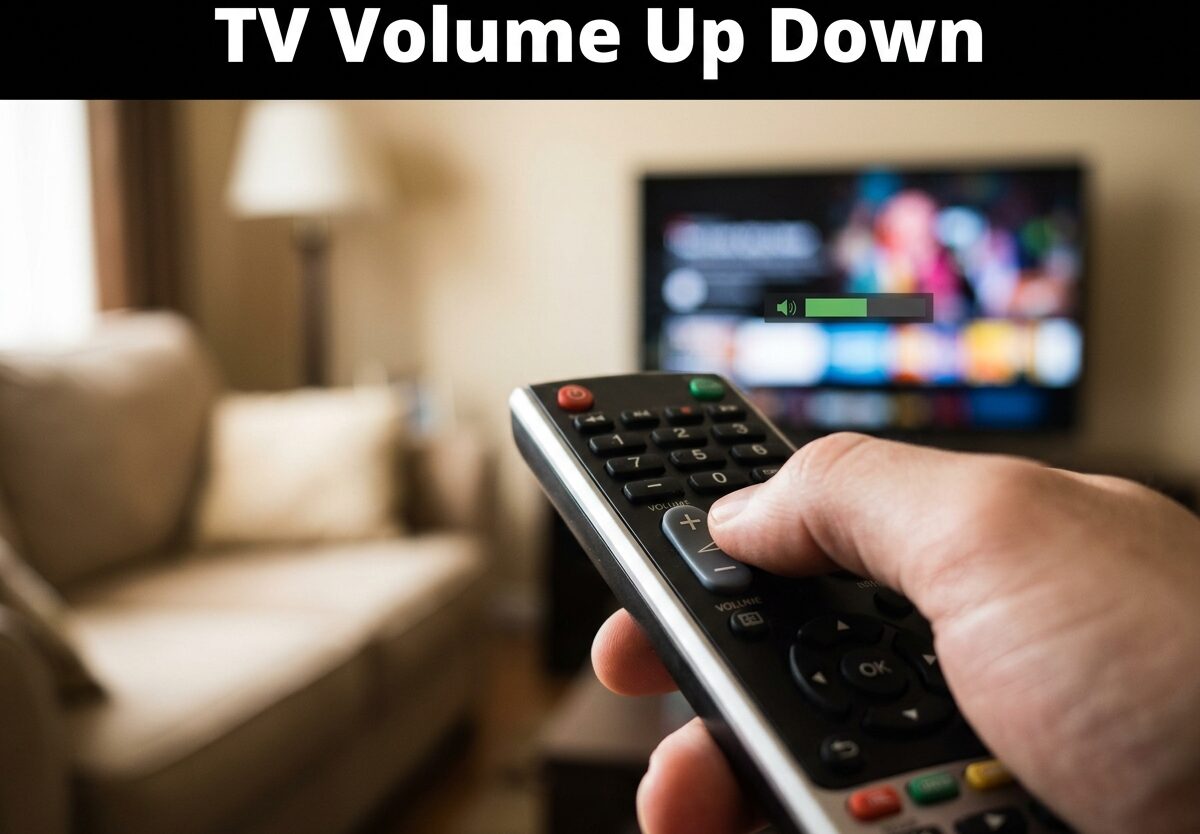
There’s nothing more frustrating than settling in for your favorite show, only to have the TV volume suddenly spike during a quiet scene or drop to a whisper during dialogue. If you’ve experienced your TV volume going up and down without touching the remote, you’re not alone. This annoying problem affects thousands of TV owners across all major brands, and the causes range from simple stuck buttons to complex software glitches. I’ve researched the most common solutions and compiled this comprehensive troubleshooting guide to help you fix your TV volume up down problem once and for all.
Why Would My TV Volume Go Up and Down?
Understanding the root cause of your TV volume fluctuation is the first step toward fixing it. Based on community forums and expert technician responses, most TV volume up down problems stem from five main causes.
The most common culprit is a stuck button on your remote control. When the volume up or down button gets stuck in a pressed position, it continuously sends signals to your TV, causing the volume to change automatically. This often happens when food crumbs, dirt, or moisture accumulate beneath the rubber buttons. I’ve seen this issue frequently with older remotes that have been dropped or exposed to spills.
Auto volume settings are another frequent cause. Modern TVs come with features like auto volume leveling, volume compression, and dynamic range control designed to normalize sound across different programs and commercials. However, these features can malfunction or work too aggressively, creating noticeable volume fluctuations that feel like the TV has a mind of its own.
Firmware glitches and software bugs also cause TV volume to change by itself. Like any computer, your TV’s software can develop bugs over time, especially after automatic updates. These glitches might cause the TV’s internal volume control to malfunction, resulting in random volume changes even when no remote input is detected.
IR sensor interference can prevent your TV from properly receiving remote signals. When the infrared receiver on your TV becomes dirty, obstructed, or damaged, it may misinterpret signals or fail to register your remote inputs correctly. This can make it seem like your TV volume is changing on its own when it’s actually receiving corrupted or intermittent signals.
Finally, external devices connected to your TV can sometimes cause volume conflicts. Cable boxes, streaming devices, and sound bars each have their own volume controls that can interfere with your TV’s internal settings, creating confusing situations where volume seems to change unpredictably.
How to Fix TV Volume Up Down: Step-by-Step Troubleshooting
Before you consider calling a repair technician or buying a new TV, try these proven solutions in order. I’ve organized these from easiest to most complex, so you can stop as soon as you find the fix that works for your situation.
Step 1: Check Your Remote Control
Remove the batteries from your remote control and wait 30 seconds. If the TV volume stops fluctuating while the batteries are out, you’ve confirmed the remote is the problem. Press each button multiple times to dislodge any debris that might be stuck underneath. For a thorough cleaning, use compressed air to blow out dust and crumbs from around the buttons.
If cleaning doesn’t solve the issue, test with a universal remote or your TV manufacturer’s mobile app. These alternatives can help determine if the problem is with your physical remote hardware or something else entirely. Many users find that simply replacing their remote fixes the TV volume up down problem completely.
Step 2: Disable Auto Volume Settings
Access your TV’s sound settings menu by pressing the Menu button on your remote. Look for audio features with names like “Auto Volume,” “Volume Leveling,” “Steady Sound,” “DRC,” or “Dynamic Range Control.” These features vary by manufacturer but serve the same purpose of automatically adjusting volume levels.
Turn off any auto volume or normalization features you find. On Samsung TVs, this is often called “Auto Volume” and found under Settings > Sound > Expert Settings. LG TVs call it “Auto Volume” under Settings > Sound > Sound Mode. Vizio refers to it as “Volume Leveling” in the audio settings menu. Disabling these features stops the TV from making automatic volume adjustments that might be causing your fluctuation problem.
Step 3: Perform a Power Reset
A simple power reset can resolve many temporary software glitches causing TV volume issues. Start by turning off your TV using the power button. Unplug the TV from the electrical outlet and wait at least 60 seconds. This extended wait time allows the TV’s capacitors to fully discharge and clears temporary memory.
While the TV is unplugged, press and hold the physical power button on the TV itself for 30 seconds. This step helps discharge any remaining electrical charge. After waiting the full minute, plug the TV back in and turn it on. Test whether the volume fluctuation problem has been resolved. This simple fix works for many users, especially those who recently experienced a power surge or firmware update.
Step 4: Check for Firmware Updates
Outdated TV firmware can contain bugs that cause various operational issues, including volume problems. Navigate to your TV’s settings menu and look for “Support,” “About,” or “System” options. Within these menus, find “Software Update” or “Firmware Update” and check for available updates.
If an update is available, download and install it while ensuring the TV remains plugged into a stable power source. Firmware updates often include fixes for known bugs and can resolve persistent TV volume up down issues. I recommend checking for updates every few months to keep your TV running smoothly.
Step 5: Clean the IR Sensor
Locate the IR sensor on your TV, typically a small dark window on the front or bottom bezel. Use a soft, dry cloth to gently clean this area, removing any dust, dirt, or fingerprints that might interfere with remote signals. For stubborn grime, slightly dampen the cloth with water, but avoid using cleaning solutions that could damage the sensor.
Ensure nothing is blocking the line of sight between your remote and the TV’s IR receiver. Move any objects that might be obstructing the signal path. If you recently added new furniture or decorations near your TV, these could be interfering with the remote signal and causing volume control issues.
Step 6: Test with External Devices Disconnected
Disconnect all external devices including cable boxes, gaming consoles, streaming sticks, and sound bars. Power cycle your TV and test the volume control using only the built-in speakers and antenna input or a streaming app. If the volume stabilizes with external devices disconnected, reconnect them one at a time to identify which device is causing the conflict.
Once you identify the problematic device, check its own audio settings. Many cable boxes and streaming devices have their own volume normalization features that can conflict with your TV’s settings. Adjusting these external device settings often resolves TV volume fluctuation problems caused by connected equipment.
Brand-Specific TV Volume Troubleshooting
While the general troubleshooting steps above work for most TVs, some brands have unique features or common issues worth addressing specifically.
Samsung TV Volume Issues
Samsung TVs are known for their auto volume feature, which can cause noticeable volume changes. Navigate to Settings > Sound > Expert Settings and turn off “Auto Volume.” Some Samsung models also have a “Sound Sensor” feature that automatically adjusts volume based on ambient noise—disable this if you’re experiencing fluctuations. For persistent issues, try selecting an unused source input, raise volume to maximum, then press volume down and quickly remove the remote batteries to reset the volume control system.
LG TV Volume Fluctuation
LG TVs offer “Auto Volume” and “Volume Mode” settings that can cause issues. Access Settings > Sound > Sound Effect and disable these features. LG also includes “Magic Sound Tuning” which attempts to optimize audio for your room—turn this off if it’s causing problems. Some LG users report that a simple factory reset resolves persistent volume issues, though this should be a last resort as it erases all your custom settings.
Vizio TV Volume Problems
Vizio TVs include “Volume Leveling” that can cause volume changes. Go to Menu > Audio > Volume Leveling and turn it off. Vizio also offers “DTS TruVolume” technology—disable this feature if you’re experiencing automatic volume adjustments. Some Vizio models have known issues with the HDMI-CEC feature causing volume conflicts with connected devices—try turning off CEC control to see if it resolves your problem.
Hisense TV Volume Fluctuation
Hisense TVs include “Auto Volume Control” in their audio settings. Navigate to Settings > Sound > Advanced Sound and disable this feature. Hisense also offers various sound modes like “Standard,” “Movie,” “Music,” and “Sports”—try switching between these modes to see if one provides more stable volume control. Some Hisense users report that disabling the “Dolby Audio” feature resolves volume fluctuation issues with certain content.
Tips for Better TV Audio (Senior-Friendly Solutions)
For viewers who struggle with TV audio, whether due to hearing difficulties or simply wanting a better viewing experience, several solutions can help improve clarity and consistency.
Enable dialogue enhancement features on your TV if available. Many modern TVs offer “Dialogue Mode,” “Clear Voice,” or similar settings that boost speech frequencies to make conversations easier to understand. These features are particularly helpful for seniors or anyone who finds themselves constantly adjusting the volume to hear dialogue.
Consider using headphones or a wireless audio system. Many TVs offer Bluetooth connectivity that allows you to pair headphones directly. This gives you personalized volume control without affecting others in the room. Some TV models even support independent volume control for headphones versus built-in speakers.
Invest in a sound bar with dialogue enhancement. Unlike TV speakers, which often prioritize bass over speech clarity, quality sound bars include dedicated center channels and voice-optimization technologies that make conversation much clearer. Look for models with “Dialogue Mode,” “Voice Enhancement,” or “Center Channel” features specifically designed to improve speech intelligibility.
Adjust your TV’s equalizer settings manually. Reduce bass frequencies and boost mid-range frequencies where human voices reside. This simple adjustment can dramatically improve dialogue clarity without requiring volume increases that might disturb others. Most TVs offer basic equalizer controls in their audio settings menu.
Use closed captions as a supplement to audio. Modern TVs offer customizable caption options including text size, color, and background. Enabling captions ensures you never miss important dialogue, even during action-heavy scenes or when characters speak quietly.
FAQ
Why would my TV volume go up and down?
TV volume fluctuation is typically caused by stuck remote buttons, auto volume settings malfunctioning, firmware glitches, IR sensor interference, or conflicts with external devices. The most common cause is a stuck volume button on the remote, which continuously sends signals to the TV. Auto volume leveling features can also cause unwanted adjustments when they malfunction.
How to fix volume automatically goes up and down?
Start by removing your remote batteries to rule out stuck buttons. Then disable auto volume settings in your TV’s audio menu. Perform a power reset by unplugging the TV for 60 seconds. Check for firmware updates and clean the IR sensor. If the issue persists, disconnect all external devices and test with only the TV’s built-in speakers. For persistent problems, consult your TV manufacturer’s support or consider professional repair.
Why does my TV volume change during commercials?
TV volume changes during commercials are often caused by auto volume leveling features working incorrectly, or by actual volume differences in broadcast signals. Commercials are often compressed to sound louder, and your TV’s auto volume feature might overcompensate. Disable auto volume, volume leveling, or DRC (Dynamic Range Control) settings in your TV’s audio menu to prevent these fluctuations.
How to hear TV better for seniors?
Enable dialogue enhancement features like “Clear Voice” or “Dialogue Mode” in your TV’s audio settings. Use headphones or wireless audio systems for personalized volume control. Consider a sound bar with dedicated center channels for improved speech clarity. Adjust the equalizer to boost mid-range frequencies where voices reside. Enable customizable closed captions as a supplement to audio.
Conclusion
TV volume fluctuation problems are annoying but almost always fixable without professional help. The most common causes—stuck remote buttons, auto volume settings, and temporary software glitches—can usually be resolved with simple troubleshooting steps. I recommend starting with the easiest solutions first: check your remote, disable auto volume features, and perform a power reset. These basic fixes resolve the majority of TV volume up down problems.
If you’ve tried all the troubleshooting steps and your TV volume continues to fluctuate, it may be time to consult your manufacturer’s support resources or consider professional repair. However, most users find that one of the solutions outlined in this guide resolves their issue completely. Remember to keep your TV firmware updated and perform regular maintenance on your remote to prevent future volume control problems.




Leave a Comment