
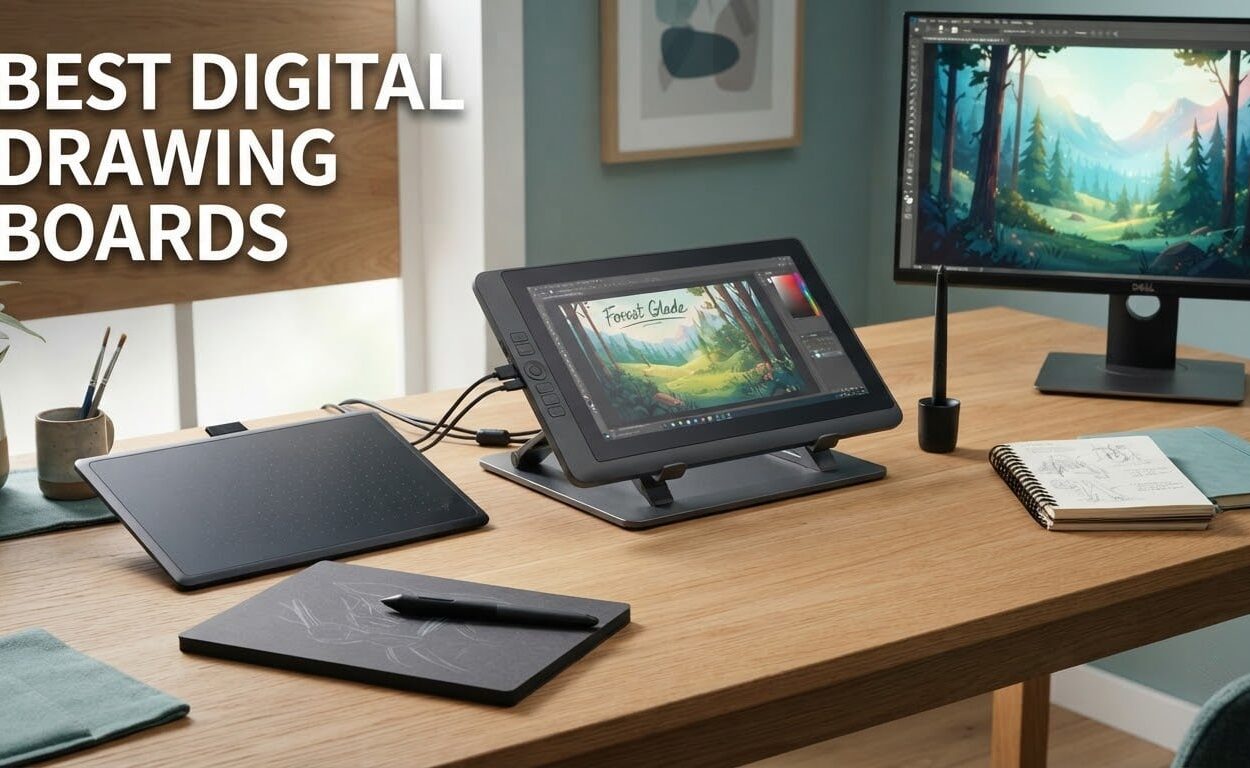
If you have been searching for a digital drawing board, you have probably noticed that the search results all say drawing tablet instead. They are the same family of hardware, and the phrase covers three very different devices: screenless pen tablets you draw on while looking at a monitor, pen displays with a screen you draw directly on, and standalone tablets that run drawing apps with no computer at all. Getting that distinction right is the difference between a board that fits your desk and one that ends up in a drawer.
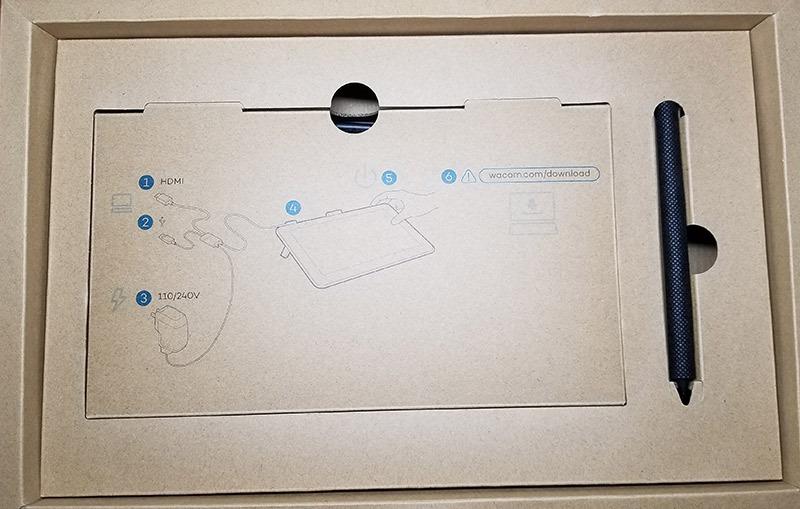
Our team has spent the last few months working across this whole lineup rather than a single brand, because the biggest mistake we see is buying a pen display first when a screenless board would have done the job. We compared active area, pen weight, tilt behavior, driver stability and the in-box accessories across twelve boards. That last point matters more than most spec sheets admit: a spare nib kit, a pen holder and a working USB-C cable are often the difference between a board you use daily and one that stays boxed up.
This guide covers all three categories so you can cross-shop them in one place, which none of the big roundup pages we studied do. We also flag left-side compatibility for southpaw artists, we price the hidden setup extras, and we tell you honestly where the cheap boards stop being cheap. If you are still working traditionally, our professional colored pencils guide is the better starting point, but for anything screen-based, the picks below are tested and current for 2026.
What Is a Digital Drawing Board? Three Tablet Types Explained
A digital drawing board is any pressure-sensitive surface used to create artwork on a computer or tablet. A digitizer underneath or behind the surface tracks the stylus position, tilt and pressure, then converts them into brush strokes or a cursor inside your drawing software. Battery-free EMR pens pick up the signal electromagnetically, so the pen itself never needs charging.
Screenless pen tablets
These have a matte drawing surface with no display. You watch a separate monitor and move your hand over the pad. Every entry-level board in this roundup except two is a screenless pen tablet, and they remain the cheapest, lightest and most reliable way to start drawing digitally.
Pen displays (drawing tablets with a screen)
A pen display puts a screen where the drawing surface is, so your hand, the pen tip and the cursor are in the same place. Three boards in this lineup qualify. They cost more, take up more desk space and need two connections, but they remove the hand-eye coordination problem that trips up traditional-media artists.
Standalone tablets
A standalone tablet is a full computer with a pen screen, which is why none of the twelve boards below is one. If you already own an iPad or an Android tablet with a pen, you have a standalone device and no purchase is required. The catch is that iPads need a specific Apple Pencil and most Android tablets need an active stylus, neither of which is universal.
Our Top 3 Picks for Digital Drawing Boards in 2026
The most recommended board here is the Wacom Intuos Small, because it has the highest rating and by far the deepest review history in the group. The XP-Pen Deco 01 V3 takes the value slot with a much larger surface than anything else near it, and the XP-Pen Artist12 is the pen display that finally makes hand-eye coordination disappear for new artists.

Wacom Intuos Small
- ✓Battery-free EMR pen
- ✓6 x 3.7 inch active area
- ✓4096 pressure levels
- ✓4 ExpressKeys

XP-Pen Deco 01 V3
- ✓16384 levels with 60-degree tilt
- ✓10 x 6.25 inch active area
- ✓8 programmable shortcut keys
- ✓Linux and Android support

XP-Pen Artist12
- ✓11.6 inch 1920x1080 IPS screen
- ✓8192 pressure levels
- ✓6 shortcut keys and a touch bar
- ✓100% sRGB color gamut
Best Digital Drawing Boards at a Glance in 2026
Every board below draws with a battery-free stylus and none of them requires a subscription. The table sorts out the three categories and the specs that actually change your work: working area, pressure levels, connection type and whether a computer is mandatory.
| Product | Features | Action |
|---|---|---|
| Wacom Intuos Small |
|
Check Latest Price |
 XP-Pen StarG640 XP-Pen StarG640 |
|
Check Latest Price |
 GAOMON S620 GAOMON S620 |
|
Check Latest Price |
| XP-Pen Deco 01 V3 |
|
Check Latest Price |
 HUION Inspiroy H640P HUION Inspiroy H640P |
|
Check Latest Price |
| XP-Pen Artist12 |
|
Check Latest Price |
 HUION Inspiroy H1060P HUION Inspiroy H1060P |
|
Check Latest Price |
 GAOMON PD1161 GAOMON PD1161 |
|
Check Latest Price |
 UGEE M708 UGEE M708 |
|
Check Latest Price |
 Wacom One HD 13.3 Wacom One HD 13.3 |
|
Check Latest Price |
 HUION Kamvas 13 Gen 3 HUION Kamvas 13 Gen 3 |
|
Check Latest Price |
 UGEE UE16 15.4 UGEE UE16 15.4 |
|
Check Latest Price |
1. Wacom Intuos Small – The Reference Starter Board
- ✓Battery-free EMR pen with a paper-like feel
- ✓Works with any drawing or design software
- ✓Durable matte drawing surface
- ✓4 ExpressKeys plus 2 programmable pen buttons
- ✕6 x 3.7 inch active area feels cramped for illustration
- ✕Only a few spare nibs in the box
- ✕Wired connection can force an awkward wrist angle
Active area: 6 x 3.7 inch
Pressure: 4096 levels
Connection: USB-A wired
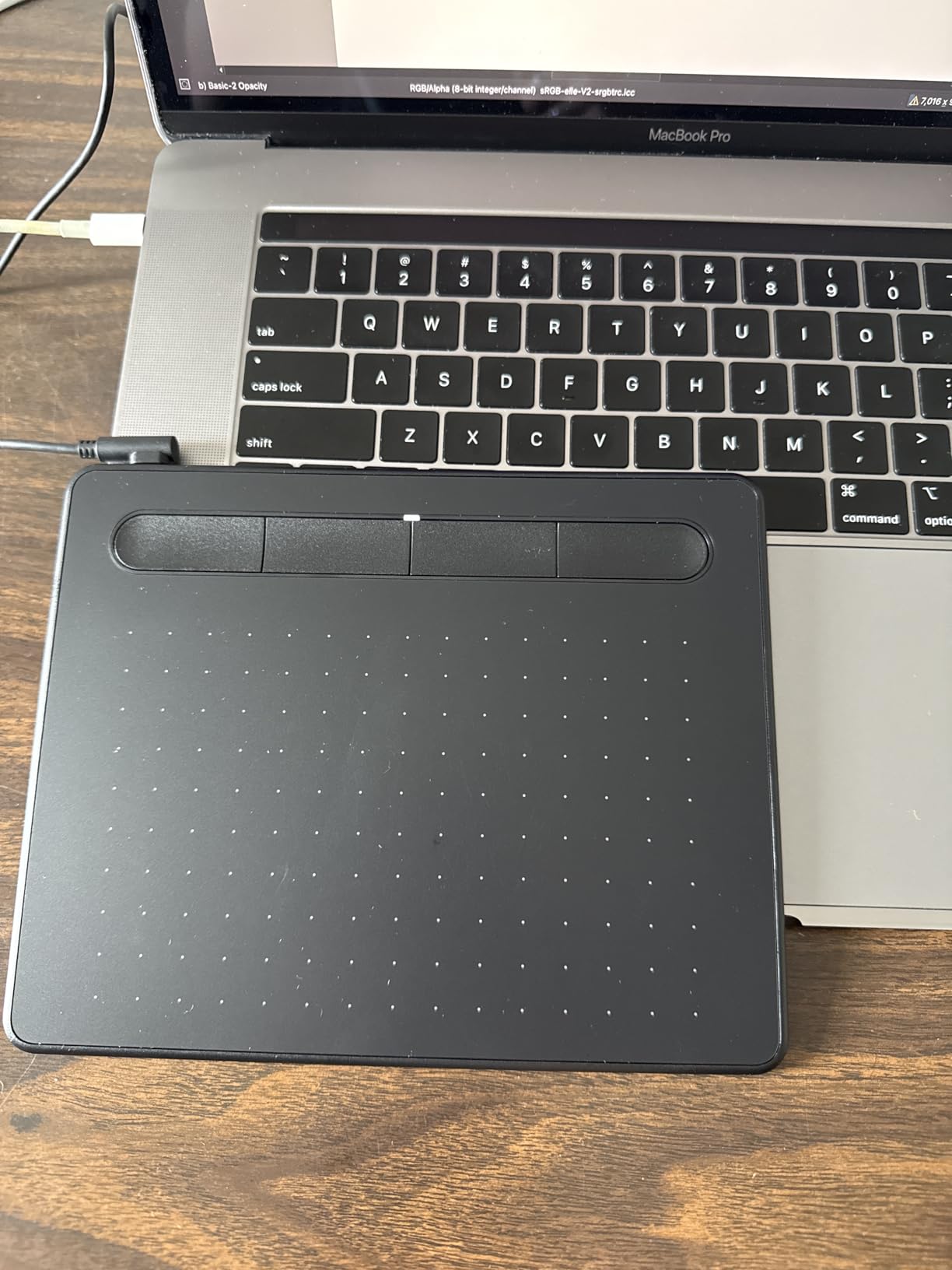
The Intuos Small is the board we hand to people who ask whether digital drawing is worth trying. It weighs 8.1 ounces, it is 6.3 by 7.87 inches, and the whole point is that nothing about it demands attention. You plug in the USB-A cable, install the Wacom driver, and the pen works in whatever program is open.
Reviewers consistently describe the EMR pen as the closest thing to a real pencil in this price bracket. The 4096 pressure levels are the lowest specification on this list, and in practice you will not notice that on line work, clean ink, or flat digital illustration. You will notice it if you paint long soft gradients with a big round brush.
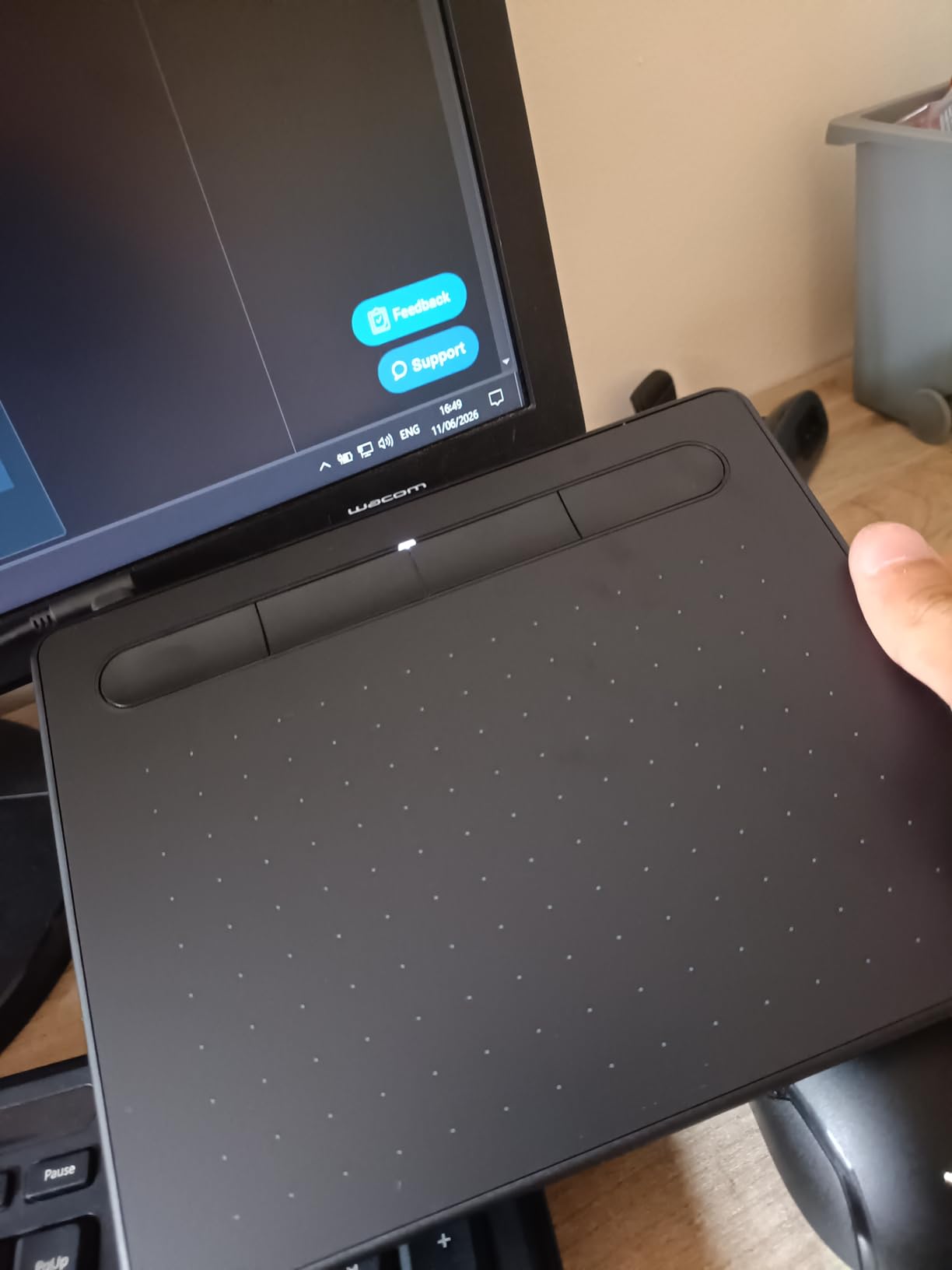
Pen feel and the four ExpressKeys
Four ExpressKeys sit along the top edge and map to middle-click, right-click, switch and undo by default, with a second tap opening a radial menu. Owners using this for a long daily session tell us those four buttons plus two configurable pen buttons remove almost all keyboard reaching. The matte surface resists scratching, which matters more than it sounds because pencil ferrules and fingernails find weak coatings quickly.
Where the small active area gets awkward
Six by 3.7 inches is the honest weak point. It is fine for thumbnails, note-taking, sketching in Zoom and signing documents. The moment you start a detailed illustration you run out of room and start scaling the canvas to compensate. Reviewers also flag that the spare nibs in the box wear down quickly, so budget for replacement nibs early.
Driver reliability and platform support
This is where Wacom earns the badge. The driver is the most stable in the lineup across Photoshop, Illustrator, Krita and Affinity, it handles per-application profiles, and Linux users report it working without a fight. The trade-off is USB-A only on this model, so modern laptops with only USB-C ports need an adapter that you supply yourself.
If you are still deciding whether you want to draw digitally at all, start here. If you already know you want to draw and you need a bigger surface, jump to the Deco 01 V3 or the H1060P.
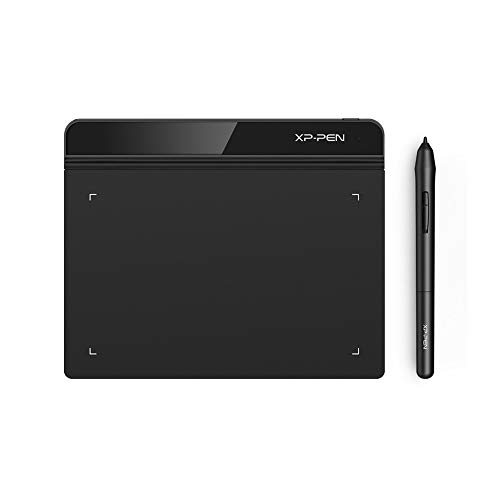
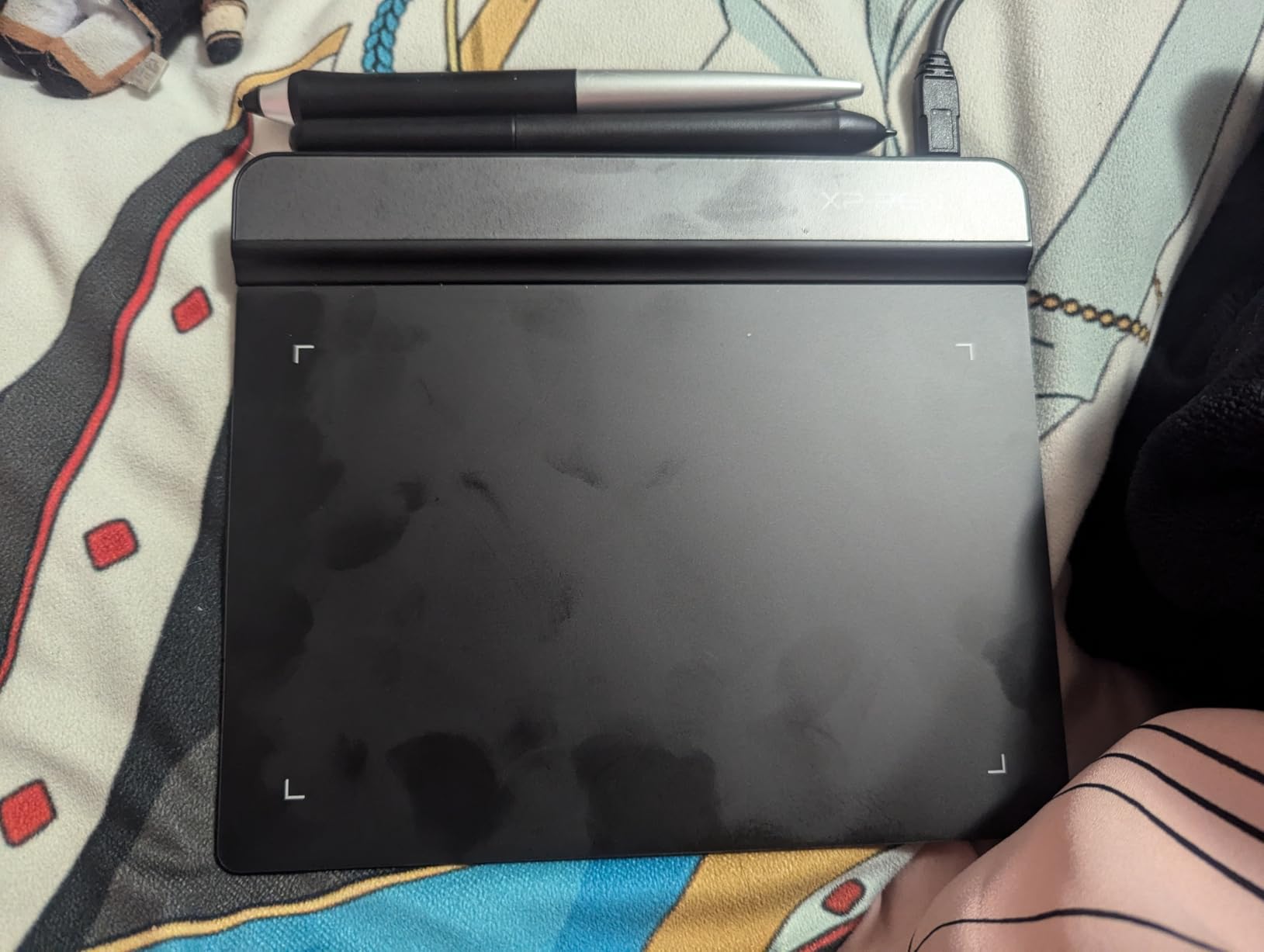
2. XP-Pen StarG640 – The Thinnest Board for Travel Sketching
- ✓2 mm thin body fits a laptop bag
- ✓20 spare nibs and a nib tool included
- ✓Plug-and-play on Windows Mac and Chromebook
- ✓Battery-free PN01 stylus with smooth lines
- ✕No express keys on the board
- ✕6 x 4 inch area is small for detail
- ✕Stylus feels light and plasticky to experienced pen users
Active area: 6 x 4 inch
Pressure: 8192 levels
Thickness: 2 mm
The StarG640 exists for one reason: to be 2 millimeters thin. That is roughly the thickness of a phone case, and it is why this board shows up in lecture halls, on airplane trays and in shared studio lockers. For anyone drawing away from a proper desk, that is not a gimmick, it is the whole feature.
Pressure sensitivity is 8192 levels, which is double the Wacom Intuos Small and more than enough for line art, lettering and concept thumbnails. The battery-free PN01 stylus draws smooth, low-latency lines with no charging downtime, and it carries two side buttons for eraser and right-click even though the board itself has no shortcut keys.
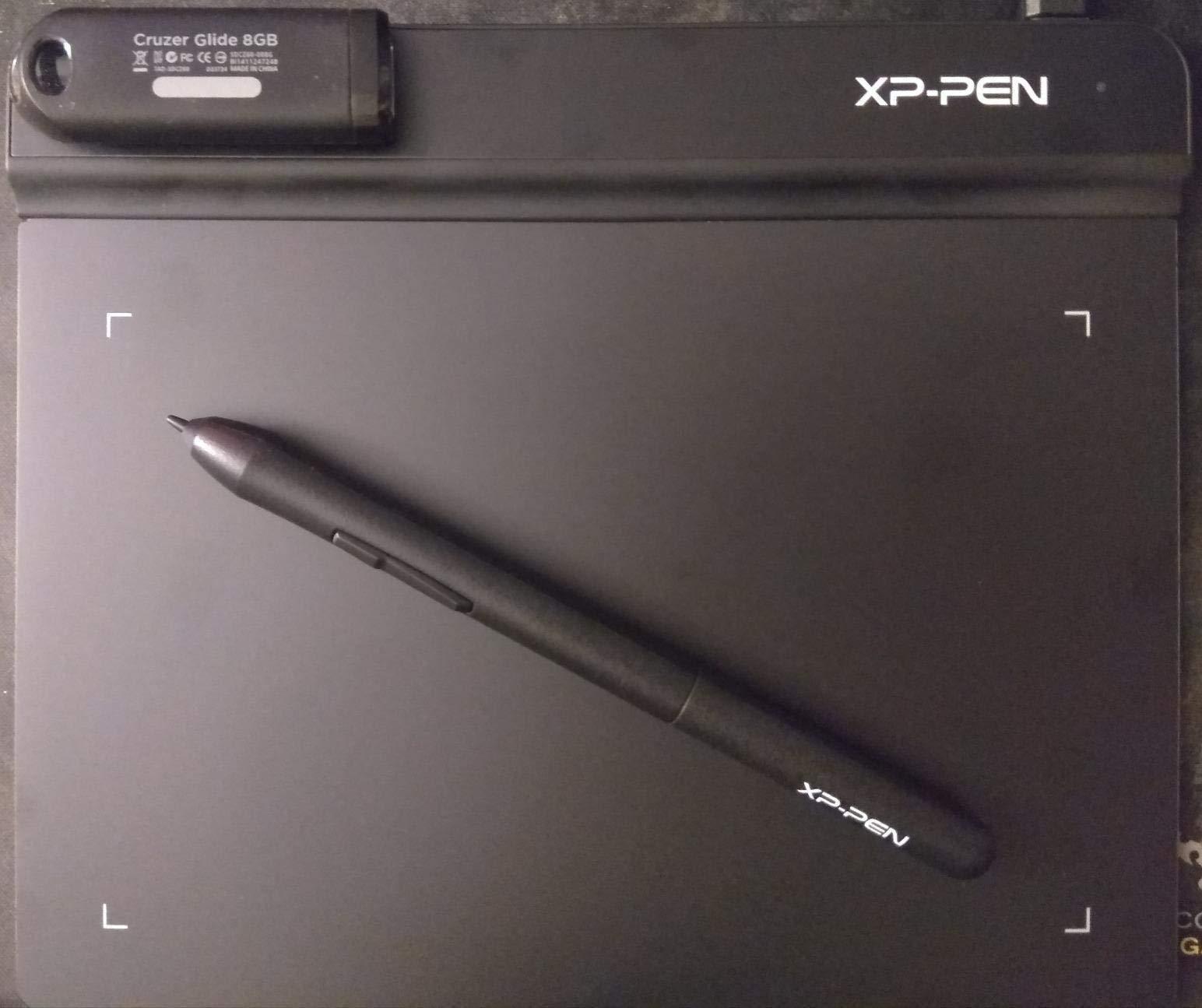
Setup and Chromebook support
This is genuinely plug-and-play on Windows 7 and later, Mac OS X 10.10 or later, and Chrome OS 88 or later, with a 40-page quick start guide in the box. Owners teaching remotely mention compatibility with Word, PowerPoint, OneNote, Zoom and XSplit as the reason they picked it. Linux works but depends on community tablet drivers rather than a vendor-supported package.
The stylus and the surface
Experienced pen users are the loudest critics here, describing the PN01 as light and plasticky compared with a rubber-gripped pen. The glossy surface also collects fingerprints quickly, and the sharp corners catch a wrist during long sessions. None of that stops you drawing, but if pen feel is your top priority, spend up a level.
Best use cases
Note-taking, e-signatures, whiteboard apps, rhythm games and sketching in class are where this board shines. Reviewers place it firmly in the first-tablet category rather than an illustration machine, and they are right. The included 20 replacement nibs are among the most generous in the group.
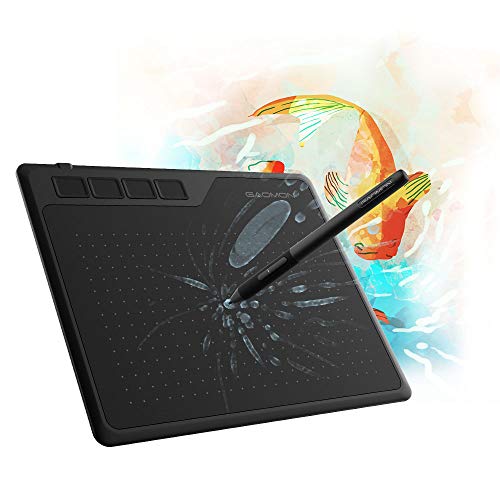
3. GAOMON S620 – Four Hot Keys at a Starter Price
- ✓Four customizable express keys out of the box
- ✓Battery-free AP32 pen with 8192 levels
- ✓5080 LPI and 266 PPS report rate
- ✓Works with Linux through OpenTabletDriver
- ✕6.5 x 4 inch area is tight for illustration
- ✕Pen needs more pressure than users expect
- ✕Buttons feel cheap and slightly stiff
Active area: 6.5 x 4 inch
Pressure: 8192 levels
Hot keys: 4
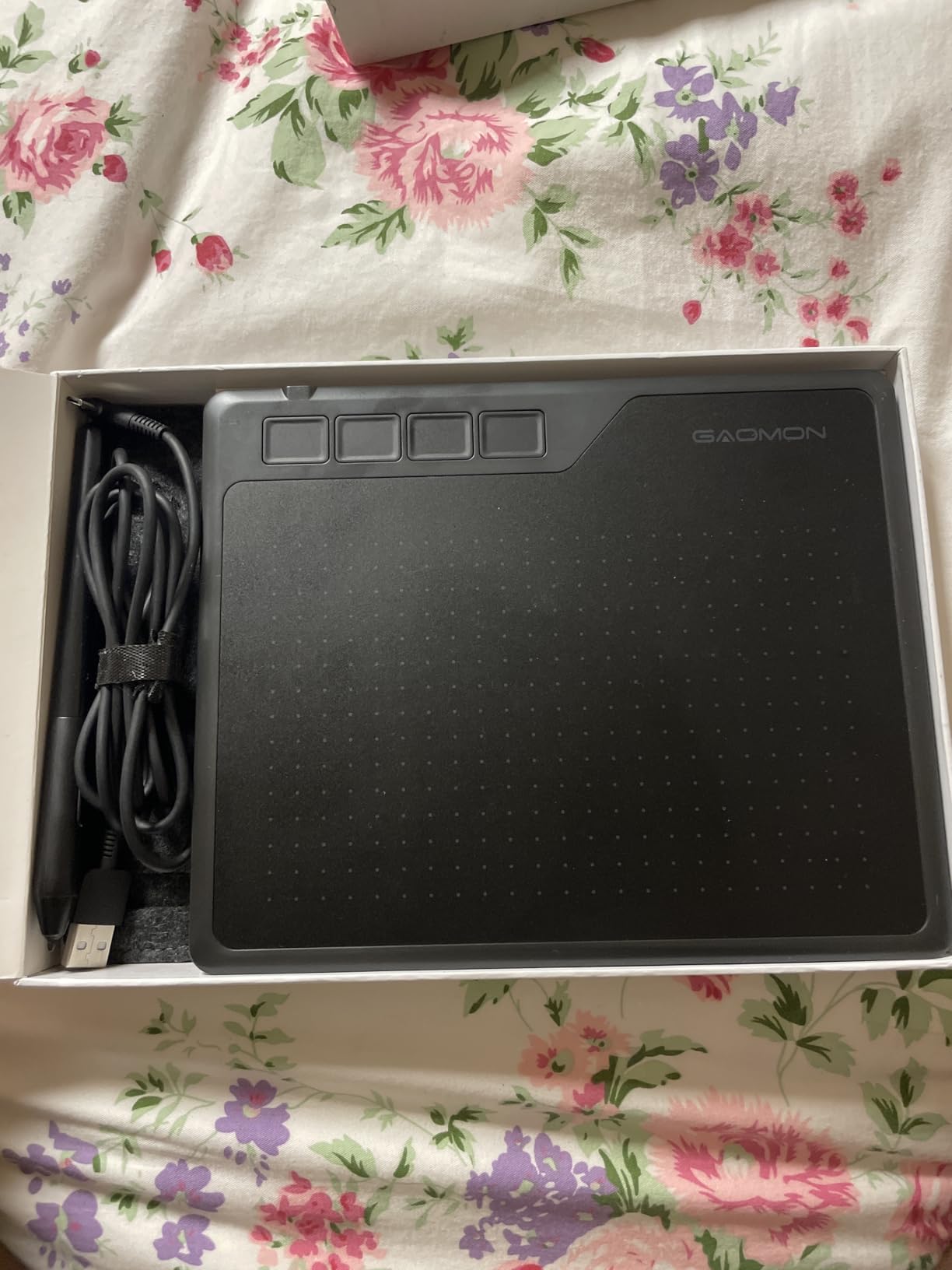
The S620 earns its place by doing one small thing better than the cheaper boards: it has four customizable express keys on the body. That is more physical shortcut surface than the Wacom Intuos Small offers at twice the depth of the review history, and it is the feature that keeps a beginner’s hand off the keyboard all session.
Underneath, the numbers are respectable. 8192 pressure levels, 5080 LPI resolution, a 266 PPS report rate and a 10 mm pen reading height. The body weighs a quarter of a kilogram and the four rubber feet keep it planted on the desk, which is more stability than several slimmer boards manage.
Software range and driver flexibility
Owners run it with Photoshop, Illustrator, Clip Studio, Krita and Corel Painter without trouble. GAOMON also publishes driver fixes openly and supports southpaw use through a 180-degree rotation in the driver, and Linux users configure it with OpenTabletDriver. Driver updates occasionally need reinstalling after a connection drop, which is the one recurring software complaint.
Pen pressure takes some getting used to
The most common note from buyers is that the AP32 pen registers marks later than expected. Light sketching strokes can feel like they are being ignored until you press further. It is a matter of adjustment rather than a fault, but it is the thing to test in the first ten minutes if you have never used a pressure pen before.
Where it falls short
The 6.5 by 4 inch active area is cramped the moment you move past thumbnails, and some users report phantom strokes or skipped lines in Photoshop. The express buttons also feel wiggly and stiff under the finger. For a first board this is fine; for a daily professional surface it is not.
4. XP-Pen Deco 01 V3 – Top Rated 10×6 Work Area
- ✓16384 pressure levels with 60-degree tilt
- ✓Ten x 6.25 inch surface in an 8 mm body
- ✓Eight programmable keys remappable for either hand
- ✓Strong Linux support with a GUI configurator
- ✕Stylus tip has some wiggle and feels soft
- ✕Pen side buttons trigger accidentally
- ✕Drawing surface scratches without the protective film
Active area: 10 x 6.25 inch
Pressure: 16384 levels
Tilt: 60 degrees
This is the board we recommend to anyone who has already decided to draw and is ready for a real working surface. A 10 by 6.25 inch active area is a genuine step up from the 6 by 4 class, and doing it with 16384 pressure levels and 60-degree tilt at this price level is unusual. Reviewers repeatedly call it the best-value 10 by 6 board for beginners and returning artists.
The body is 8 mm thin and weighs 1000 g, which keeps it portable without feeling flimsy. The eight shortcut keys are fully programmable and can be remapped for southpaw use, which addresses the single most common complaint about small keyed boards.

Tilt and shading capability
Sixty-degree tilt support means you can lay the pen over and shade with the side of the nib the way you would with a pencil side. That is not a spec-sheet trick; it changes how you approach broad shading, and it is the feature that separates this from the other boards at a similar size. Combined with 16384 levels, smooth gradients stop stair-stepping.
Platform reach including Linux and Android
This is one of the few screenless boards here with vendor-quality Linux support, shipping a graphical configurator for major distributions. It also connects directly to Android 10 and later devices and Chromebooks through USB-C, and the box includes a USB-C to USB-A cable plus a USB-to USB-C adapter. That breadth makes it a safe buy if your computer setup might change.
Build and surface care
Two criticisms come up repeatedly. The stylus tip has some wiggle and feels soft compared with a wooden pencil, and the drawing surface scratches easily, which means the included protective film is effectively required rather than optional. The in-box kit is generous: pen stand, drawing glove, protective film, spare nibs and adapters.
5. HUION Inspiroy H640P – The Lowest-Cost Credible Way to Leave the Mouse
- ✓Lowest entry point in this lineup
- ✓Six customizable press keys with per-app profiles
- ✓5080 LPI and 233 PPS report rate
- ✓Only 0.3 inches thin and 9.6 ounces
- ✕6 x 4 inch area is small for illustration
- ✕Driver configuration less polished than Wacom
- ✕Pen feels less responsive at the lightest touches
Active area: 6 x 4 inch
Pressure: 8192 levels
Keys: 6
If your goal is simply to stop using a mouse and start sketching, signing documents or annotating PDFs, the H640P is the cheapest board on this list that we would put in front of a beginner. The 6 by 4 inch area is modest, but the rest of the package is well built for the money.
Six customizable press keys is more than most boards at this size offer, and the Huion driver saves separate shortcut profiles per application, so your layout in Krita does not have to match the one in Photoshop. The battery-free PW100 stylus also carries side buttons for quick pen-to-eraser switching, which is the fastest workflow improvement on the entire board.
Portability as the deciding factor
At 0.3 inches thin and 9.6 ounces, this is one of the boards we would actually put in a backpack for a week of sketching. It works with Mac, Windows, Linux on Ubuntu and Android smartphones and tablets. It does not support iPhone or iPad, which is worth knowing before you buy.
Performance on paper versus in hand
The published numbers are 5080 LPI resolution and a 233 PPS report rate, which is close to the GAOMON S620 and a little behind its 266 PPS. Reviewers say strokes register without lag. The repeated criticism is responsiveness at the very lightest touches, so fine detail work feels slightly less immediate than it does on a firmer-feeling board.
Setting expectations
At this level, a 6 by 4 inch workspace suits notes, signatures and small sketches rather than large artwork, and the driver interface is less polished than Wacom’s. Buyers who set those expectations in advance rate it happily. If you want more surface for the same money, the H1060P and the Deco 01 V3 both deliver it.
6. XP-Pen Artist12 – The Pen Display That Made Drawing Click
- ✓11.6 inch IPS screen with 100 percent sRGB gamut
- ✓Hexagonal PN06 stylus with end eraser
- ✓Six shortcut keys plus a programmable touch strip
- ✓Pen holder glove cloth and 8 spare nibs included
- ✕Needs HDMI plus USB plus power to set up
- ✕Non-laminated glass leaves a small parallax gap
- ✕Right-click pen button sits under a normal grip
- ✕Reports of display flicker on some units
Screen: 11.6 inch 1920x1080 IPS
Pressure: 8192 levels
Gamut: 100 percent sRGB
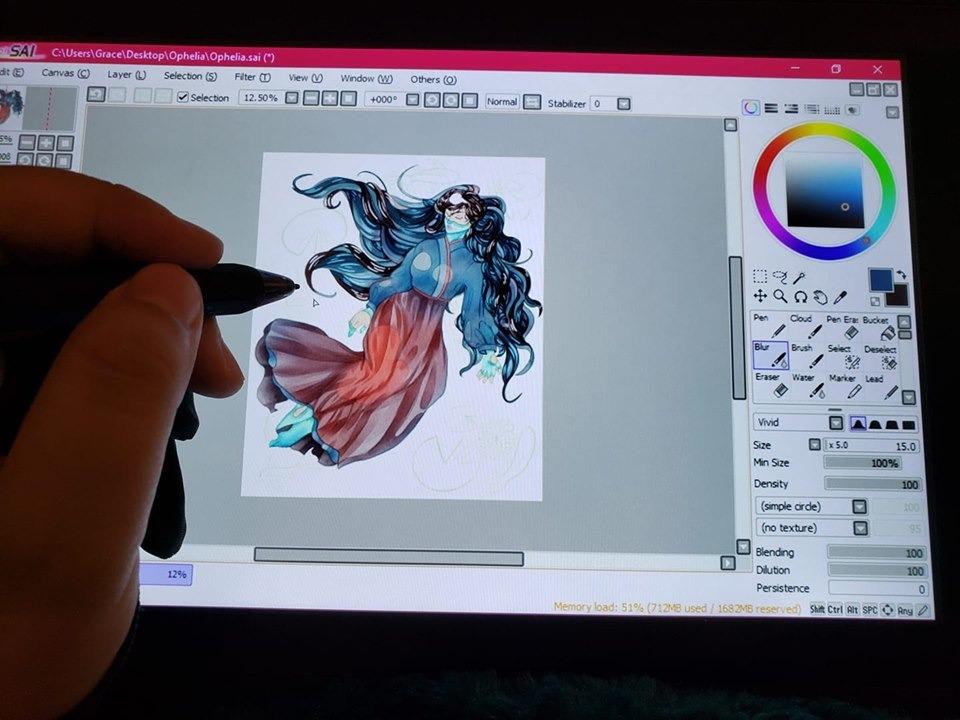
The Artist12 is the board that converts traditional-media artists who hate hand-eye coordination. You draw directly on an 11.6 inch IPS screen at 1920 by 1080, and your hand, the pen tip and the cursor occupy the same place. Many reviewers who resisted digital drawing for years say this is the model that finally made it work for them.
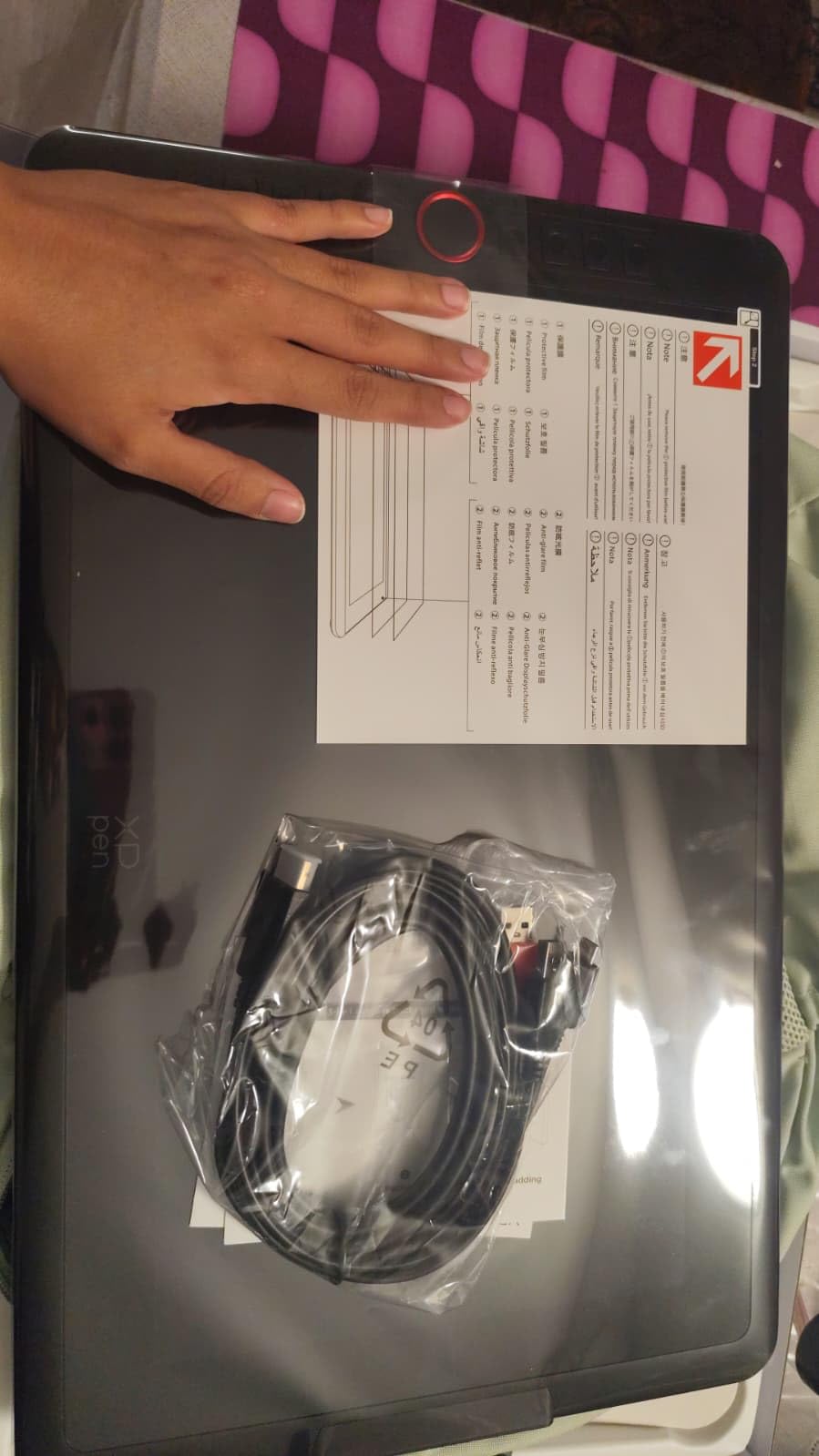
Color coverage is 100 percent sRGB (72 percent NTSC), which beats most laptop panels, and a pre-installed anti-reflective protector is already fitted. The PN06 stylus is hexagonal so it does not roll, with an eraser on the reverse end, and the box includes a pen holder, drawing glove, cleaning cloth and eight spare nibs.
The three-cable setup
Expect HDMI for video, USB for pen data and power for the screen brightness. Some users need several resets or a driver reinstall to get it recognized, and a converter is needed if your laptop lacks a full-size HDMI port. Budget fifteen minutes for first-time setup and read the quick guide before you start, because most early frustration with pen displays comes from an incomplete driver install rather than a faulty panel.
Parallax, glare and the glass
The screen is not full-laminated, which leaves a small visible gap between the pen tip and the cursor and lets overhead lighting reflect. That is the same compromise you accept on every sub-premium pen display, and the included anti-reflective film softens it. On the upside, the screen is a genuine second monitor for 3D viewport work, teaching and streaming.
Controls and long-term reliability
Six customizable shortcut keys plus a programmable touch strip handle zoom and scroll. The recurring negative is placement: the right-click pen button sits where a normal grip rests, so context menus appear mid-stroke unless you remap it. A smaller number of owners also report display flicker or panels going white within weeks, which is the source of the one-star reviews.
Buy this if hand-eye coordination is the wall you keep hitting. Skip it if your desk is small or you want a simple single-cable setup, and read the setup section of our buying guide first.
7. HUION Inspiroy H1060P – Most Surface and Keys for the Money
- ✓10 x 6.25 inch area in a 10 mm slim body
- ✓Twelve press keys plus 16 soft keys
- ✓Symmetrical body with 180-degree driver flip
- ✓Long-term owners report years of daily use
- ✕Southpaw mode does not remap the physical key order
- ✕Exposed Micro-USB port bends under cable strain
- ✕Occasional line skips or jumps while drawing
Active area: 10 x 6.25 inch
Pressure: 8192 levels
Tilt: 60 degrees
The H1060P is the one we recommend when a southpaw artist asks for a board. The body is symmetrical rather than right-handed shaped, it ships with twelve programmable press keys plus sixteen soft keys, and the driver supports a 180-degree flip so the layout mirrors. Nothing else in this roundup has that combination of symmetry and key count at this size.
Long-term owners are the strongest advocates. Reviews describe years of reliable daily use, drivers that install quickly and hold long sessions without dropping, and a 10 by 6.25 inch workspace that comfortably outclasses same-price Wacom tablets. The battery-free PW100 stylus adds 60-degree tilt support.
Twelve keys and sixteen soft keys
That is 28 assignable controls, which covers undo, redo, brush switching, layer hiding, zoom and snapping without touching the keyboard during a session. The catch specific to southpaw users: flipping the driver does not reverse the physical key order, so you remap each one manually in reverse. Annoying once, then never again.
Connector durability
The exposed Micro-USB port with a tight-fitting connector is the most common mechanical complaint, and owners report it can bend under cable strain if you pull the cable sideways. Route the cable along the back of the desk and it stops being an issue. The stylus side buttons are also easy to press with a firm grip, another reason to remap them.
Draw quality in daily practice
Most reviews report smooth, clean strokes with occasional line skips, sometimes correlated with rotating the pen mid-stroke. At 8192 levels with 60-degree tilt, shading and line variation are more than sufficient for illustration, comics and concept work. It also connects to Android phones and tablets through an OTG connector, though not to iPhone or iPad.
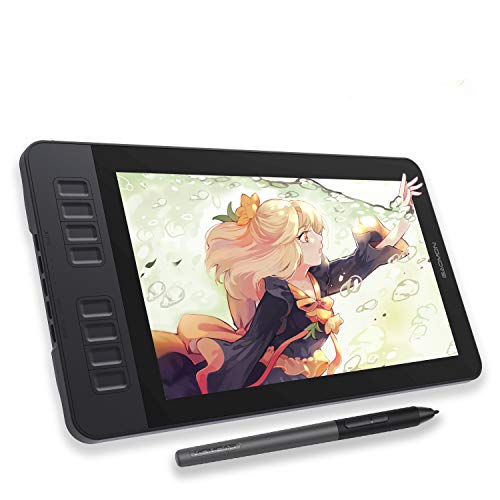
8. GAOMON PD1161 – A Matte-Screen Pen Display for Students
- ✓Pre-installed matte film feels closer to paper and cuts glare
- ✓AP50 battery-free stylus with tilt function
- ✓Eight side press keys plus two pen buttons
- ✓Pen holder nibs glove cable and adapter included
- ✕Not standalone
- ✕needs HDMI plus USB from a computer
- ✕No stand included so ergonomics are on you
- ✕Not full-laminated so parallax is visible
Screen: 11.6 inch 1920x1080 IPS
Pressure: 8192 levels with tilt
Gamut: 100 percent sRGB
The PD1161 is positioned for beginners and students, and the deciding detail is the pre-installed matte film. On a pen display, the surface texture changes how the pen feels more than any other single factor, and a matte finish reduces glare under fluorescent classroom lighting where a glossy screen becomes unreadable.
It is an 11.6 inch FHD IPS panel showing 16.7 million colors at 100 percent sRGB, driven by a battery-free AP50 stylus with 8192 levels and tilt. Eight side press keys and two pen buttons are programmable in the driver, and the box includes a pen holder with eight nibs, a drawing glove, a 3-in-2 cable and an AC adapter.
Not a standalone device
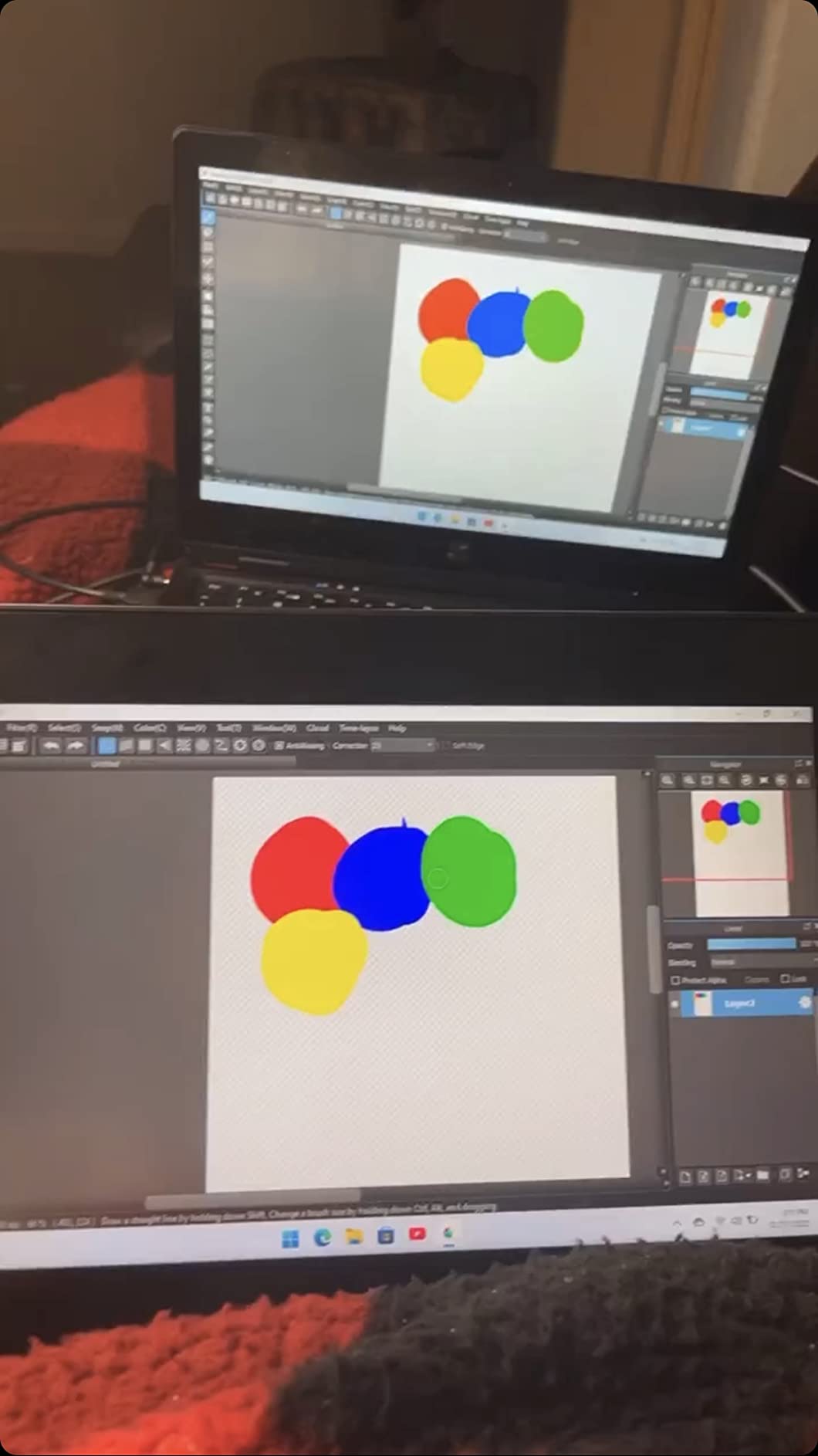
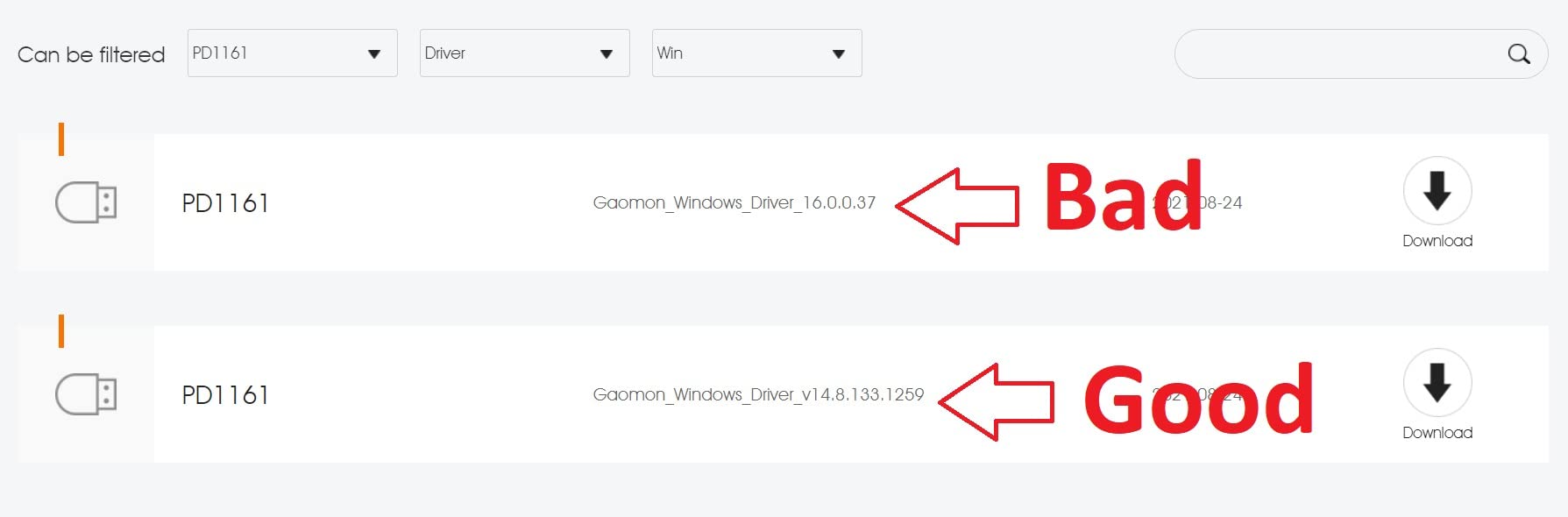
GAOMON states this plainly in the product listing, and it is the first thing to understand: the PD1161 will not work without a computer. It needs an HDMI port and a USB port on the host, or a converter if your laptop only has USB-C. Windows 7 and later and macOS 10.12 and later are supported, with Krita, MediBang, Blender, Photoshop and SAI listed as working apps.
Ergonomics and the missing stand
No stand is included, and reviewers note that this leads to awkward working angles on a desk. It weighs 1.9 pounds, so propping it on a laptop riser or a monitor arm is workable. Budget for a stand as part of the real cost rather than discovering it later.
Study and teaching use
Reviewers use it as a writing pad for notes, mind maps and diagrams in Zoom, OneNote and Microsoft Whiteboard, and the tilt-capable pen makes handwriting far more comfortable than a finger or a trackpad. Software customization and driver polish trail the big brands, which is where the 4.3 average comes from.
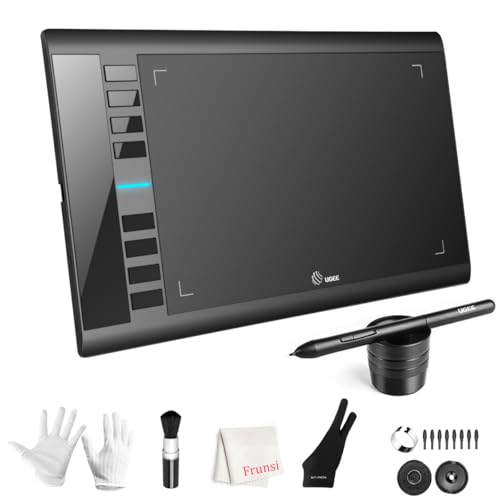
9. UGEE M708 – 16K Pressure on a 10×6 Surface
- ✓Large 10 x 6 inch papery texture surface
- ✓16384 pressure levels with 60-degree tilt
- ✓Eight customizable express keys plus stylus buttons
- ✓Tapered tablet connector protects the port
- ✕Pen shortcut buttons trigger easily with a non-standard grip
- ✕Bundled cord is short and the pen tip is bulky
- ✕Fingerprints collect on the surface quickly
Active area: 10 x 6 inch
Pressure: 16384 levels
Tilt: 60 degrees
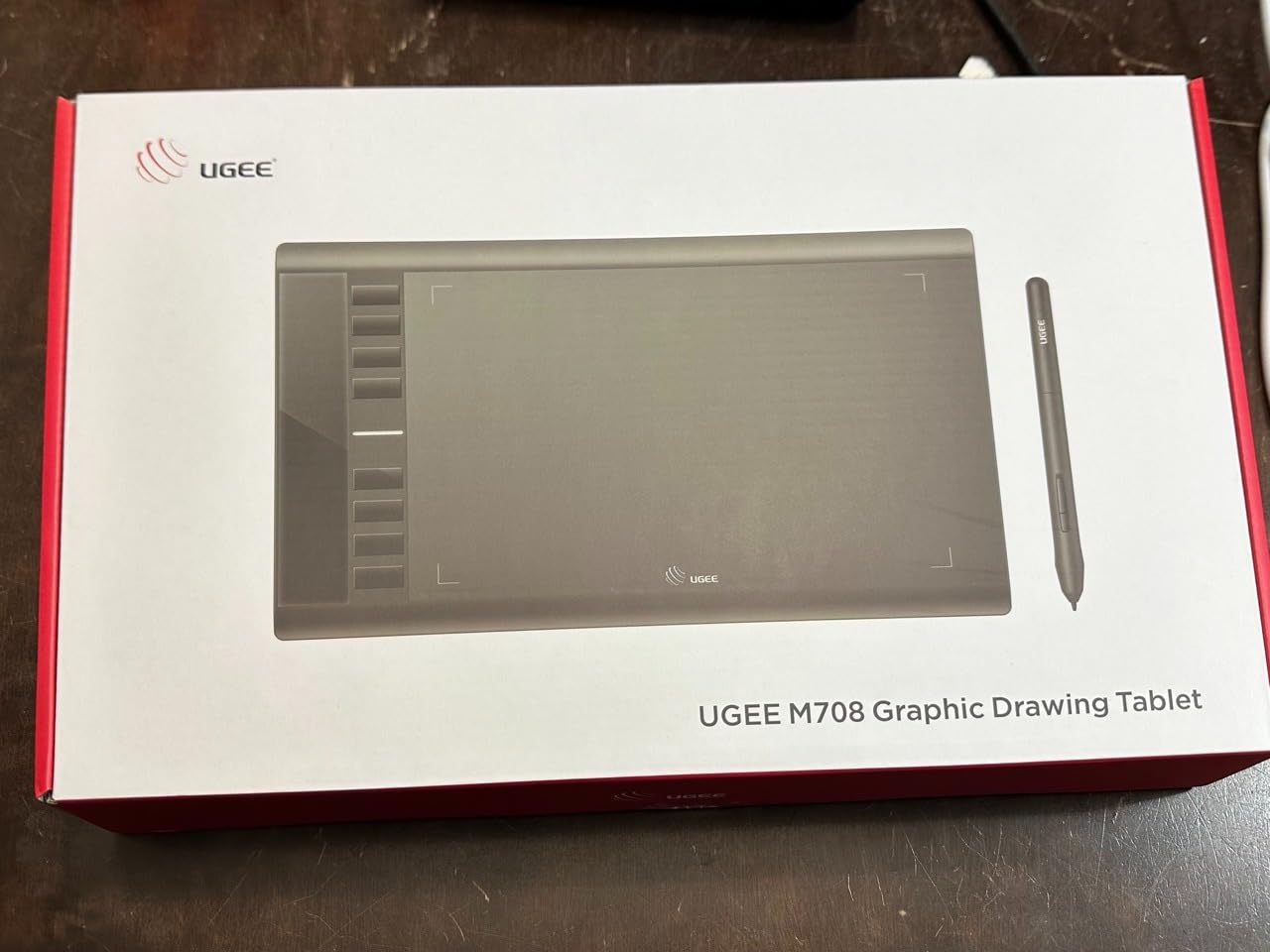
The M708 pairs a 10 by 6 inch papery texture surface with 16384 pressure levels, which is a specification combination usually reserved for boards much further up the range. Reviewers who switched from smaller boards mention the jump in working room as the single biggest quality change in their setup.
The papery texture gives a slightly grippy drawing feel that some people love and others find draggy, so this is worth trying in a shop if you can. Pressure response is fine and light, producing very fine lines without bottoming out, and owners report no perceptible lag with the minimal driver.
Driver simplicity and platform reach
The driver does one thing well: per-application button mapping, with no extra panels to dig through. Compatibility covers Windows 7 and later, Mac OS X 10.10 and later, Android 10 and later, Chrome OS 88 and later and Linux. Photoshop, Krita, Illustrator, SAI, ZBrush, Maya and 3ds Max are all listed as working, which makes it a reasonable 3D sculpting board too.
Grip and cable quirks
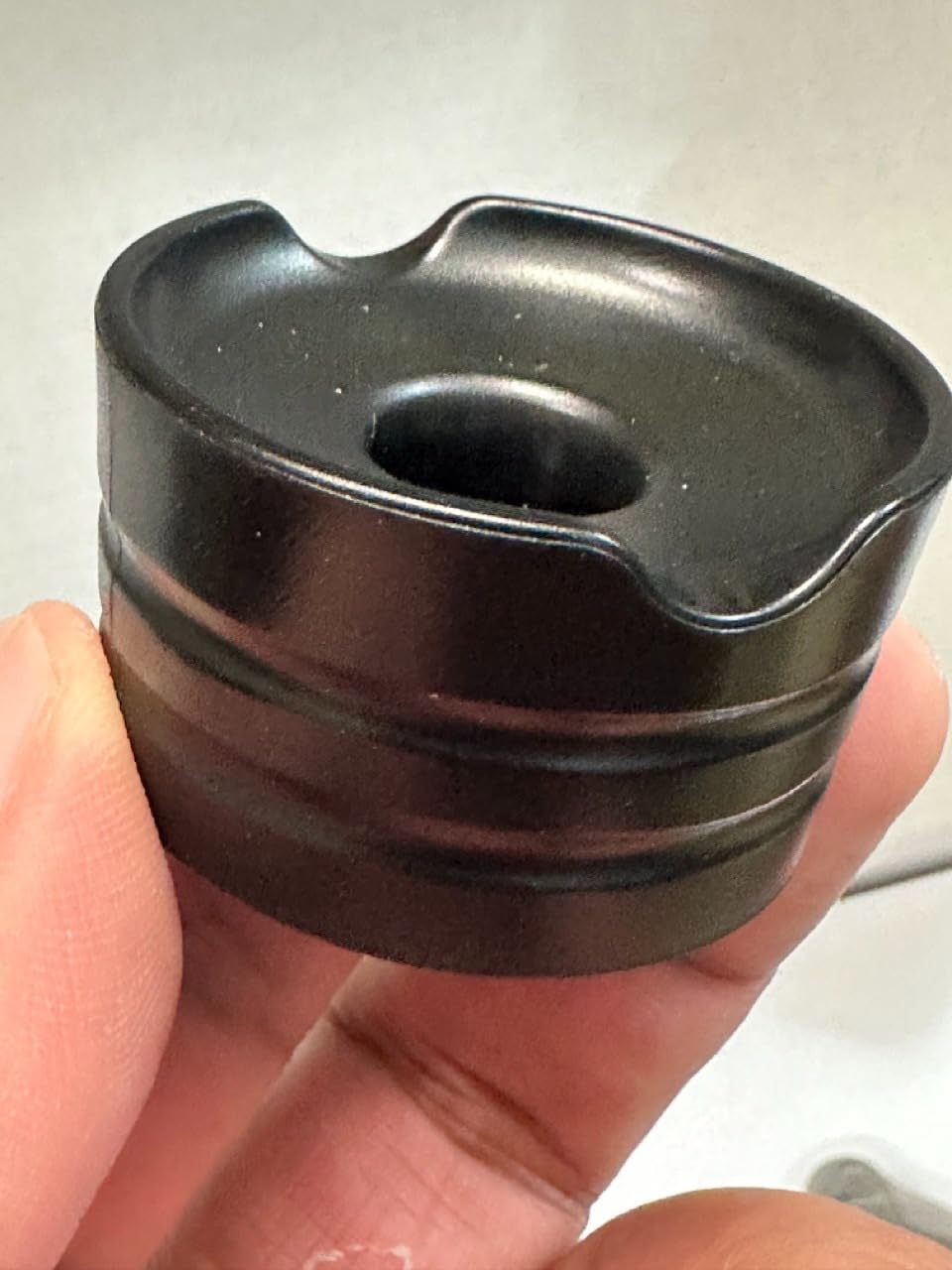
The most common complaints are ergonomic rather than electronic. The bundled cord is short, so a USB extension is likely, and the pen tip is bulky enough to make an angled grip awkward. Pen shortcut buttons sit where a firm grip lands, which produces accidental eraser triggers until you remap them.
Reliability notes
A small number of owners report the pen stopping detection until the cable is re-seated, and hot key settings occasionally resetting between sessions. The tapered tablet-side connector is designed specifically to protect the port from exactly this kind of strain, and the body can flex slightly under heavy pressure, so support the forearm rather than pressing down on the edge.
10. Wacom One HD 13.3 – Full Lamination With Wacom Drivers
- ✓Full-laminated display minimizes parallax so lines land where expected
- ✓Battery-free EMR pen works with any software
- ✓Pen button fully customizable for undo or copy and paste
- ✓Screen doubles as a second display
- ✕4096 pressure levels is low against 8K and 16K rivals
- ✕Wired pen with no passthrough or dongle option
- ✕Costs far more than screenless alternatives
Screen: 13.3 inch full-laminated HD
Active area: 11.6 x 6.5 inch
Pressure: 4096 levels
The Wacom One HD is where you buy the driver ecosystem and the lamination together. The 13.3 inch HD display is fully laminated, which means the glass and the digitizer are bonded together, and that single construction detail removes almost all of the parallax gap between your pen tip and the cursor. Lines land where you put them.
The active area is 11.6 by 6.5 inches. It connects over HDMI and works with Mac, Windows and Chromebook, and the battery-free EMR pen has one customizable button that owners remap to undo or copy and paste. Owners also use the screen as a genuine second display for work and media.
What 4096 pressure levels means in practice
This is the lowest pressure figure on the list and reviewers mention it as the main reservation, because current rivals offer 8192 or 16384. In real drawing you will not notice unless you work with very soft brushes over long gradients. Line work, inking, cel shading and UI design are all unaffected.
Driver quality and software reach
Wacom’s driver support across Mac, Windows and Chromebook is the reason many professionals who do color-critical work stay with the brand, and owners rate it as seamless. Wacom’s creative software trials and training resources come out of the box after registration, which is a genuine benefit for beginners.
Southpaw considerations and cabling
The pen is wired-only on this model, with no USB passthrough and no wireless dongle, and the cable is fixed at the tablet end. Color options are limited to black and white. Buyers who share one setup between two artists should know there is no easy pen swap. For a southpaw user, the Wacom One pen button on the barrel can be inverted but the driver layout is not the strongest here.
Judge this against the Huion Kamvas 13 Gen 3 below, which laminates the screen and raises pressure to 16384 levels. The Wacom premium buys you driver polish and the EMR pen feel, not raw specifications.
11. HUION Kamvas 13 Gen 3 – Color Accuracy and a Single Cable
- ✓Fully laminated Canvas Glass 2.0 with anti-sparkle coating
- ✓PenTech 4.0 stylus with 2 g initial activation force
- ✓Average Delta E under 1.5 with 99 percent sRGB coverage
- ✓Single USB-C cable plus dual dials and five keys
- ✕Full-featured USB-C cable sold separately
- ✕Not a standalone device
- ✕Review base still small at 822 reviews
Screen: 13.3 inch laminated canvas glass
Pressure: 16384 levels
Pen: 2 g activation force
The Kamvas 13 Gen 3 is the only board here that ships with a factory calibration report, and the measured figures back it up: average Delta E under 1.5 across 16.7 million colors at 99 percent sRGB and Rec.709. If you match colors against a reference or do product visualization, that accuracy claim is the reason to look here.
It is also the first pen display on this list to run on a single USB-C cable, which removes the three-cable tangle that frustrates most first-time pen display owners. Five programmable shortcut keys and two dials shrink the bezel area you need, and the adjustable ST300 stand is included along with ten spare nibs.
A light-touch pen with 16384 levels
The PenTech 4.0 stylus registers at a 2 g initial activation force, meaning it draws before you think you are pressing. That is the lowest threshold in this roundup and reviewers call it light without calling it twitchy. Three pen side buttons are customizable, which matters more on a laminated screen where you are not gripping as tightly.
Screen and workflow
Canvas Glass 2.0 is an anti-sparkle coating on fully laminated glass, so glare is lower than on the matte-film boards and parallax is effectively gone. Compatibility covers Windows 7 and later, macOS 10.12 and later, Linux on Ubuntu 20.04 LTS, and Android devices that support USB3.1 with DP1.2 or later. It is not a standalone device.
What to watch
The full-featured USB-C cable is sold separately, so some buyers need a second purchase before setup is complete. Android support is limited to recent ports, which rules out many phones. At 822 reviews the long-term reliability picture is not yet established, so treat early enthusiasm cautiously rather than as a settled verdict.
12. UGEE UE16 15.4 – The Largest Laminated Canvas Here
- ✓Largest drawing surface in this roundup at 15.4 inch
- ✓Full-laminated anti-glare glass with 8-bit color depth
- ✓Four switchable color spaces including Adobe RGB and DCI-P3
- ✓Slim U-Pencil with pressure-sensitive end eraser
- ✕Only 143 reviews so far
- ✕Needs HDMI plus USB so a converter may be needed
- ✕3-in-1 cable packed separately
- ✕Full 15.4 inch footprint demands desk space
Screen: 15.4 inch full-laminated anti-glare
Gamut: 143 percent sRGB
Pressure: 16384 levels
The UE16 is the big-canvas option. A 15.4 inch full-laminated anti-glare screen gives you more room to draw than anything else in this roundup, and full lamination means the parallax gap that frustrates artists on smaller unlaminated displays simply is not there.
Color is the standout specification: 143 percent sRGB coverage at 8-bit depth across 16.7 million colors, with switchable modes for sRGB, Adobe RGB, DCI-P3 and a black-and-white working mode. That last one is not a gimmick for comic artists and illustrators who line their work in ink.
Controls and the U-Pencil
Eight physical shortcut keys with tactile feedback sit under the screen, plus a scroll wheel with a switch button and four preset functions. The U-Pencil has a genuinely slim pencil-like grip, two custom hotkeys and a pressure-sensitive eraser on the end, which is more natural than a barrel button when your hand is in contact with a large glass surface.
Compatibility and cabling
It runs on Windows 7 and later, macOS 10.12 and later, Chrome OS 88 and later, Android 9.0 and later and Linux, with Photoshop, Illustrator, SAI, ibisPaintX and MediBang listed as working apps. It still requires HDMI and USB, so a converter may be needed on modern laptops, and the 3-in-1 cable is packed separately rather than in the box.
Room to grow, with a caveat
At only 143 reviews, this is the newest model in the lineup and there is no long-term reliability history yet. The 15.4 inch footprint also demands real desk space, and without a listed stand you will need a proper arm or riser to work at a comfortable angle. Buy it for canvas size and color modes, not for proven longevity.
How to Choose a Digital Drawing Board
Decide the type before the specs
Answer one question first: do you want to look at a monitor or at your own hand? If a separate monitor suits you or you want the cheapest path, buy a screenless pen tablet. If hand-eye coordination stops you from working, buy a pen display even though it costs more and eats desk space. If you already own a pen-capable tablet, buy nothing and start drawing on it.
Size the active area to your real work
The jump from 6 by 4 inches to 10 by 6.25 inches is the most meaningful upgrade in this category. The small boards are honest for thumbnails, notes, signatures and annotation, and cramped for illustration. Artists moving from traditional media consistently report that medium, roughly 10 by 6 inches, is the sweet spot: larger than a mini pad, smaller than a desk hog.
Do not chase pressure level numbers
Whether you need 8192 or 16384 levels is the most over-hyped question in this category. Both figures sit far beyond what the human hand can control deliberately, and the practical difference shows up only with very soft brushes on long gradients. Pen feel, initial activation force and surface texture change your work far more. Judge the pen in the first ten minutes, not the box.
For southpaw artists, check three things
Look for a symmetrical body rather than a right-handed shape, confirm the driver supports a 180-degree rotation, and check whether that rotation also reverses the physical key order. The H1060P and the Deco 01 V3 handle this best in our testing, because their keys can be remapped into a mirrored layout. Several boards in this lineup support southpaw mode but leave you reassigning every shortcut by hand.
Price the setup, not just the board
Here is where first-time buyers get surprised. A pen display may need an HDMI cable, a USB cable, an AC adapter and sometimes a converter if your laptop only has USB-C. A stand is not included on several models here and a comfortable one costs real money. Replacement nibs wear out. Pen tablets often need a USB-C adapter on newer laptops. The Kamvas 13 Gen 3 even sells its full-featured USB-C cable separately. Add these up before you decide a board is expensive or cheap.
Verify compatibility before you commit
Check the operating system list, not just the headline. Windows, macOS and Chromebook support is universal here. Linux support is strong on the Deco 01 V3, workable on the S620 through OpenTabletDriver, and reasonable on the Wacom Intuos Small. None of the boards supports iPhone or iPad. Pen displays need both an HDMI port and a USB port on the host machine.
Match the board to your software
Procreate and most mobile-first apps point you toward a tablet you already own. Photoshop, Illustrator, Blender, Krita and Corel Painter work with any board in this roundup on a computer. Online teaching and annotation need hot keys more than they need a large surface, which is why the H640P and the S620 are so popular in classrooms. For 3D sculpting and animation, a 10 by 6 area is the minimum we would consider.
Frequently Asked Questions
What do most artists use to draw digitally?
Most professional illustrators and concept artists use a screenless pen tablet from Wacom, Huion or XP-Pen, paired with a separate calibrated monitor. The hand-eye offset is manageable once you build muscle memory, and a good monitor gives better color for the same money than a built-in screen. Artists who cannot adjust to that offset usually move to a pen display such as the XP-Pen Artist12 or the Wacom One HD, where the pen tip and cursor share the same surface.
Is Wacom or Huion better?
Wacom is better for driver stability, EMR pen feel and broad software compatibility, and its boards are the safest choice for beginners. Huion is better for hardware specification per dollar: the Kamvas 13 Gen 3 offers full lamination, 16384 pressure levels and a measured Delta E under 1.5. Huion drivers take more setup work and carry more user-reported quirks. Choose Wacom for polish, Huion for specifications.
What is the most popular digital drawing app?
Procreate is the most popular choice on tablets because it is built for a single screen and a pencil, with no subscription. On a computer, Photoshop and Illustrator remain the most widely used, followed by Clip Studio Paint for comics and animation and Krita as the strongest free option. Since Krita runs on all of these boards, a low-cost pen tablet is a complete creative setup.
Are digital drawing tablets worth it?
Yes, for anyone who draws, inks or paints. Pressure and tilt let you vary line weight and shading the way a real pencil does, which is the single largest quality jump between mouse work and pen work. The trade-offs are a learning curve of roughly two weeks, smaller active areas on entry boards, and a hand-eye adjustment period on screenless models. Boards in the entry range carry enough specification for years of practice.
Do I need a drawing tablet with a screen?
No. Most artists work on a screenless pen tablet and simply watch a separate monitor, because it costs less, takes less desk space and avoids glare and heat. Buy a pen display if hand-eye coordination is the specific thing stopping you, if you sketch from references on the same surface, or if you want the display to double as a second monitor. Traditional-media artists usually need the screen; experienced digital artists usually do not.
How many pressure levels do I need for digital art?
4096 levels is enough for clean line art, inking and flat digital illustration. 8192 gives comfortable control of soft brushes and general shading. 16384 makes gradients smoother but the practical difference is small, because both numbers far exceed what the hand can deliberately control. Focus instead on initial activation force, nib feel and surface texture, which change your work more than the pressure figure.
The Verdict: Which Digital Drawing Board Should You Buy?
If you are not sure whether digital drawing is for you, choose the Wacom Intuos Small. It carries the highest rating and the deepest review history in this roundup, the driver is the least troublesome, and nothing about it punishes a beginner. If you already draw and need real workspace, the XP-Pen Deco 01 V3 gives you a 10 by 6.25 inch surface with 16384 levels and tilt at a price that embarrasses the alternatives. If hand-eye coordination is your blocker, the XP-Pen Artist12 is the pen display that fixes it.
For color-critical work, look at the HUION Kamvas 13 Gen 3 and its factory calibration report. For maximum canvas, the UGEE UE16 gives you a laminated 15.4 inch surface. For southpaw work, the HUION Inspiroy H1060P is the only board here with a genuinely symmetrical body and 28 assignable keys. For the lowest-cost way to leave the mouse behind, the HUION Inspiroy H640P does the job, with a small workspace you will grow out of sooner than the others.
Whichever one you choose, buy the nibs and the cable with it. That is the honest final piece of advice from this roundup: the board is rarely the bottleneck, the accessories are.



Leave a Comment