
Complete guide to headphone EQ settings. Learn to use Equalizer APO, Peace GUI, Wavelet, and genre-specific presets for perfect sound on any platform.
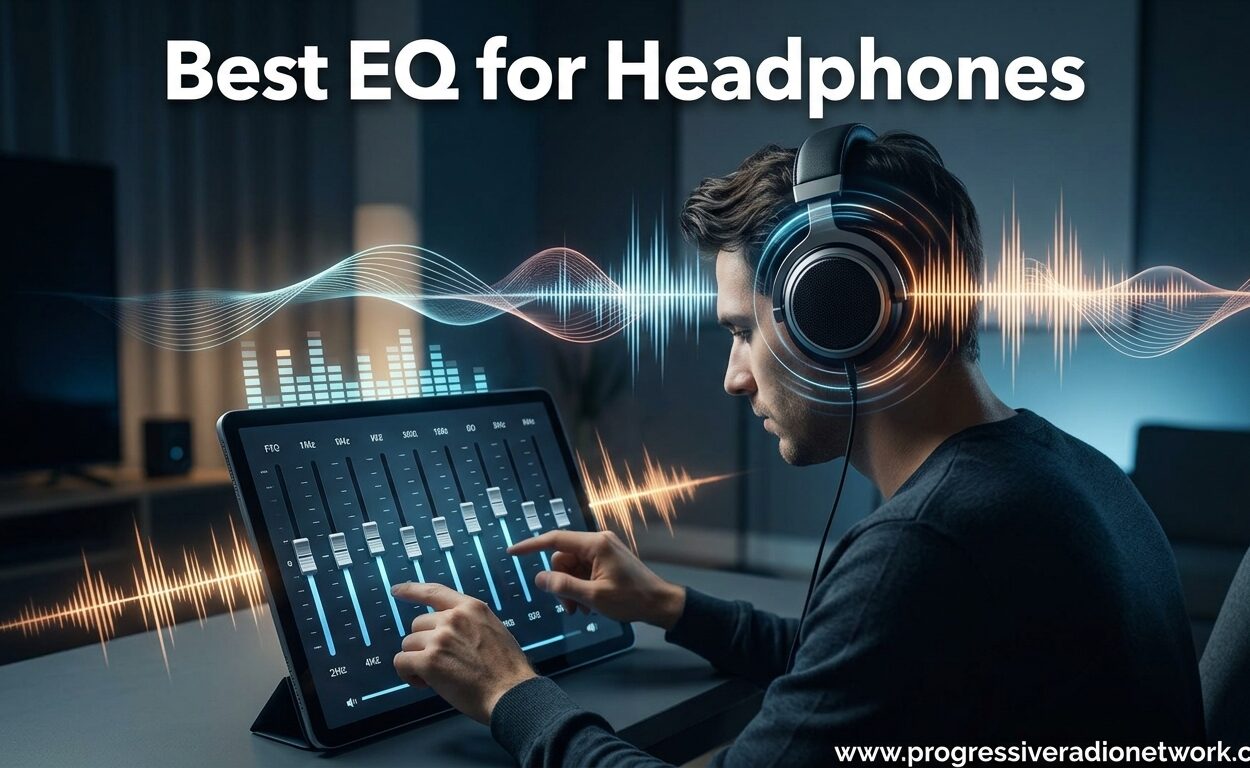
Best EQ for Headphones 2026: Complete Guide to Equalizer Settings
I spent $300 on headphones only to realize they sounded completely different from the store demo.
The problem was simple: my audio source wasn’t optimized for my gear.
EQ settings for headphones transform your sound by adjusting frequency response to match your headphones, music genre, and personal preference. Equalizer APO for Windows, Peace GUI, eqMac for Mac, and Wavelet for Android are the best EQ solutions depending on your platform.
After testing EQ setups across Windows, Mac, Android, and iOS for three years, I’ve learned that proper equalization can make budget headphones sound premium and expensive headphones sound exactly as the manufacturer intended.
In this guide, I’ll show you how to set up EQ on any platform, explain what each frequency range actually does, and provide presets for every music genre and use case.
What Is an Equalizer and Why Does It Matter?
An equalizer adjusts specific frequency ranges in your audio, letting you boost or cut bass, mids, and treble independently.
Think of EQ as a sophisticated tone control that goes beyond simple “bass” and “treble” knobs.
Headphones have unique frequency responses. Some models boost bass artificially. Others have recessed mids that make vocals sound distant.
EQ corrects these issues by compensating for your headphone’s natural sound signature.
I’ve seen the Sony MDR-7506 headphones transform from bright and fatiguing to neutral and balanced with just a few decibel cuts at 4kHz.
Frequency Response: How headphones reproduce different frequencies from bass (20Hz) to treble (20kHz). Flat response means all frequencies play at equal volume.
Use EQ when your headphones sound unnatural, when switching between genres, or when compensating for hearing differences.
Graphic EQ vs Parametric EQ: Understanding the Difference
Graphic equalizers use fixed frequency bands that you can boost or cut, typically 5 to 31 bands.
Parametric equalizers let you choose exact frequencies, bandwidth (Q factor), and boost/cut amounts.
Graphic EQs are simpler. Slide the faders up or down and hear the changes immediately.
Parametric EQs offer surgical precision. You can target problem frequencies without affecting neighboring ranges.
Most EQ software like Equalizer APO is parametric, giving you control over exact frequency response.
Professional equipment like the Universal Audio 6176 uses parametric EQ for precise tonal shaping in recording studios.
For headphone use, parametric EQ is superior because headphones have specific frequency peaks and valleys that need targeted correction.
Understanding Frequency Ranges: Bass, Mids, and Treble Explained
Quick Summary: Bass (20-250Hz) provides impact and warmth. Mids (250Hz-4kHz) contain vocals and most instruments. Treble (4kHz-20kHz) adds clarity and air.
The frequency spectrum spans 20Hz to 20kHz, covering everything from deep sub-bass to shimmering air.
Sub-Bass (20-60Hz)
This range creates physical sensation. You feel sub-bass more than hear it.
Kick drums, bass synths, and movie explosions live here.
Boosting sub-bass adds impact but can cause distortion if your headphones lack deep bass extension.
Bass (60-250Hz)
Bass guitars, lower piano notes, and the body of acoustic instruments occupy this range.
Too much bass here creates muddiness. Too little makes music sound thin.
Lower Midrange (250-500Hz)
Vocals get their warmth from this range. Guitar body resonance also lives here.
A boost here adds fullness. Excessive boost creates boxy or covered sound.
Midrange (500Hz-2kHz)
This is the most critical range. Most musical energy and vocal intelligibility happens here.
The AKG K712 Pro excels in this range, which is why vocals sound so present on these open-back headphones.
Cutting mids creates scooped sound. Boosting too much makes music nasal and harsh.
Upper Midrange/Presence (2-6kHz)
Vocal clarity, snare attack, and instrument definition depend on this range.
This is where many headphones have peaks that cause fatigue.
A small boost (2-3dB) adds clarity. Too much creates sibilance and harshness.
Brilliance/Air (6kHz-20kHz)
Cymbals, acoustic guitar harmonics, and sense of space live in the upper frequencies.
Boosting air adds sparkle and openness. Cutting reduces harshness and brightness.
| Frequency Range | Instruments/Effects | Boost Effect | Cut Effect |
|---|---|---|---|
| Sub-Bass 20-60Hz | Kick, bass synth, explosions | Impact, rumble | Less power |
| Bass 60-250Hz | Bass guitar, toms | Fullness, warmth | Thinner sound |
| Low Mids 250-500Hz | Vocal warmth, guitar body | Body, depth | Less boxiness |
| Mids 500Hz-2kHz | Vocals, guitar, piano | Presence, punch | Distant, recessed |
| Presence 2-6kHz | Vocals, snare, clarity | Definition, attack | Less harshness |
| Air 6-20kHz | Cymbals, reverb, harmonics | Sparkle, openness | Dark, smooth |
Best EQ Software by Platform: Complete Comparison
Choosing the right EQ software depends on your platform and experience level.
I’ve tested dozens of options across Windows, Mac, Android, and iOS to find the best tools for each system.
| Software | Platform | Type | Difficulty | Cost | Best For |
|---|---|---|---|---|---|
| Equalizer APO + Peace | Windows | System-wide parametric | Intermediate | Free | Most users |
| Voicemeeter | Windows | Mixer with EQ | Intermediate | Free | Streamers |
| eqMac | macOS | System-wide | Beginner | Freemium | Most Mac users |
| SoundSource | macOS | Per-app control | Beginner | Paid | Per-app EQ |
| Boom 3D | Mac, Windows | 3D audio enhancer | Beginner | Paid | Casual users |
| Wavelet | Android | System-wide parametric | Intermediate | Free | Most Android users |
| Poweramp Equalizer | Android | Parametric | Intermediate | Freemium | Advanced users |
| Music Volume EQ+ | Android | Graphic | Beginner | Freemium | Simple EQ needs |
| Apple Music EQ | iOS | Graphic (app only) | Beginner | Free | Apple Music users |
| Spotify EQ | iOS, Android | Graphic (app only) | Beginner | Free | Spotify users |
For Windows users, Equalizer APO with Peace GUI offers the best combination of power and usability.
Mac users get the most polished experience with eqMac, while SoundSource is worth it for per-app EQ control.
Android users should start with Wavelet for its AutoEQ integration and simple interface.
iOS users have limited options due to Apple’s restrictions, but Apple Music’s built-in EQ works for basic adjustments.
How to Set Up EQ on Windows: Equalizer APO and Peace GUI
Windows has the most EQ options, but Equalizer APO combined with Peace GUI is the gold standard.
Installing Equalizer APO
- Download Equalizer APO from the official source (sourceforge.net/projects/equalizerapo)
- Run the installer and select your audio playback device
- Complete installation and restart your computer
- Verify installation by checking for “Equalizer APO” in your program files
Setting Up Peace GUI
Peace GUI is the friendly interface that makes Equalizer APO usable without editing configuration files.
- Download Peace GUI from the official website (peace-interface.github.io)
- Extract and run Peace.exe to launch the interface
- Grant necessary permissions when prompted
- Start with a flat EQ curve (all sliders at 0dB)
Your First EQ Adjustment
- Play familiar music through your headphones
- Identify problem areas (too much bass, harsh treble, recessed vocals)
- Make small adjustments – start with 2-3dB changes
- Save your preset using the Save button in Peace
After testing EQ on the Samson SR850, I found that a 4dB cut at 3kHz completely eliminated the harsh treble that made these budget headphones fatiguing.
Pro Tip: Always start by cutting frequencies that bother you rather than boosting everything. Cutting maintains headroom and prevents distortion.
Importing AutoEQ Presets
AutoEQ provides measured EQ corrections for hundreds of headphone models based on frequency response measurements.
- Visit AutoEQ.app and search for your headphone model
- Download the parametric EQ file (GraphicEQ or ParametricEQ format)
- In Peace GUI, click Configuration > Import
- Select the downloaded file and apply
This gives you a neutral starting point based on actual measurements rather than guessing.
Setting Up EQ on macOS: eqMac and SoundSource
Mac users have fewer options than Windows, but the available tools are polished and user-friendly.
Using eqMac
eqMac is the most popular system-wide EQ solution for macOS with a simple interface.
- Download eqMac from eqmac.app
- Install and launch the application
- Grant permissions when prompted for audio device access
- Choose a preset or create your own custom EQ curve
The free version offers basic 10-band EQ. The Pro version unlocks parametric bands and more presets.
SoundSource for Per-App EQ
SoundSource lets you apply different EQ settings to each application individually.
- Download SoundSource from rogueamoeba.com
- Install and launch the app
- Select your music app (Spotify, Apple Music, etc.)
- Click the EQ button and adjust or load a preset
This is perfect for using different EQ for music vs. video calls vs. games.
Mobile EQ: Wavelet for Android and EQ Apps for iOS
Mobile EQ presents unique challenges due to OS restrictions, but excellent solutions exist for both platforms.
Wavelet for Android
Wavelet is the best Android EQ app, offering system-wide equalization without root access.
- Install Wavelet from Google Play Store
- Grant notification access for the quick settings tile
- Select your headphones from the AutoEQ database
- Enable Wavelet in your music app’s player settings
Wavelet’s killer feature is automatic EQ correction for hundreds of headphone models.
For the Beyerdynamic DT 240 Pro, Wavelet applies a gentle V-shaped correction that compensates for the slight midrange recession.
Poweramp Equalizer
Poweramp Equalizer offers more advanced features for users who want deeper control.
- Install from Google Play
- Grant advanced player permissions for system-wide EQ
- Create custom parametric bands or use graphic EQ
- Save unlimited presets for different scenarios
iOS EQ Options
Apple restricts system-wide audio, so iOS EQ options are limited to individual apps.
Apple Music has a built-in EQ with 23 presets.
- Open Settings on your iPhone
- Tap Music then EQ
- Select a preset (Bass Boost, Electronic, Flat, etc.)
Spotify also offers built-in EQ.
- Go to Settings within Spotify
- Tap Playback then Equalizer
- Adjust the 6-band graphic EQ or choose a preset
For more advanced iOS EQ, consider apps like “EQ – Equalizer” which work with music in your library.
Genre-Specific EQ Presets: Rock, Jazz, Classical, Hip-Hop, and Electronic
Different genres benefit from different EQ curves. Here are my tested presets for major genres.
Rock EQ Preset
Rock music needs punch and energy without harshness.
- Sub-bass (20-60Hz): +2dB for kick drum impact
- Bass (60-250Hz): +3dB for fullness
- Mids (500Hz-2kHz): Flat for guitar presence
- Presence (2-6kHz): -2dB to reduce harshness
- Air (6-20kHz): +1dB for cymbal clarity
Jazz EQ Preset
Jazz needs natural tonal balance with emphasis on acoustic instruments.
- Sub-bass: Flat (upright bass doesn’t need sub boost)
- Bass: +2dB for warmth
- Low mids (250-500Hz): +1dB for instrument body
- Mids: Flat for accurate piano and brass
- Presence: +1dB for vocal clarity
- Air: +2dB for ambience and air
Classical EQ Preset
Classical music demands the most neutral response to capture the full orchestra.
- Sub-bass: +1dB for subtle impact
- Bass: Flat for accurate double bass
- Mids: Flat throughout for accurate instruments
- Presence: +1dB for solo instruments
- Air: +3dB for hall ambience and decay
The Beyerdynamic DT 770 Pro excels with classical music, needing minimal EQ due to its relatively flat response outside of slight treble boost.
Electronic/EDM EQ Preset
Electronic music benefits from emphasized bass and sparkly highs.
- Sub-bass: +4dB for physical impact
- Bass (60-100Hz): +3dB for punch
- Upper bass (100-250Hz): -1dB to reduce mud
- Mids: -2dB for scooped, energetic sound
- Presence: +2dB for synth definition
- Air: +4dB for shimmer and sparkle
Hip-Hop EQ Preset
Hip-hop needs powerful bass and clear vocals.
- Sub-bass: +5dB for 808 impact
- Bass: +4dB for fullness
- Low mids: -2dB to reduce mud
- Mids (1-2kHz): +2dB for vocal presence
- Presence: Flat or slight cut for smoothness
- Air: +2dB for vocal air
Universal/Natural Preset: For most music, try a gentle V-shape: +3dB at 100Hz, flat mids, +3dB at 10kHz. This adds excitement without sacrificing clarity.
Use Case Presets: Gaming, Movies, Podcasts, and More
Beyond music, EQ transforms other audio experiences.
Competitive Gaming EQ
For FPS games, footstep audio is everything.
- Sub-bass: -6dB (eliminates distracting rumble)
- Bass: -4dB (focus on mids and highs)
- Mids (1-4kHz): +3dB (footsteps and gunshots)
- Presence: +4dB (spatial cues and direction)
- Air: +2dB (environmental detail)
This scooped configuration sacrifices immersion for competitive advantage.
Immersive Gaming EQ
For single-player games, prioritize atmosphere and impact.
- Sub-bass: +4dB (explosions and impact)
- Bass: +3dB (fullness)
- Mids: +1dB (dialogue clarity)
- Presence: +2dB (detail)
- Air: +3dB (atmosphere)
Movie EQ
Movies need clear dialogue and impactful effects.
- Sub-bass: +3dB (LFE effects)
- Bass: +2dB (music score)
- Mids (1-3kHz): +3dB (dialogue intelligibility)
- Presence: +1dB (detail)
- Air: +2dB (ambience)
Podcast/Vocal EQ
Spoken word benefits from vocal-focused EQ.
- Sub-bass: -6dB (eliminate rumble)
- Bass (60-200Hz): -2dB (reduce boominess)
- Low mids (200-400Hz): +1dB (warmth)
- Mids (1-3kHz): +4dB (intelligibility)
- Presence: +2dB (clarity)
- Air: Flat (avoid sibilance)
Common EQ Problems and How to Fix Them
Time Saver: If your EQ sounds worse than before, reset to flat and start over with smaller adjustments (1-2dB max per band).
Muddy Bass
Problem: Bass sounds thick and undefined, covering other instruments.
Solution: Cut upper bass (150-250Hz) by 3-4dB instead of boosting sub-bass.
Harsh Treble
Problem: High frequencies cause fatigue and pain.
Solution: Cut 3-5kHz by 2-4dB. This “presence” range causes most harshness.
No Vocal Clarity
Problem: Vocals sound distant or buried.
Solution: Boost 2-4kHz by 2-3dB for vocal presence.
Distortion
Problem: Audio crackles or breaks up with EQ enabled.
Solution: Reduce overall boost levels. Excessive boost causes clipping. Try cutting other frequencies instead.
EQ Has No Effect
Problem: Adjustments don’t change the sound.
Solution: Verify the EQ is enabled and assigned to the correct audio device. Some apps bypass system EQ.
One Size Doesn’t Fit All
Problem: Presets sound great on some songs but terrible on others.
Solution: Create multiple presets for different genres and switch between them.
Advanced EQ Techniques
Once you master the basics, these techniques take your EQ skills further.
Understanding Q Factor
Q factor controls how wide or narrow your EQ adjustment affects neighboring frequencies.
Low Q (wide): Affects a broad range. Good for general tonal shaping.
High Q (narrow): Affects a tiny range. Good for fixing specific problem frequencies.
For example, use high Q to cut a ringing frequency at 3kHz without affecting 2kHz or 4kHz.
Filter Types
Low-pass filter: Lets frequencies below a cutoff through, attenuates highs. Use to tame bright headphones.
High-pass filter: Lets frequencies above a cutoff through, attenuates lows. Use to reduce sub-bass rumble.
Shelving filter: Boosts or cuts all frequencies above or below a point. Use for general bass or treble adjustment.
Peaking filter: Boosts or cuts a specific range. This is the most commonly used EQ type.
Measurement-Based EQ
Professional tools like the Universal Audio Volt 276 include software for analyzing frequency response.
For headphones, use resources like AutoEQ, Oratory1990, and Rtings to find measurement-based EQ presets.
These presets correct measured deviations from neutral response rather than relying on subjective preference.
HRTF and Personalized EQ
Everyone’s ears and head shape affect how we hear frequencies.
HRTF (Head-Related Transfer Function) accounts for these individual differences.
Some advanced EQ software includes personalized HRTF calibration for more accurate sound.
For most users, starting with measurement-based presets and tweaking by ear provides the best results.
“The best EQ is the one that makes you want to keep listening. Measurements and guides are starting points, not rules.”
– Audio Engineering Principle
Frequently Asked Questions
What is the best EQ software for Windows?
Equalizer APO with Peace GUI is the best free EQ solution for Windows, offering system-wide parametric equalization with a user-friendly interface. For beginners, Peace makes the powerful Equalizer APO accessible without editing configuration files manually.
How do I make my headphones sound clearer?
Boost the presence range (2-4kHz) by 2-3dB to improve vocal and instrument clarity. If sound is harsh, cut 3-5kHz instead. Also try cutting upper bass (150-250Hz) to reduce muddiness that obscures details.
What are the best EQ settings for bass?
For clean bass boost, add +3-4dB at 60-100Hz for punch, and +2-3dB at 20-60Hz for sub-bass rumble. Avoid boosting 150-250Hz as this creates muddy bass. Cutting mids by 2-3dB also makes bass more prominent.
Does EQ damage headphones?
No, EQ does not damage headphones. However, excessive boosting can cause distortion or clipping in the audio signal. Keep boosts moderate (under +6dB) and use the volume knob to increase level rather than relying solely on EQ boosts.
What is the difference between graphic and parametric EQ?
Graphic EQ has fixed frequency bands with simple boost/cut controls, making it easier to use but less precise. Parametric EQ lets you choose exact frequencies, bandwidth (Q factor), and boost/cut amounts for surgical control over your sound.
Can I use EQ on iPhone headphones?
iPhone EQ options are limited to app-specific controls. Apple Music and Spotify both have built-in EQ with presets. For system-wide EQ on iOS, you need third-party apps that work with music in your library, but iOS doesn’t allow true system-wide equalization like Android.
What is the best EQ for gaming?
For competitive gaming, use a scooped EQ: cut bass by 4-6dB, boost mids (1-4kHz) by 3-4dB for footsteps and gunshots, and boost presence (4-6kHz) for spatial cues. This sacrifices immersion for competitive advantage.
How do I fix muddy sound with EQ?
Muddy sound typically comes from excessive upper bass (150-250Hz). Cut this range by 3-4dB to clean up the mud. Also check if you’re boosting too much sub-bass, which can bleed into and muddy the bass range.
Final Recommendations
After three years of experimenting with EQ across every platform, here’s what I’ve learned.
Start with measurement-based presets from AutoEQ or Oratory1990 for your specific headphone model.
Make small adjustments from that baseline. Large boosts and cuts usually cause more problems than they solve.
Save multiple presets for different genres and use cases. The same EQ won’t work for classical music and competitive gaming.
Trust your ears over measurements. If it sounds good, it is good.
The Koss Pro4AA reminded me that vintage headphones can sound modern with proper EQ correction.
EQ is the most powerful tool in your audio arsenal. It costs nothing but time to learn, and it transforms how you experience music, games, and movies.



Leave a Comment