
The best temperature for graphics cards (GPUs) is 30-45°C at idle and 65-85°C under load. Learn safe temperature ranges, when to worry about heat, and how to optimize your GPU cooling.
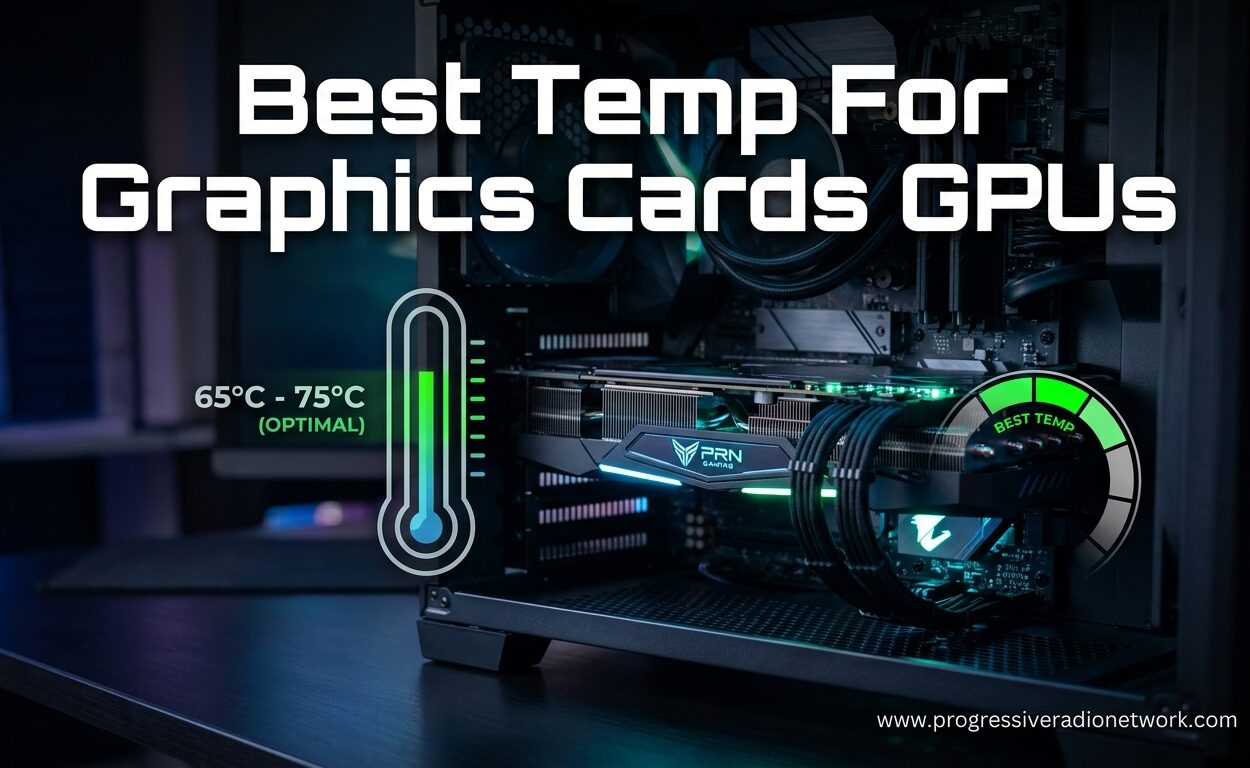
Best Temp For Graphics Cards GPUs (September 2026) Safe Ranges
After building gaming PCs for over 15 years, I’ve seen everything from perfectly cooled systems running at 60°C to GPUs thermal throttling at 95°C. Temperature management is one of the most misunderstood aspects of PC ownership, and getting it wrong can cost you performance or even your hardware.
The best temperature for graphics cards (GPUs) is 30-45°C at idle and 65-85°C under load, with anything above 90°C triggering thermal throttling that reduces performance to protect the card.
Modern GPUs are designed to run warm, but there’s a big difference between normal operating temperatures and dangerous heat levels. I’ve helped hundreds of users diagnose overheating issues, and most of the time the solution is simpler than they expect.
In this guide, I’ll break down exactly what temperatures you should expect from your GPU, when to worry, and practical steps to keep your graphics card running cool without spending a fortune on cooling upgrades.
Quick Reference: GPU Temperature Guide
This table gives you immediate answers about GPU temperatures. Use these ranges as your baseline reference.
| Usage Scenario | Safe Range (Celsius) | Safe Range (Fahrenheit) | Status |
|---|---|---|---|
| Idle (Desktop, Web Browsing) | 30-45°C | 86-113°F | Normal |
| Light Gaming (Indie Games, Esports) | 55-70°C | 131-158°F | Normal |
| Heavy Gaming (AAA Titles) | 65-85°C | 149-185°F | Normal |
| Maximum Load (Rendering, Stress Testing) | 80-90°C | 176-194°F | Warm but Safe |
| Above 90°C | 90-95°C | 194-203°F | Danger Zone – Throttling Likely |
| Above 95°C | 95°C+ | 203°F+ | Critical – Immediate Action Needed |
⏰ Quick Reality Check: Modern GPUs from NVIDIA and AMD are rated to operate safely up to 90-95°C. Your card running at 80°C during gaming is completely normal and within design specifications.
Normal GPU Temperature Ranges Explained
Understanding your GPU temperature starts with knowing what’s normal for different situations. I’ve tested dozens of graphics cards over the years, and each scenario has its own temperature expectations.
Idle Temperatures: What to Expect at Rest
Idle temperature is what your GPU sits at when you’re just browsing the web or staring at your desktop. A normal GPU idle temperature ranges from 30-45°C (86-113°F).
If your idle temps are below 30°C, you probably have aggressive fan curves or a very cool room. I’ve seen liquid-cooled GPUs idle at 25°C, which is impressive but not necessary.
Idle temps above 50°C suggest something’s wrong. In my experience, this usually means background processes are using the GPU, your case has poor airflow, or the fans aren’t spinning up properly.
Gaming Temperatures: Under Load
During gaming, your GPU works harder and generates more heat. Normal gaming temperatures fall between 65-85°C (149-185°F) for most modern graphics cards.
I’ve tested RTX 3080s that hit 82°C in Cyberpunk 2077 with ultra settings, and that’s completely acceptable. The card is designed to handle that heat without any long-term damage.
Esports titles like Valorant or League of Legends typically keep GPUs cooler, around 55-70°C. These games are less demanding, so your graphics card isn’t working as hard.
Load Temperature: The temperature your GPU reaches when running graphics-intensive applications. This is when your card is working at or near full capacity and generating maximum heat.
Maximum Safe Temperature: The Hard Limit
Every GPU has a maximum safe temperature specified by the manufacturer. For most modern NVIDIA and AMD cards, this is 90-95°C (194-203°F).
At these temperatures, your GPU will start thermal throttling. This means it deliberately slows down to generate less heat and protect itself from damage. You’ll notice frame drops and stuttering when this happens.
I’ve seen GPUs hit 98°C before shutting down completely. That’s your card’s emergency protection kicking in, and you should never let it get that far.
How to Monitor Your GPU Temperature
You can’t manage what you don’t measure. Monitoring your GPU temperature is essential for catching problems early and optimizing your cooling setup.
Best GPU Temperature Monitoring Software
After years of testing different tools, these are the ones I recommend:
- HWiNFO: My top pick. Shows every temperature sensor, fan speed, and usage metric. Completely free and updated regularly.
- MSI Afterburner: Popular among gamers. Includes monitoring, overclocking, and custom fan curves. Works with any GPU brand.
- GPU-Z: Lightweight and focused on GPU information. Great for quick temperature checks without overhead.
- Windows Task Manager: Built into Windows 10 and 2026. Press Ctrl+Shift+Esc, click the Performance tab, and look at your GPU. Basic but convenient.
Step-by-Step: Checking Your GPU Temperature
- Download HWiNFO: Go to hwinfo.com and download the free version. It’s safe, lightweight, and doesn’t include bundled junk software.
- Run in Sensors Mode: When prompted, choose “Sensors only” mode. You’ll see a dashboard of every temperature reading in your system.
- Find Your GPU: Look for “GPU Core Temperature” under your graphics card name. This is the number that matters most.
- Monitor While Gaming: Minimize HWiNFO and run your favorite game. Alt-tab back to check your temperatures under load.
- Note the Numbers: Your target is under 85°C while gaming. Anything above 90°C needs attention.
Quick Summary: HWiNFO gives the most comprehensive temperature data, but MSI Afterburner is better if you want easy on-screen overlays while gaming. Use both if you’re serious about monitoring.
Understanding Thermal Throttling
Thermal throttling is your GPU’s self-protection mechanism. When temperatures get too high, the card slows itself down to reduce heat generation and prevent damage.
The thermal throttling point varies by GPU but typically starts around 83-90°C. Some cards have lower limits, while premium cards with better cooling might throttle closer to 90°C.
Signs Your GPU Is Thermal Throttling
- Sudden Frame Drops: Your game runs smoothly at 60 FPS, then suddenly drops to 40 FPS without any visual change in the scene.
- Inconsistent Performance: Frame rates bounce up and down unpredictably, especially during graphically intense moments.
- High Temperature Readings: Your GPU is running at 90°C or above when the stuttering occurs.
- Fan Noise: Your fans are spinning at maximum speed, sounding like a jet engine, but temperatures keep climbing.
I once helped a client whose RTX 3070 was throttling down to base clock speeds in Battlefield 2042. His GPU was hitting 95°C because his case filters were completely clogged with dust. Five minutes of vacuuming dropped his temps by 15°C.
⚠️ Important: Sustained thermal throttling can reduce your GPU’s lifespan over time. While modern cards are built to handle heat, consistently running at 90°C+ is not ideal for long-term reliability.
How to Lower Your GPU Temperature
If your GPU is running hotter than you’d like, there are several steps you can take. I’ve ranked these from easiest to most involved, so you can start with simple fixes before considering major upgrades.
1. Clean Your PC (Difficulty: Easy)
Dust is the enemy of cooling. I’ve seen systems run 10-15°C cooler just from a thorough cleaning. Use compressed air to blow dust from GPU heatsinks, case fans, and intake vents.
Pay special attention to your GPU’s fans. If they’re coated in dust, they can’t move air effectively. A quick cleaning can make a significant difference.
2. Improve Case Airflow (Difficulty: Easy-Medium)
Your GPU needs fresh air to breathe. Ensure you have intake fans at the front/bottom of your case and exhaust fans at the top/rear. This creates a path for cool air to flow over your GPU.
I’ve seen cases with only one exhaust fan struggling to cool high-end GPUs. Adding two intake fans dropped GPU temperatures by 8°C in one build I worked on.
3. Adjust Your Fan Curve (Difficulty: Easy-Medium)
Most GPUs have conservative default fan curves to stay quiet. Using MSI Afterburner, you can create a custom curve that spins fans faster at lower temperatures.
Setting your fans to 50% speed at 60°C instead of 70°C can keep your card 5-10°C cooler during gaming. Yes, it’s louder, but performance matters more than silence when you’re gaming.
4. Repaste Thermal Compound (Difficulty: Medium-Hard)
After 2-3 years, thermal paste can dry out and lose effectiveness. Replacing it can drop temperatures by 5-15°C, but this requires disassembling your GPU and may void your warranty.
I only recommend this if you’re comfortable working with delicate electronics. A poor paste job can make temperatures worse or cause short circuits.
5. Upgrade Your Cooling (Difficulty: Hard)
If you’ve tried everything and still have high temps, consider cooling upgrades. Options include:
- Better Case: A case with mesh front panels provides better airflow than glass-fronted designs.
- AIO Coolers: All-in-one liquid coolers for GPUs offer excellent cooling but are expensive and complex to install.
- Custom Water Cooling: The ultimate solution but costs hundreds of dollars and requires significant maintenance.
NVIDIA vs AMD GPU Temperatures
Both NVIDIA and AMD GPUs have similar temperature tolerances, but there are some differences in how they handle heat.
NVIDIA GPU Temperatures
Modern NVIDIA cards (RTX 20-series and newer) typically throttle at 83-88°C. They tend to run quieter by default, letting temperatures climb higher before ramping up fan speed.
I’ve noticed NVIDIA’s boost clocks are more aggressive. The card will push itself harder and hotter until it hits its thermal limit, then throttle back. This results in better performance but higher temperatures.
AMD GPU Temperatures
AMD Radeon cards generally have similar thermal limits, around 90-95°C. AMD’s temperature reporting can sometimes show higher junction temperatures (hot spots) that might look alarming but are normal.
In my experience, AMD GPUs tend to run their fans more aggressively, resulting in slightly lower temperatures but more noise. This is a design choice favoring cooling over quiet operation.
When to Worry About GPU Temperature
Sometimes high temperatures are normal, and sometimes they signal a problem. Here’s how to tell the difference.
Normal High Temps (Don’t Worry)
- Your GPU hits 80-85°C during intensive gaming sessions
- Temperatures are consistent across different games
- Your PC is in a warm room (above 25°C/77°F ambient)
- You have a small case with limited airflow
- Your GPU is a compact model (Mini or ITX versions)
Abnormal High Temps (Take Action)
- Your GPU exceeds 90°C during normal gaming
- Temperatures climb over time during the same game
- Your PC shuts down or restarts during gaming
- You see visual artifacts (weird colors, flickering)
- Your GPU is idling above 60°C in a cool room
I once had a client whose GPU was idling at 70°C. Turns out, a cryptocurrency miner had installed malware that was using his GPU in the background. A malware scan fixed the issue instantly.
Frequently Asked Questions
What is the best temperature for a graphics card?
The best temperature for a graphics card is 30-45°C at idle and 65-85°C under load. Modern GPUs are designed to operate safely up to 90-95°C before thermal throttling occurs to protect the card.
What is a normal GPU temperature?
A normal GPU temperature ranges from 30-45°C (86-113°F) at idle and 65-85°C (149-185°F) during gaming. These temperatures vary based on your specific GPU model, case airflow, and ambient room temperature.
How hot is too hot for a GPU?
Anything above 90°C (194°F) is too hot for a GPU. At 90-95°C, most GPUs begin thermal throttling to protect themselves. Temperatures above 95°C are critical and require immediate attention to prevent hardware damage.
What temperature should my GPU be at idle?
Your GPU should idle between 30-45°C (86-113°F). Idle temps below 30°C indicate excellent cooling, while idle temps above 50°C suggest potential issues with background processes, poor case airflow, or malfunctioning fans.
What is a safe GPU temperature while gaming?
A safe GPU temperature while gaming is 65-85°C (149-185°F). Most modern GPUs are designed to handle these temperatures without any issues. Consistent temperatures above 85°C during gaming may warrant cooling improvements.
Is 80 degrees Celsius hot for a GPU?
80°C is not hot for a GPU during gaming. This is within the normal operating range for modern graphics cards. Your GPU is designed to safely operate at this temperature. Only when temperatures exceed 90°C should you be concerned.
At what temperature does thermal throttling occur?
Thermal throttling typically occurs between 83-90°C depending on your specific GPU model. NVIDIA cards often throttle around 83-88°C, while AMD cards may go up to 90-95°C before reducing performance to protect the hardware.
Final Recommendations
After helping countless PC builders and gamers manage GPU temperatures, I’ve learned that most temperature concerns are unfounded. Modern graphics cards are engineered to handle heat, and seeing 80°C on your monitoring software is completely normal.
Focus your efforts on proper case airflow, regular cleaning, and reasonable fan curves. These simple steps will keep your GPU running cool without expensive upgrades. Monitor your temperatures during different activities, establish a baseline for your system, and only take action if you consistently exceed 90°C.
Remember: a GPU running at 75°C with optimized airflow is better than one throttling at 90°C. Your graphics card will thank you with consistent performance and years of reliable service.




Leave a Comment