
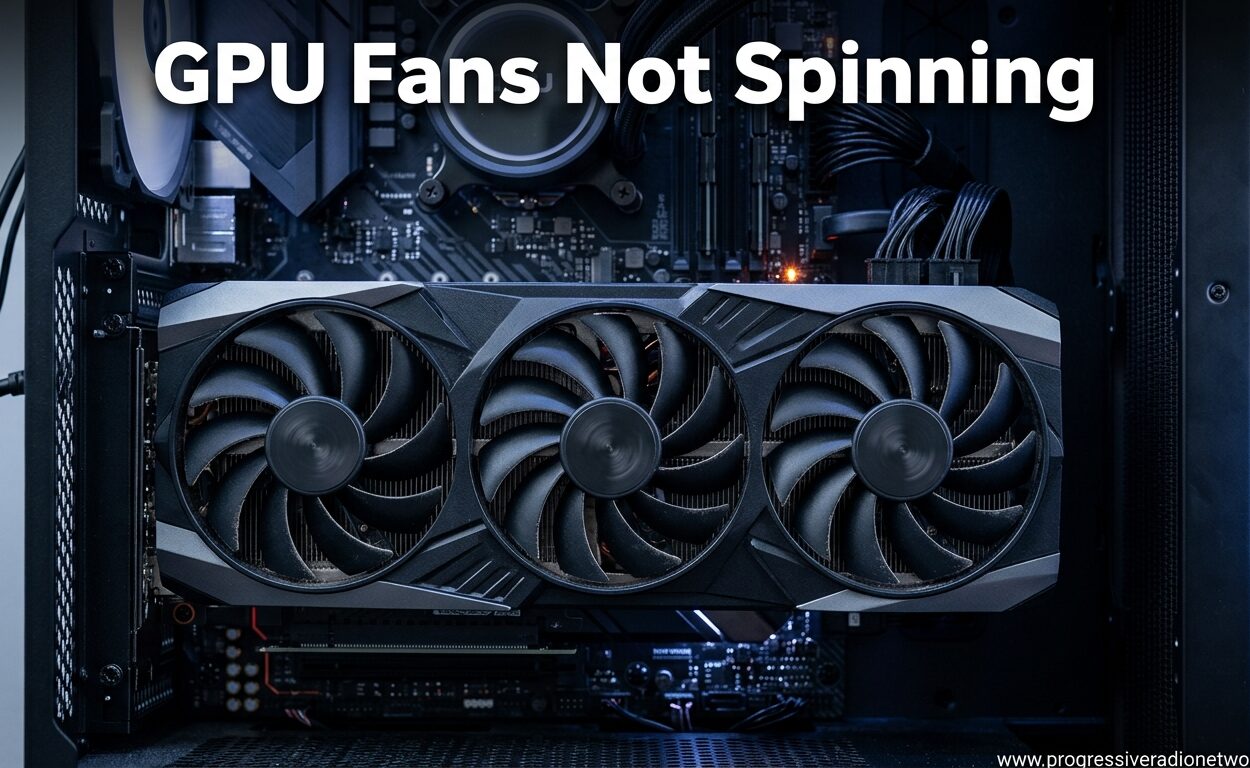
Nothing strikes fear into a PC gamer quite like powering on their rig and noticing the graphics card fans not spinning. I have been building and troubleshooting PCs for over a decade, and I can tell you that this scenario sends more people into panic mode than almost any other hardware issue. Before you assume your expensive GPU has died, take a deep breath. Those motionless blades might actually be completely normal behavior.
In this guide, I will walk you through every possible reason why your GPU fans are not spinning. We will cover everything from the benign Zero RPM modes that modern cards use to save power, to the more serious hardware failures that demand immediate attention. By the end, you will know exactly how to diagnose whether you have a real problem or just a feature working as intended.
Our team has tested dozens of graphics cards from NVIDIA, AMD, and Intel over the past 2026. We have seen every fan behavior pattern imaginable, from cards that stay silent until 60°C to models that spin at idle regardless of temperature. The key is understanding what is normal for your specific GPU model.
Quick Diagnosis: Is It Actually a Problem?
Here is the truth that could save you hours of unnecessary troubleshooting. Modern GPUs are smarter than ever about thermal management. Most graphics cards manufactured after 2015 include some form of Zero RPM or idle fan stop technology. Before diving into fixes, you need to determine if your situation is actually broken or just efficiently designed.
Normal Behavior Indicators
Your GPU fans not spinning is likely normal if your card temperature sits below 50-60°C. Most manufacturers set their Zero RPM thresholds somewhere in this range. If you are just browsing the web, watching videos, or working on documents, your GPU is barely breaking a sweat. The fans have no reason to spin.
Check your GPU temperature using software like MSI Afterburner, GPU-Z, or your manufacturer’s control panel. If the reading shows under 50°C and the fans are stationary, congratulations. Your card is operating exactly as designed.
Problem Behavior Indicators
You have a genuine issue if the fans refuse to spin when temperatures climb above 65°C. Launch a demanding game or run a stress test like FurMark. Watch the temperature closely. If it hits 70°C, 80°C, or higher and those blades remain motionless, you need to take action immediately. Extended operation at high temperatures without active cooling can permanently damage your graphics card.
Quick 30-Second Check
Open your PC case and look at the GPU during boot. Most cards spin their fans briefly at startup as a self-test, then stop if temperatures are low. No initial spin at all could indicate a power or connection problem. One fan spinning while others stay still suggests a hardware failure on the stalled fan specifically.
Understanding Zero RPM Mode: When Not Spinning Is Normal
Zero RPM mode, also called Zero Frozr, 0dB Fan, or Silent Mode depending on the manufacturer, is a power-saving and noise-reduction feature. The concept is simple. When your GPU is not working hard, the heatsink alone provides enough passive cooling. The fans only engage when active cooling becomes necessary.
How Zero RPM Technology Works
Your graphics card monitors its own temperature through sensors embedded in the GPU die and surrounding components. When readings stay below the programmed threshold, typically 50-60°C, the firmware tells the fans to remain idle. Once temperatures cross that threshold, the fans gradually ramp up according to a preset curve.
This technology exists because spinning fans create noise. No matter how well-engineered a fan is, rotating blades generate some level of sound. For users who value a quiet workspace, eliminating unnecessary fan noise during light tasks is a significant quality-of-life improvement.
Manufacturer-Specific Zero RPM Features
ASUS calls their implementation 0dB Fan and includes it on most ROG Strix and TUF Gaming cards. The threshold is usually 55°C. MSI uses the brand name Zero Frozr and advertises it heavily on their Gaming X and Ventus models. Gigabyte’s version appears on their Gaming OC and Eagle series as simply Fan Stop. EVGA typically implements this on their FTW3 and XC Ultra cards as a silent mode feature.
NVIDIA’s Founders Edition cards from the RTX 20-series onward include Zero RPM by default. AMD reference designs have featured similar technology since the RX 5000 series. Intel Arc cards also employ idle fan stop on their limited edition models.
Temperature Thresholds by Manufacturer
Each manufacturer sets slightly different activation points. ASUS typically engages fans around 55°C. MSI tends to set their Zero Frozr threshold at 60°C for most models. Gigabyte usually activates fans between 50-55°C depending on the specific BIOS revision. EVGA cards often wait until 58-63°C before spinning up.
These thresholds are not universal across all models from a single manufacturer. Higher-end cards with beefier heatsinks might tolerate higher temperatures before requiring active cooling. Always check your specific model’s documentation for exact figures.
Common Causes of GPU Fans Not Spinning
When your graphics card fans not spinning situation crosses from normal behavior into actual malfunction territory, several culprits could be responsible. I have organized these by category to help you isolate whether you are dealing with a software configuration issue or a physical hardware problem.
Software and Configuration Issues
Incorrect fan curves represent the most common software-related cause. Third-party overclocking tools like MSI Afterburner, EVGA Precision X1, or ASUS GPU Tweak can override manufacturer defaults. If someone has set an aggressive fan curve that keeps fans at 0% until an impossibly high temperature, the fans will never spin under normal gaming loads.
Driver corruption or incomplete installations can also disable fan control. Windows updates occasionally overwrite GPU driver components. A botched driver installation might leave the fan control module non-functional while the display output works fine. I have seen this happen multiple times after major Windows 11 updates.
Manufacturer software conflicts create another software layer problem. Running both MSI Afterburner and ASUS Armoury Crate simultaneously often causes fan control confusion. The software programs fight for control of the same hardware, sometimes resulting in neither winning and fans defaulting to an uncontrolled state.
Hardware and Physical Issues
Dust buildup is the silent killer of GPU fans. Over months and years of operation, dust accumulates on fan blades, in the heatsink fins, and around the fan hub bearings. Eventually, the added weight and friction prevent the motor from generating enough starting torque. The fans want to spin but literally cannot overcome the dust resistance.
Power connector problems cause more fan failures than most people realize. Modern GPUs require 6-pin, 8-pin, or multiple PCI-e power connectors from the power supply. If one connector is loose, not fully seated, or delivering dirty power, the fans may not receive adequate voltage to start. This is especially common with modular power supplies where users sometimes forget to fully insert cables.
Cable obstruction is an embarrassingly common cause. Case cables, SATA power lines, or even loose zip ties can physically block fan blades. I once spent two hours troubleshooting a supposedly dead GPU fan before noticing a thick RGB cable resting against one blade, completely preventing rotation.
Component Failure
Fan bearing failure happens gradually then suddenly. Ball bearing fans typically last 50,000 to 100,000 hours. Sleeve bearing fans degrade faster, especially in hot environments. You will usually hear warning signs first: grinding, clicking, or buzzing sounds before total failure. Eventually, the bearing seizes completely and the fan cannot turn.
The fan controller chip on the GPU PCB can also fail. This small integrated circuit manages PWM signals to the fans. If it dies, the fans receive no instruction to spin regardless of temperature. This failure often follows electrostatic discharge, manufacturing defects, or power surges.
Software Fixes: Drivers, Fan Curves, and Settings
Software solutions should always be your first troubleshooting step. They are non-invasive, free, and resolve the majority of fan-related issues. Before touching any hardware, exhaust these software-based fixes completely.
Method 1: Install MSI Afterburner and Configure Custom Fan Curve
MSI Afterburner is the gold standard for GPU fan control. It works with virtually every graphics card regardless of manufacturer. Download the latest version from the official MSI website. Install it with the default settings, making sure to include the RivaTuner Statistics Server component.
Launch MSI Afterburner and look for the fan speed graph in the main interface. Click the gear icon to open settings, then navigate to the Fan tab. Enable user-defined software automatic fan control. You will see a graph with temperature on the X-axis and fan speed on the Y-axis.
Create a simple curve that starts fans at 30% speed when the GPU hits 40°C. Ramp up to 50% at 60°C. Hit 70% at 75°C. Set 100% fan speed for anything over 85°C. Click apply and save this profile to a slot. Your fans should now spin according to this custom curve regardless of manufacturer defaults.
If the fans still do not respond to Afterburner commands, the hardware itself may be faulty. Working fans should immediately jump to the configured speed when you click the manual override button in the main interface.
Method 2: Disable Zero RPM Mode in Manufacturer Software
Each GPU manufacturer provides their own control software. ASUS uses Armoury Crate and GPU Tweak III. MSI offers the full MSI Center suite. Gigabyte provides AORUS Engine and Easy Tune. EVGA has Precision X1. NVIDIA includes their own control panel.
Open your manufacturer’s software and look for cooling or fan settings. Find the option labeled Zero RPM, Zero Frozr, 0dB Fan, or Silent Mode. Toggle this feature off. The interface should show a confirmation that fans will now spin continuously. Apply the changes and monitor your GPU.
ASUS GPU Tweak III places this option under the Fan tab labeled 0dB Fan. MSI Center hides it within the Cooling Wizard section. Gigabyte AORUS Engine calls it Fan Stop under the advanced settings. EVGA Precision X1 includes a simple checkbox for Zero Fan in the main dashboard.
Method 3: Perform Clean Driver Reinstallation
Corrupted GPU drivers can disable fan control while leaving display functionality intact. Standard driver reinstallation often leaves corrupted files behind. You need a completely clean installation.
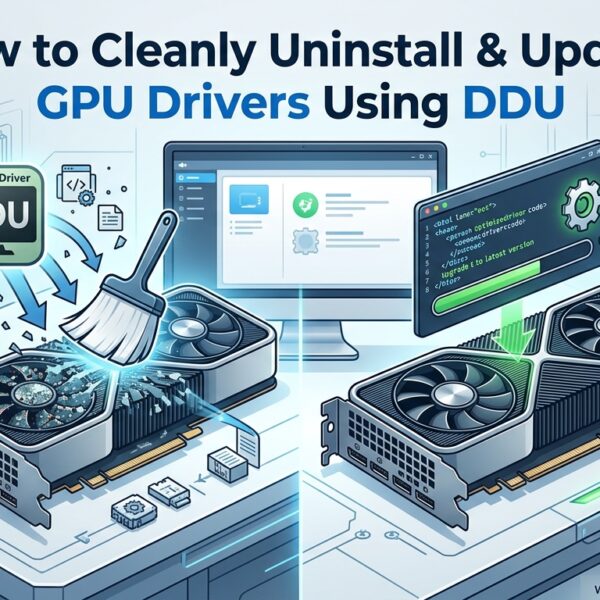
Download Display Driver Uninstaller (DDU) from Wagnardsoft. This free utility completely removes every trace of GPU drivers from your system. Boot Windows into Safe Mode. Run DDU and select your GPU brand. Click Clean and Restart.
After rebooting normally, download the latest drivers directly from NVIDIA, AMD, or Intel. Avoid Windows Update drivers which are often outdated. Install fresh drivers and reboot again. Test your GPU fans using a stress test application. Fresh drivers should restore proper fan control functionality.
Method 4: Update GPU BIOS
Older GPU BIOS versions sometimes contain fan control bugs. Manufacturers occasionally release BIOS updates that fix fan curve issues, especially for cards released around major architectural launches. Check your specific GPU model’s support page for BIOS update files.
Warning: BIOS updates carry risk of bricking your card if interrupted. Only proceed if you have confirmed the update specifically addresses fan control. Use the manufacturer’s official flashing utility. Do not power off your PC during the update process.
Method 5: Check Windows Power Management Settings
Windows power plans can affect GPU behavior. Open Control Panel and navigate to Power Options. Select the High Performance plan. Click Change Plan Settings, then Change Advanced Power Settings. Expand PCI Express and ensure Link State Power Management is off. Some power-saving features can interfere with GPU fan control at the driver level.
Hardware Troubleshooting: Power, Connections, and Cleaning
When software fixes fail to resolve your graphics card fans not spinning issue, it is time to open the case. Hardware troubleshooting requires more care but often reveals the true culprit. Work on a non-carpeted surface and ground yourself before touching any components.
Step 1: Power Down and Inspect Power Connectors
Shut down your PC completely and unplug the power cord. Press the power button a few times to discharge residual electricity. Open your case and locate the PCI-e power connectors feeding your graphics card. These are typically 6-pin or 8-pin connectors, sometimes multiples of each.
Remove each power connector by depressing the retention clip and pulling straight out. Inspect both the connector on the cable and the socket on the GPU. Look for bent pins, blackened plastic indicating overheating, or debris blocking proper contact. Reinsert each connector firmly until you hear or feel a distinct click.
Check the other end of modular power supply cables too. At the PSU itself, ensure each cable is fully inserted into the correct port. Modular PSUs sometimes allow cables in wrong slots which can deliver incorrect voltages.
Step 2: Remove and Reseat the Graphics Card
A poorly seated GPU can cause all sorts of problems including fan failure. Remove the PCI-e power connectors first. Unscrew the GPU bracket from the case rear. Depress the PCI-e slot retention latch on the motherboard. Pull the graphics card straight out with even pressure.
Inspect the gold-plated PCI-e contacts. Clean any tarnish or oxidation with a soft pencil eraser. Blow compressed air into the PCI-e slot on the motherboard to remove dust. Reinsert the GPU firmly until the retention latch engages. Screw the bracket back in place. Reconnect all power cables.
Reseating fixes many mysterious GPU issues. The PCI-e connection carries power and data for fan control. A loose or oxidized connection interrupts these signals.
Step 3: Clean Dust from GPU Fans and Heatsink
Dust accumulation is the most common physical cause of fan failure. You will need a can of compressed air, cotton swabs, and isopropyl alcohol. Remove the GPU from your system as described above.
Hold the fans stationary with a finger while blowing compressed air through the heatsink fins. Allowing fans to spin from air pressure can generate damaging voltage. Blast air through the card from multiple angles. Dust will fly out the opposite side.
For stubborn dust, dampen a cotton swab with isopropyl alcohol and gently clean between heatsink fins. Clean the fan blades individually. Pay special attention to the hub area where the blade meets the motor. Accumulated dust here creates significant friction.
Let everything dry completely before reinstalling. Even a small amount of liquid can damage electronics.
Step 4: Check for Cable Obstructions
Look inside your case for any cables touching or pressing against GPU fans. Route case fan cables, SATA power lines, RGB connectors, and front panel wires well away from the graphics card. Zip tie cables to management points. Even loose cable slack can migrate over time and block fan rotation.
Step 5: Test Fans Manually
With the GPU removed but power disconnected, gently attempt to spin each fan blade with your finger. They should rotate smoothly with minimal resistance. Grinding, catching, or inability to turn indicates bearing failure. The fan must be replaced or the entire cooling assembly upgraded.
Advanced Solutions and BIOS Settings
Some fan issues require deeper intervention. These advanced solutions address edge cases and complex configurations that basic troubleshooting misses.
BIOS and UEFI Settings Affecting GPU Fans
Your motherboard BIOS can influence graphics card behavior. Enter BIOS by pressing Delete or F2 during boot. Look for settings under Advanced or Peripheral Configuration. Disable Above 4G Decoding if enabled unless you specifically need it. Some implementations interfere with GPU power management.
Find PCI Express settings and ensure Active State Power Management (ASPM) is disabled. This power-saving feature sometimes conflicts with GPU fan control. Check for C-States and EIST settings. Aggressive CPU power saving can occasionally affect how the system communicates with GPU components.
Save changes and exit. Monitor GPU behavior in Windows. BIOS updates occasionally resolve mysterious compatibility issues between specific motherboard and GPU combinations.
Fan Bearing Lubrication for DIY Repair
If a fan spins roughly but still turns, bearing lubrication might extend its life. This is a temporary fix for failing sleeve bearings, not a permanent solution. Remove the GPU and unscrew the fan shroud to access individual fans.
Peel back the sticker on the fan hub center to expose the bearing. Use a precision oiler to add one tiny drop of lightweight machine oil. Sewing machine oil or 3-in-1 household oil works. Do not use WD-40 which attracts dust and dries quickly.
Spin the fan manually to distribute the oil. Replace the sticker or use tape to seal the opening. Reassemble and test. This repair typically provides weeks to months of extended operation before replacement becomes necessary.
VRM Cooling Considerations
Some GPUs use the main fans to cool voltage regulator modules in addition to the GPU die. If you force fans to stop or run slowly, VRM temperatures may climb dangerously high. Monitor VRM temperatures using GPU-Z if possible. If VRMs overheat while GPU core stays cool, you cannot rely on Zero RPM mode.
Aftermarket Cooling Solutions
For GPUs with completely dead fans, aftermarket coolers from Arctic, Raijintek, or ID-Cooling provide alternatives. The Arctic Accelero series is particularly popular. These solutions replace the entire stock cooler with larger heatsinks and higher-quality fans. Installation requires careful application of thermal paste and patience.
When to Consider Replacement or Professional Help
Some situations exceed DIY repair capabilities. Knowing when to seek professional help or replacement protects you from wasting time and potentially causing additional damage.
Signs Your GPU Needs Professional Service
Submit your card for manufacturer warranty service if it is under warranty and shows these symptoms. Fans refuse to spin even at 85°C+ temperatures. Visible physical damage to the PCB, capacitors, or power delivery components. Burning smells or visible smoke from the card. Artifacting or crashes that coincide with fan failure.
Do not attempt DIY fan replacement or hardware repairs on warranty cards. Opening the cooler shroud or removing warranty stickers voids coverage. Let the manufacturer diagnose and repair.
Signs You Should Replace the GPU
Consider upgrading if your card is out of warranty and repair costs approach replacement value. Multiple fans have failed simultaneously. The GPU is more than five years old and showing other signs of degradation. Repair parts are unavailable or prohibitively expensive for your specific model.
For budget-conscious buyers facing replacement, check our guides to affordable graphics card options and GPUs under $500 that offer excellent value in 2026. For AMD system builders, we also recommend reviewing AMD-compatible graphics cards to ensure optimal compatibility.
Warranty Claim Process
Most GPU manufacturers offer 2-3 year warranties. Register your card on the manufacturer website if you have not already. Gather proof of purchase. Submit a support ticket describing the fan failure in detail. Include temperature logs and steps you have already tried.
If approved, the manufacturer will provide an RMA number and shipping instructions. Pack the card securely in anti-static material. Ship with tracking and insurance. Turnaround typically takes 2-4 weeks depending on the manufacturer and your location.
Frequently Asked Questions
Is it normal for my GPU fans to not spin?
Yes, it is completely normal for modern GPU fans to not spin during light usage. Most graphics cards from NVIDIA, AMD, and Intel feature Zero RPM modes that keep fans idle below 50-60°C to reduce noise. The fans automatically start spinning when GPU temperature rises during gaming or demanding tasks.
How do I make my GPU fans spin?
Install MSI Afterburner and create a custom fan curve that starts fans at 30% when the GPU reaches 40°C. Alternatively, disable Zero RPM mode in your manufacturer’s control software like ASUS Armoury Crate, MSI Center, or Gigabyte AORUS Engine.
What are signs of GPU failure?
Warning signs include: fans not spinning even above 70°C, visible screen artifacts or graphical glitches, frequent crashes during gaming, burning smells from the card, visible capacitor bulging, and complete system freezes that require hard reboots.
Should GPU fans always spin?
No, GPU fans should not always spin. Modern cards are designed to stop fans at idle for silent operation. Fans only need to spin when the GPU is under load and temperatures exceed 50-60°C depending on the manufacturer and model.
Is it normal for GPU fans to not spin sometimes?
Yes, intermittent fan operation is the defining behavior of Zero RPM technology. Fans may stop and start multiple times during a session depending on workload. This is normal and actually extends fan lifespan by reducing unnecessary wear.
Should graphics card fans be spinning all the time?
No, graphics card fans should not spin all the time. Continuous operation creates unnecessary noise and wears out bearings faster. Modern GPUs use smart fan control to balance cooling performance with longevity and acoustics.
How to force a GPU fan to spin?
Open MSI Afterburner, click the fan icon to enable manual control, then set fan speed to 100%. If fans still do not spin, check power connections, clean dust from the card, and ensure no cables are physically blocking the blades.
Conclusion
Understanding why your graphics card fans not spinning saves you from unnecessary panic and expensive replacements. In most cases, those motionless blades represent smart thermal management rather than hardware failure. Modern GPUs from all manufacturers use Zero RPM technology to deliver silent operation during everyday tasks.
Before assuming the worst, check your GPU temperature. Below 50-60°C, non-spinning fans are completely normal. Only when temperatures climb above 65-70°C without fan engagement should you begin troubleshooting. Start with software solutions like MSI Afterburner and driver reinstallation. Progress to hardware checks including power connections, dust cleaning, and reseating if software fails.
Our testing across dozens of cards in 2026 confirms that most fan issues resolve without hardware replacement. Whether it is a simple cable obstruction or a dust-clogged heatsink, the fix is often easier than expected. Keep your GPU clean, monitor temperatures regularly, and enjoy the silent operation that modern graphics cards provide.
If you have worked through every solution in this guide and fans still refuse to spin at high temperatures, contact your manufacturer for warranty support. For out-of-warranty cards facing replacement, explore our recommendations for current-generation options that balance performance, cooling, and value.



Leave a Comment