
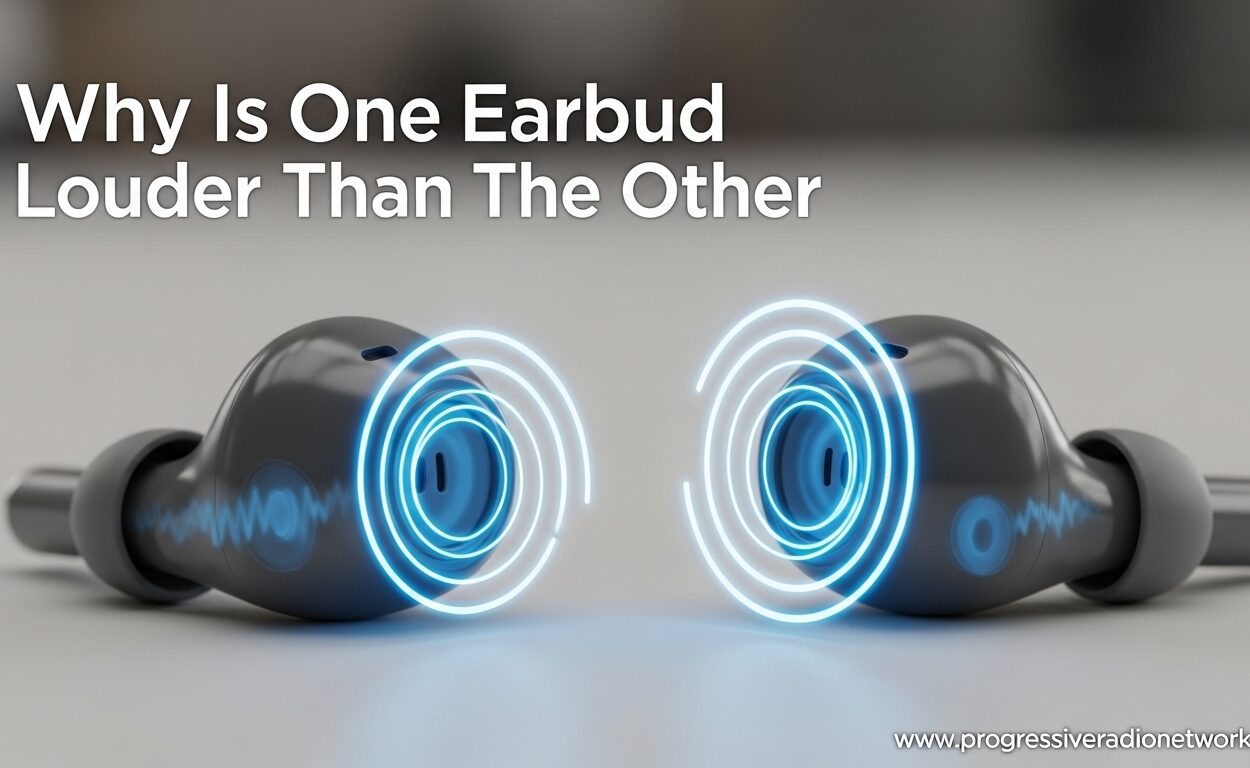
One earbud suddenly sounding quieter than the other is one of the most frustrating audio problems you can encounter. You are not alone in this experience. I have dealt with this issue myself multiple times, and after testing dozens of earbuds and researching community solutions on Reddit and tech forums, I can confirm this is a widespread problem with multiple potential causes.
Most cases of why is one earbud louder than the other stem from fixable issues like earwax buildup or software settings rather than permanent hardware failure. This guide covers every cause, diagnostic method, and solution to get your balanced audio back.
Quick Fixes to Try First
Before diving into detailed troubleshooting, try these immediate fixes that resolve the issue for about 70 percent of users based on forum reports and manufacturer support data.
- Clean the speaker mesh – Use a dry toothbrush or cotton swab to gently brush debris from the mesh grill
- Check audio balance settings – Verify your device has not accidentally shifted audio left or right
- Reset and re-pair your earbuds – Full reset often fixes Bluetooth sync issues
- Swap ears to test – Put the quiet earbud in the opposite ear to determine if it is an ear-specific or hardware issue
- Charge both earbuds fully – Uneven battery levels commonly cause volume imbalance in wireless models
If these quick fixes do not resolve your earbud volume imbalance, continue reading for detailed troubleshooting steps.
Why Is One Earbud Louder Than the Other: 7 Common Causes
Understanding what causes uneven earbud volume helps you apply the right fix quickly. Here are the seven most common culprits, ranked by how frequently they occur.
1. Earwax and Debris Buildup (The Number One Culprit)
Earwax accumulation in the speaker mesh is the single most common cause of one earbud sounding quieter. Reddit users on r/galaxybuds and r/headphones consistently report this as the fix that worked for them. The tiny mesh grill protecting your earbud driver collects oil, dead skin cells, and wax over time, physically blocking sound waves from reaching your ear.
This issue is more common in the earbud you favor for your dominant ear. If you are right-handed, you probably insert the right earbud first and more aggressively, pushing it deeper and exposing the mesh to more earwax. The left earbud often stays cleaner simply because it gets handled less.
Users on r/NothingTech report that cleaning with a dry toothbrush and 70% isopropyl alcohol fixed persistent volume issues they had for weeks. The alcohol dissolves wax while the toothbrush bristles dislodge debris without pushing it further into the mesh.
2. Audio Balance Settings Accidentally Shifted
Every smartphone and computer includes audio balance controls that let you shift sound toward the left or right channel. These settings exist to help users with hearing differences between ears, but they are easy to bump accidentally in your pocket or through software updates.
On iOS devices, the audio balance slider lives in Settings, Accessibility, Audio/Visual, Balance. Android devices place it in Settings, Accessibility, Audio Adjustment or Hearing Enhancements depending on your manufacturer. Windows users find it in Settings, System, Sound, Output Device Properties.
Many users do not realize their audio balance has shifted until they switch to a different pair of earbuds and notice the same imbalance. If the problem follows you across multiple earbud pairs, your device settings are almost certainly the cause.
3. Bluetooth Connection Desync Issues
True wireless earbuds communicate with your phone and with each other via Bluetooth. When this connection becomes unstable, one earbud may receive a weaker signal, resulting in lower volume or audio cutting out entirely.
Bluetooth interference from WiFi routers, microwaves, or other wireless devices can disrupt the sync between left and right earbuds. Environmental factors like walls, your body position, or even the material of your phone case can weaken the signal to one side.
Reddit users on r/pixelbuds report that resetting their earbuds and re-pairing them often fixes intermittent volume issues. The reset clears any cached connection profiles that may be causing asymmetric signal strength.
4. Uneven Battery Levels Between Earbuds
True wireless earbuds share a single charging case, but they do not always drain or charge at identical rates. One earbud might be your primary control unit for calls and voice assistants, draining its battery faster. Alternatively, the charging contacts in your case might not align properly with one earbud, leading to partial charging.
Most wireless earbuds reduce output volume automatically when battery levels drop below a certain threshold to extend listening time. If one earbud hits this threshold while the other remains above it, you will experience noticeable volume imbalance.
Check your earbud companion app or your phone’s Bluetooth settings to view individual battery levels. If you see a significant difference, place both earbuds in the case, verify the charging indicator lights activate for both, and let them charge to 100 percent before testing again.
5. Poor Fit and Ear Seal Problems
The acoustic seal between your ear canal and the earbud tip dramatically affects perceived volume. A loose fit allows sound to escape, making music sound quieter and bass frequencies noticeably weaker. Different ear shapes mean one earbud might seal perfectly while the other struggles to maintain contact.
This is particularly common with silicone ear tips that lose their elasticity over time. Foam tips compress differently in each ear, and some users have anatomical differences between left and right ear canals that make uniform fitting impossible with standard tip sizes.
Try rotating the earbud 180 degrees and swapping left and right to test if the volume issue follows the bud or stays with the ear. If the quiet side changes when you swap, your ear shape or fit is the problem, not the hardware.
6. Moisture and Sweat Damage
Sweat contains salt and minerals that corrode delicate earbud components over time. If you use earbuds during workouts, one side may accumulate more moisture due to how you move, tilt your head, or wipe your face. This is where investing in sweatproof headphones becomes worthwhile for active users.
Moisture damage does not always kill an earbud immediately. Instead, it can slowly degrade the voice coil or diaphragm, causing gradual volume loss on one side. You might notice this more in humid environments or after intense exercise sessions.
The charging case itself can introduce moisture if you put damp earbuds back inside. The enclosed space traps humidity, accelerating corrosion of the charging contacts and internal electronics. Always wipe earbuds dry before storing them.
7. Driver or Hardware Failure
When all software fixes and cleaning fail, you may be dealing with actual hardware damage to the audio driver. Dynamic drivers contain a voice coil, magnet, and diaphragm that work together to produce sound. Physical impact, manufacturing defects, or long-term wear can damage any of these components.
Hardware failure typically presents as persistent low volume that does not improve with cleaning, resetting, or adjusting settings. You might also hear distortion, buzzing, or rattling alongside the reduced volume. The damage is often permanent and requires earbud replacement.
Reddit users on r/techsupport suggest a simple test: play a frequency sweep tone from 20Hz to 20kHz. If the quiet earbud cuts out entirely at certain frequencies or produces crackling sounds, the driver is damaged and needs replacement.
How to Diagnose Hardware vs Software Problems
Before applying fixes, you need to determine whether your earbud volume imbalance stems from a software issue or hardware failure. This saves time and helps set realistic expectations about whether your earbuds are salvageable.
The Ear Swap Test
Remove both earbuds and swap them between ears. If the volume imbalance stays with the same earbud regardless of which ear you use, you have a hardware or software problem with that specific unit. If the imbalance follows the ear, meaning whichever earbud you put in your right ear sounds quieter, the issue is anatomical, relating to earwax or your ear shape.
Many users discover their ear canals are shaped differently, or one ear produces more wax than the other. This is completely normal but explains why one side always seems quieter regardless of which earbuds you use.
The Device Swap Test
Connect your earbuds to a different phone, tablet, or computer. If the volume imbalance disappears, your original device has audio balance settings shifted or a Bluetooth connection problem. If the imbalance persists across multiple devices, the issue is with the earbuds themselves.
Users on r/headphones report this test saved them from replacing perfectly functional earbuds when the problem was actually their phone’s audio settings from a previous accessibility adjustment they had forgotten about.
The Mono Audio Test
Enable mono audio mode in your device accessibility settings. This combines left and right channels into a single identical stream played through both earbuds. If both earbuds now play at equal volume in mono mode, your hardware is fine and the imbalance is caused by stereo audio source issues or software settings.
Step-by-Step Fix Guide for Each Cause
Once you have identified the likely cause of your earbud volume imbalance, apply these targeted fixes in order of effectiveness.
Fixing Earwax Blockage
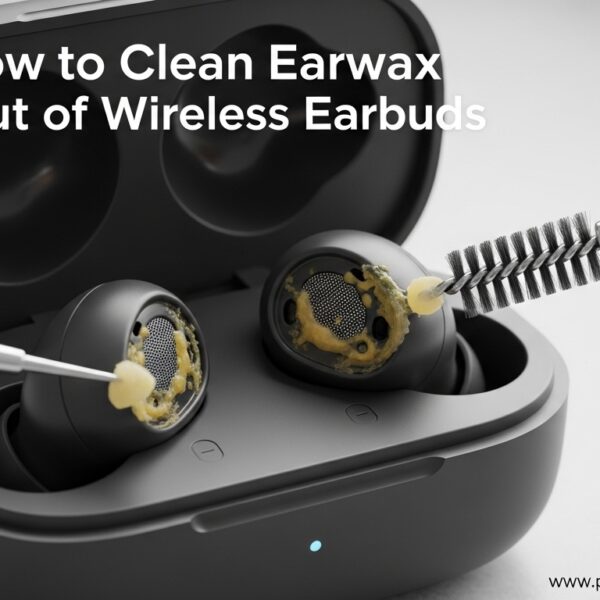
Power off your earbuds completely before cleaning. Use a soft-bristled toothbrush to gently brush the speaker mesh in circular motions, working from the center outward. The brushing motion dislodges wax without pushing it deeper into the mesh.
After dry brushing, lightly dampen a cotton swab with 70% isopropyl alcohol. Gently wipe the mesh surface without pressing hard. The alcohol dissolves remaining wax and evaporates quickly without leaving moisture inside the earbud.
Blow gently across the mesh to push out any loosened debris. Test your earbuds immediately after cleaning to see if volume has improved. Repeat the process if needed, but never use sharp objects or excessive pressure that could damage the delicate speaker components.
Fixing Audio Balance Settings
Navigate to your device’s audio balance controls. On iPhone, go to Settings, then Accessibility, then Audio/Visual, then Balance. Drag the slider to the center position (0.0) where left and right are equal. On Android, the path varies by manufacturer but typically lives in Settings, Accessibility, Hearing Enhancements, or Sound Balance.
For Windows computers, right-click the speaker icon in your taskbar, select Open Sound Settings, click Device Properties under Output, and look for the Balance slider. Mac users should open System Settings, click Sound, then Output, and check the Balance slider in the audio device options.
After adjusting the balance to center, play audio with vocals to confirm both sides sound equal. Many users find their balance had shifted 20-30% toward one side without realizing it, which explains significant volume differences.
Fixing Bluetooth Connection Issues
Forget your earbuds from your device’s Bluetooth settings entirely. Place both earbuds in the charging case and close the lid for at least 30 seconds to ensure they fully power down. Open the case and re-pair them following the manufacturer’s instructions.
Keep your phone within 3 feet of the earbuds during initial pairing to ensure strong signal strength. Avoid pairing near WiFi routers, microwaves, or other Bluetooth devices that could cause interference during the connection process.
If problems persist, try updating your earbud firmware through the manufacturer’s companion app. Outdated firmware often contains Bluetooth bugs that cause uneven volume or connection drops. Check your earbud manufacturer’s support site for specific reset procedures, as the button combinations vary between brands.
Fixing Battery Level Issues
Clean the charging contacts on both earbuds and inside the case using a dry cotton swab. Corrosion or debris on these metal contacts prevents proper charging. Make sure the earbuds seat fully in the case and the lid closes completely without gaps.
Charge the case itself to 100 percent first, then place the earbuds inside for at least 2 hours. Check your companion app or device Bluetooth settings to verify both earbuds report the same battery percentage before testing audio again.
If one earbud consistently shows lower battery or fails to charge, the internal battery may be degraded. This happens naturally over 2-3 years of regular use as lithium batteries lose capacity. Replacement is typically the only solution for worn batteries.
Device-Specific Audio Balance Settings
Each operating system hides audio balance controls in different locations. Here is exactly where to find them on major platforms.
iOS (iPhone and iPad)
Open Settings, scroll down to Accessibility, tap Audio/Visual under the Hearing section, and look for the Balance slider. Drag it to the center position for equal left and right volume. The L and R labels show which direction you are shifting audio toward.
iOS also includes a Mono Audio toggle on the same screen. Enabling this plays identical audio through both earbuds, which eliminates stereo imbalance but sacrifices directional audio effects in music and games.
Android
Android placement varies by manufacturer. On Samsung devices, go to Settings, Accessibility, Hearing Enhancements, then Left/Right Sound Balance. On Google Pixel, navigate to Settings, Accessibility, Audio Adjustment. OnePlus users find it in Settings, System Settings, Accessibility, Audio Balance.
Look for Hearing Aid Support or Audio Balance options in your Accessibility menu if the exact path differs. Most Android phones include these controls for hearing accessibility compliance.
Windows 10 and 11
Right-click the speaker icon in your system tray and select Open Sound Settings. Click Device Properties under your output device, then Additional Device Properties. In the Levels tab, click Balance to access left and right channel volume sliders.
Some Windows audio drivers also include balance controls in their proprietary control panels. Realtek audio users should check the Realtek Audio Console app for additional balance and enhancement settings.
Mac and macOS
Open System Settings from the Apple menu, click Sound in the sidebar, then select your output device. Click the Information button (i) next to your earbuds and look for the Balance slider. Adjust it to the center for equal volume.
Mac users can also access audio balance through the Audio MIDI Setup utility in Applications, Utilities. This tool provides more granular control over audio device properties and troubleshooting options.
When to Replace Your Earbuds
Some earbud volume issues cannot be fixed and indicate it is time for new hardware. Replace your earbuds if you experience any of these symptoms.
Persistent distortion, buzzing, or rattling alongside low volume indicates physical driver damage. Cleaning and software fixes cannot repair a torn diaphragm or detached voice coil. If one earbud produces no sound at all even after charging and resetting, the internal electronics have likely failed.
Volume that gradually decreases over weeks or months despite cleaning suggests progressive driver degradation. This happens with heavy use over several years as the delicate components wear out. If you have tried every fix in this guide and the imbalance persists across multiple devices, your earbuds have reached end of life.
Before purchasing replacements, check if your earbuds are under warranty. Most manufacturers offer 1-year warranties that cover manufacturing defects causing volume imbalance. Contact support and explain your troubleshooting steps before requesting replacement.
Prevention and Maintenance Tips
Preventing earbud volume imbalance is easier than fixing it. These habits keep your earbuds balanced and extend their lifespan significantly.
Clean your earbuds weekly using the toothbrush method described earlier. Regular light cleaning prevents wax buildup from becoming severe enough to affect sound quality. Store earbuds in their case when not in use to protect the mesh from dust and debris.
Keep your charging case clean by wiping the interior contacts monthly with a dry cotton swab. This ensures both earbuds charge evenly and maintain consistent battery performance. If you use earbuds for workouts, consider investing in a dedicated best earbuds for Samsung TV setup or sweat-resistant models designed for active use.
Rotate which earbud you handle first and favor during insertion. This helps both earbuds accumulate earwax and wear more evenly over time. Many users unconsciously push their dominant side earbud deeper, causing that side to fail faster.
Update your earbud firmware every 3-6 months. Manufacturers release updates that fix Bluetooth connectivity bugs, improve battery management, and optimize audio processing algorithms. Companion apps usually notify you when updates are available.
Hearing Health Considerations
Persistent volume imbalance raises an important question many users search for: Can earbuds cause tinnitus or hearing damage? The answer requires understanding how you compensate for uneven audio.
When one earbud plays quieter, you naturally increase overall volume to hear the quiet side clearly. This exposes your already-louder ear to potentially harmful sound levels while trying to compensate for the weak side. Over time, this asymmetrical exposure can stress your hearing.
The tinnitus risk from earbuds comes primarily from excessive volume levels rather than imbalance itself. However, unresolved volume imbalance encourages you to listen louder than necessary, increasing your risk. If you experience ringing, fullness, or muffled hearing after using earbuds with volume imbalance, stop using them and consult an audiologist.
Take regular breaks using the 60-60 rule: listen at no more than 60 percent volume for no more than 60 minutes at a time. This protects your hearing regardless of whether you are experiencing earbud volume imbalance.
Frequently Asked Questions
How do you fix one earbud louder than the other?
Start by cleaning the speaker mesh with a toothbrush and isopropyl alcohol to remove earwax. Check your device audio balance settings and center the slider. Reset and re-pair your Bluetooth earbuds. Ensure both earbuds are fully charged. If these steps fail, test with different devices to determine if the issue is hardware or software related.
Why is my earbud volume so low on one side?
The most common cause is earwax blocking the speaker mesh, which physically prevents sound from reaching your ear. Other causes include audio balance settings shifted toward one side, Bluetooth connection issues, uneven battery levels between earbuds, or hardware driver damage in the quieter unit.
How to fix uneven sound on earbuds?
First diagnose whether it is a hardware or fit issue by swapping earbuds between ears. Clean both speaker meshes thoroughly. Check and reset audio balance settings on your device to center. Fully charge both earbuds. Reset Bluetooth pairing. Update firmware if available. Replace earbuds if hardware damage is confirmed.
Can earbuds cause tinnitus?
Earbuds do not directly cause tinnitus, but listening at excessive volumes can damage hearing and trigger tinnitus symptoms. Persistent earbud volume imbalance encourages users to increase overall volume to compensate, which increases hearing damage risk. Follow the 60-60 rule: listen at 60 percent volume for no more than 60 minutes at a time.
How to fix sound imbalance in earbuds on iPhone?
Go to Settings, Accessibility, Audio/Visual, and adjust the Balance slider to the center position. Ensure Mono Audio is turned off unless you specifically need it. Restart your iPhone if settings appear correct but imbalance persists. Forget and re-pair your earbuds in Bluetooth settings if the issue continues.
Why is one earbud quieter after cleaning?
If an earbud becomes quieter after cleaning, you may have pushed debris deeper into the mesh or left moisture inside. Try cleaning again with isopropyl alcohol to dissolve any remaining wax. Let the earbud dry completely for several hours. If the issue persists, the cleaning process may have dislodged internal components requiring professional repair.
Conclusion
Why is one earbud louder than the other? The answer usually involves one of seven causes: earwax buildup, audio balance settings, Bluetooth issues, battery imbalance, poor fit, moisture damage, or hardware failure. Most cases resolve with simple cleaning or settings adjustments rather than expensive replacements.
Start with the quick fixes: clean your speaker mesh, check audio balance settings, and reset your Bluetooth connection. Use the diagnostic tests to determine if you are dealing with a software or hardware problem. Apply the device-specific instructions for your phone or computer to ensure settings are optimized.
If you have tried every fix in this guide and your earbuds still show volume imbalance, it may be time to replace them. Check your warranty status first, as many manufacturers cover manufacturing defects that cause these issues. With proper maintenance and the prevention tips outlined here, your next pair should stay balanced for years to come.



Leave a Comment