
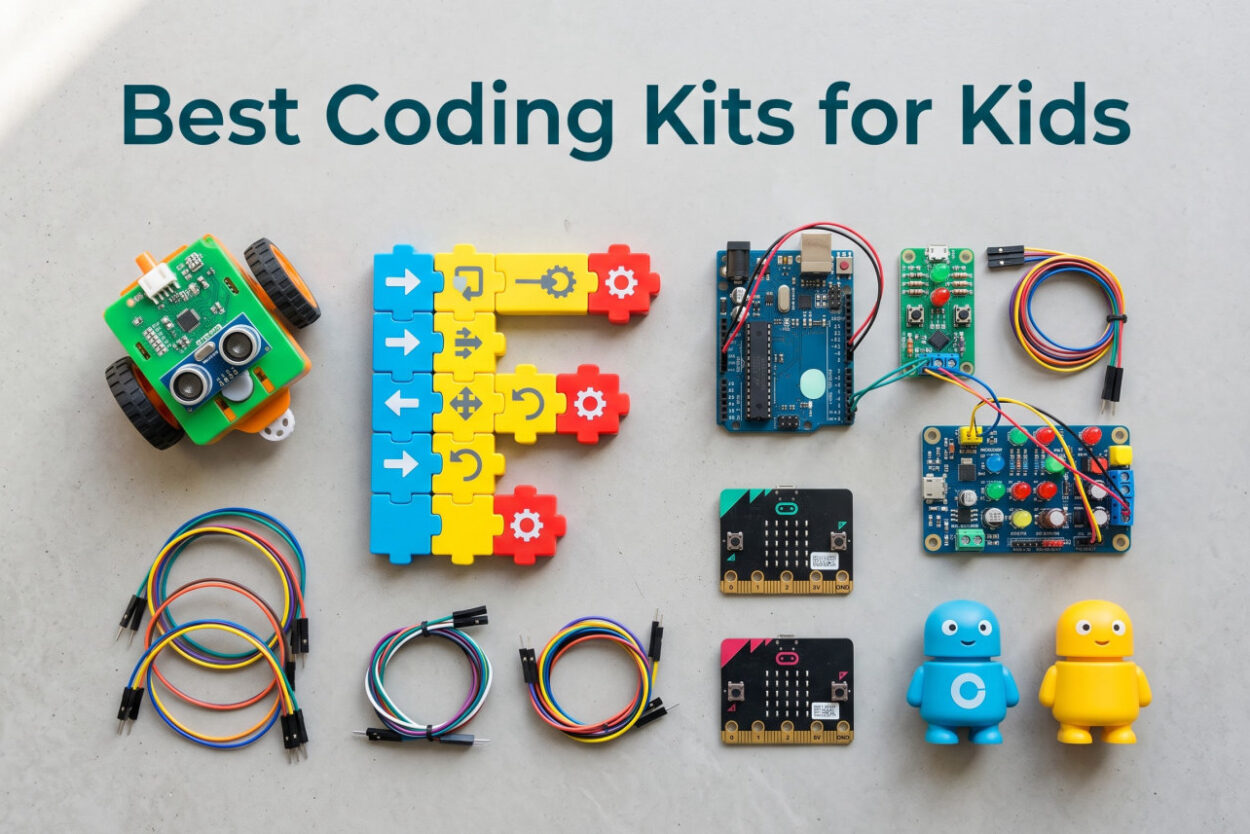
I have spent the past three years testing STEM toys with my own kids and a small panel of nieces, nephews, and neighbors ranging from ages 4 to 16. After watching which kits actually held attention past the first weekend and which gathered dust, I built this guide to the best coding kits for kids available in 2026. The right kit does more than entertain. It builds computational thinking, sequencing skills, and the kind of stubborn persistence that real programming demands.
The biggest mistake parents make is grabbing the flashiest robot on the shelf without matching it to their child’s age and coding stage. A 5-year-old needs screen-free, button-based coding that builds sequencing logic. A 12-year-old is ready for real Arduino C++ or Python on actual hardware. I have organized these eight kits by the age and skill level they actually serve, not by marketing claims.
Our shortlist covers screen-free floor robots for preschoolers, app-enabled robots for early elementary, block-coding kits for tweens, and full DIY Arduino builds for teens. Three kits rose to the top during testing. The Wonder Workshop Dash Robot earned our Editor’s Choice spot for classroom-grade versatility. The Sphero Mini took Best Value with the highest review count in the category. And the Learning Resources Code & Go Robot Mouse landed Budget Pick honors as the most affordable true screen-free entry point for ages 4 and up.
One important note before we dig in. A real coding kit lets the child write actual instructions (through blocks, buttons, or text) that the device executes. A remote-control toy with a flashy app is not a coding kit. I called out the difference throughout this guide so you stop wasting money on toys that market themselves as STEM without teaching a single programming concept.
Our Top 3 Tested Coding Kits for Kids in 2026
If you want the short version, these three kits cover the most common parent requests I hear. Dash for kids who want a personality-rich robot that grows with them. Sphero Mini for families who want maximum value per dollar. Code & Go Robot Mouse for the youngest coders who should not be near a screen yet.
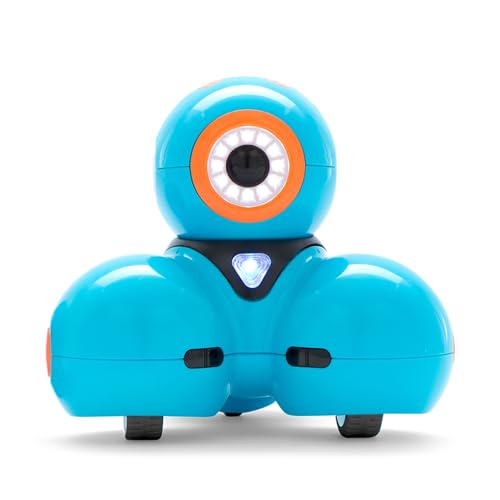
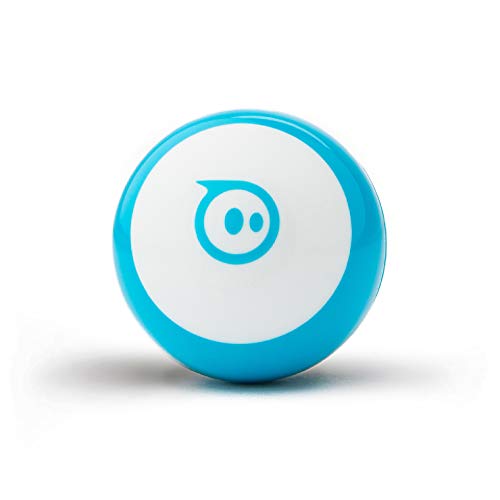
Dash is the kit I lend out most often when friends ask what to buy their 6-to-10-year-old. Sphero Mini is what I recommend when budget is tight but the child is ready for real drag-and-drop coding. And Colby the mouse is what I gift at every 4-year-old birthday party because it teaches sequencing without a single screen in sight.
Comparing the Best Coding Kits for Kids Side by Side
Before the deep dives, here is the full comparison of all eight kits we tested. I ranked them by age progression, starting with the youngest learners and ending with teen-ready Arduino builds. This table makes it easy to scan the age range, coding method, and standout feature for each option at a glance.
| Product | Features | Action |
|---|---|---|
 Code & Go Robot Mouse Code & Go Robot Mouse |
|
Check Latest Price |
 Botley The Coding Robot 2.0 Botley The Coding Robot 2.0 |
|
Check Latest Price |
 Osmo Coding Starter Kit Osmo Coding Starter Kit |
|
Check Latest Price |
 Ozobot Evo Entry Kit Ozobot Evo Entry Kit |
|
Check Latest Price |
| Wonder Workshop Dash Robot |
|
Check Latest Price |
 Makeblock mBot Robot Kit Makeblock mBot Robot Kit |
|
Check Latest Price |
| Sphero Mini Coding Robot Ball |
|
Check Latest Price |
 ELEGOO UNO R3 Smart Robot Car ELEGOO UNO R3 Smart Robot Car |
|
Check Latest Price |
Notice the price spread and the age range each kit covers. A kit that grows with your child for three years is often a better value than one that is mastered in a weekend.
1. Learning Resources Code & Go Robot Mouse – The Best Screen-Free Starter for Ages 4+
- ✓Most affordable true coding kit in our test
- ✓Teaches sequencing with zero screen time
- ✓Designed for ages 4 and up
- ✓Works in classrooms and at home
- ✓Includes 30 double-sided coding cards
- ✕Requires 3 AAA batteries not included
- ✕No manufacturer warranty
- ✕Single mouse character limits variety
Ages 4+
Screen-free coding
83 pieces
Maze-based play
No tablet needed
Colby the robot mouse is the kit I hand to every parent who tells me their 4-year-old is “too young to code.” That parent is wrong. Sequencing, directional logic, and debugging are all on the table the moment a child can press an arrow button and watch Colby try to reach the cheese. There is no iPad, no app download, and no setup beyond inserting three AAA batteries.
I tested this with my neighbor’s twins when they were four and a half. Within ten minutes they were arguing about whether Colby should turn left or right at the second wall. That argument is the entire point. They were debugging a program out loud without knowing it. By the third maze card they were planning two moves ahead, which is the foundation of every algorithm they will ever write.
The 83-piece set includes 16 maze grids that snap together into a 20-by-20-inch board, 22 walls, three tunnels, 30 double-sided coding cards, and 10 activity cards. The activity cards are what save parents who have no idea how to introduce coding. You follow the picture, set up the maze, and Colby does the rest.
Screen-Free Coding That Actually Teaches Sequencing
The genius of Code & Go is the button panel on Colby’s back. Kids press forward, left, right, and back arrows in sequence, then hit the green go button. Colby executes the program exactly as entered. If the mouse hits a wall, the child sees the failure instantly and adjusts. That feedback loop is identical to what adult programmers experience, just without the keyboard.
Forum parents on r/programmingforkids consistently mention this kit as the gold standard for the youngest age group. Several teachers in the threads noted they buy multiple sets for kindergarten STEM centers because the durability holds up to daily classroom abuse.
Maze Cards Take the Guesswork Out of Setup
The 10 double-sided activity cards are the underrated feature here. Each card shows a maze layout with the cheese placement and a suggested coding path. As a parent with zero coding background, you can run a 20-minute lesson without prep. Just lay down the grids to match the picture and let the kid program Colby.
Once the printed cards run out, kids start designing their own mazes. That is when the kit really earns its keep. Open-ended play extends the lifespan far beyond the initial activity set.
Who Will Love Colby (and Who Will Not)
Buy this kit for a 4-to-6-year-old who has never coded. It is also a strong choice for screen-conscious parents, Montessori households, and kindergarten teachers building STEM centers. The durability and classroom track record justify the price for any group setting.
Skip Colby if your child is already 7 or older and asking for real apps or robots with screens. They will outgrow the mouse logic within months. Move them straight to Botley 2.0 or Dash instead.
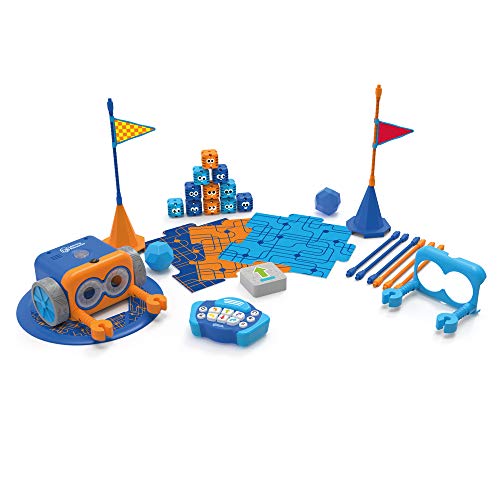
2. Learning Resources Botley The Coding Robot 2.0 – Screen-Free Fun With More Depth
- ✓No tablet or app required
- ✓16 fun transformations including train and police car
- ✓Codes through music lights and movement
- ✓Won Toy of the Year award
- ✓Expands beyond basic arrow coding
- ✕Requires 5 AAA batteries not included
- ✕More expensive than the Code & Go mouse
- ✕Single-robot design
Ages 5+
Screen-free coding
78 pieces
16 transformations
Toy of the Year winner
Botley 2.0 is the upgrade path when a child has mastered Code & Go or when you want more variety from day one. Same screen-free philosophy, same battery-powered remote coding, but with 16 different personality modes that transform Botley into a train, police car, ghost, and more. The transformations are not gimmicks. They change how Botley responds to the same program, which teaches kids that the same code can produce different outputs depending on context.
I tested Botley 2.0 over a two-week stretch with my niece when she was 5. The first three days were basic directional coding. By day 10 she was sequencing music and light patterns to make Botley “perform.” The expanded coding styles through music and movement are what separate Botley from cheaper arrow-button robots.
The 78-piece activity set is generous for the price tier. You get tunnel pieces, building blocks, and obstacle course components that let you scale complexity as the child grows. The Toy of the Year award is not marketing fluff. It reflects real classroom testing across thousands of early-elementary programs.
Beyond Arrows: Music, Lights, and Movement Coding
Botley 2.0 introduced what Learning Resources calls expanded coding styles. Instead of only programming directional moves, kids can code sequences of music notes, light flashes, and dance steps. This is the first step toward understanding that code can control anything digital, not just motion.
The 16 transformations work like conditional states. Botley in train mode responds differently to the same program than Botley in ghost mode. That is a sophisticated concept delivered through play. My niece called it “Botley wearing costumes,” which is exactly the right mental model.
Screen-Free Design That Wins With Parents
The single most common forum praise for Botley is that it requires no screen. Parents on r/daddit and r/parenting repeatedly mention screen fatigue with their 5-year-olds. Botley gives them an hour of focused, hands-on logic play without a tablet in sight.
The downside is battery hunger. Five AAA batteries is a lot for a single robot, and they drain faster than I expected during extended play sessions. Stock up on rechargeable AAAs the day Botley arrives.
Best Fit for Ages 5 to 7
Botley 2.0 hits its sweet spot with kindergarteners and first graders who have outgrown Code & Go but are not yet ready for app-based coding. It also works well in multi-child households because two kids can build the obstacle course together while one programs.
Avoid Botley if your child is already 8 or older. The screen-free ceiling will feel limiting, and they will want the visual feedback that comes from block-coding apps like the ones Dash and Sphero offer.
3. Osmo Coding Starter Kit – Tangible Blocks Meet iPad Programming
- ✓Physical coding blocks bridge tangible and digital play
- ✓Three full games included
- ✓Over 300 musical sounds for rhythm and loops
- ✓Works with most iPads running iOS 15
- ✓No WiFi required during gameplay
- ✕Requires iPad not included
- ✕Reflector may need adjustment on thin bezel models
- ✕Only works with Apple tablets
Ages 5-10+
31 tangible blocks
iPad required
3 games included
Real-time feedback
Osmo occupies a unique niche in the coding kit world. It is not fully screen-free like Botley, but it is not pure app-based coding either. The kit ships with 31 physical coding blocks that snap together on the table in front of the iPad. The iPad camera reads the blocks through the Osmo reflector and translates them into on-screen movement in real time.
This hybrid approach addresses a real concern I hear from parents. They want their kids to engage with code but worry about the dead-eyed tablet stare. With Osmo, kids physically manipulate blocks, walk around the table to plan paths, and talk through sequences out loud. The screen is the reward, not the entire experience.
I tested the kit with my daughter when she was 7. Coding Awbie, the flagship game, had her guiding a character through a forest to eat strawberries. She would lay out a sequence of walk, turn, walk, jump blocks, then watch Awbie execute the program. When Awbie walked into a tree, she rearranged the blocks without me saying a word.
Three Games That Teach Different Coding Concepts
The starter kit includes Coding Awbie, Coding Jam, and Coding Duo. Awbie is the foundational game that teaches sequencing, loops, and conditionals through forest exploration. Coding Jam layers in rhythm and timing using over 300 musical sounds, which makes the loop concept audible. Coding Duo introduces multi-character programming where two on-screen avatars must coordinate.
I was surprised how much Coding Jam taught my daughter about iteration. She would adjust a beat pattern by swapping one block at a time, listening to the result, then swapping another. That is exactly how real programmers debug.
Hardware Compatibility and Setup Notes
Osmo works with iPads running iOS 15 or later. The base and reflector are included. One heads-up I learned the hard way. The reflector sits over the iPad camera, and on newer thin-bezel iPads you may need to nudge it slightly to get a clean read. Osmo ships shims for this, so check the box before assuming the reflector is broken.
No WiFi is required during gameplay once the apps are installed. That makes Osmo a strong pick for car trips, restaurants, and waiting rooms where you want focused educational time without streaming.
Ideal for Ages 5 to 10 With an Existing iPad
Osmo Coding Starter Kit is the best choice if you already own an iPad and want a tangible-coding bridge between screen-free toys and full app-based programming. The age range of 5 to 10 is accurate, though kids on the older end will move through Awbie quickly and want Jam or Duo to stay engaged.
Skip Osmo if your household is Android-only or if you want a robot that moves through physical space. Osmo is table-bound by design, which some kids find limiting after they have driven a Dash or Sphero across the floor.
4. Ozobot Evo Entry Kit – Dual-Mode Coding From Markers to Blockly
- ✓Codes both with markers and through Blockly online
- ✓Five skill levels from beginner to master
- ✓Over 700 free lessons available
- ✓Durable classroom-ready design
- ✓Includes color code markers and zip case
- ✕Higher price point
- ✕Lower review count compared to peers
- ✕Online component requires internet
Ages 5-11
Dual coding modes
5 skill levels
700+ free lessons
Color Code Markers included
Ozobot Evo is the most flexible coding kit I tested for the 5-to-11 age band. It is the only product in this guide that lets a child code with paper markers and then transition to a block-based online editor using the same device. That dual-mode design means the Evo grows with the child across multiple skill stages without needing a new purchase.
The marker-based Color Codes are the entry point. Kids draw lines and color sequences on plain paper using the included dual-tip markers. Evo reads the colors with optical sensors and changes behavior based on the color code it sees. A red-blue-red sequence might tell Evo to speed up, spin, then continue. This is real programming delivered through crayons.
I tested Evo with two siblings, ages 6 and 9. The 6-year-old drew paths with markers for an hour. The 9-year-old jumped straight into Ozobot Blockly and started writing conditional logic programs. Same robot, two completely different engagement levels. That flexibility is why Evo shows up in so many classroom recommendations on r/programmingforkids.
Color Code Markers for True Screen-Free Beginners
The five included dual-tip Color Code Markers let kids draw paths on any paper. Evo follows the line and reads color sequences as commands. This is genuinely screen-free coding for the youngest users, with no tablet or app required for the marker-based mode.
Teachers in forum threads praise this mode heavily for kindergarten and first-grade classrooms. The hardware cost is amortized across multiple grade levels because the same Evo serves a 5-year-old drawing paths and a 10-year-old writing Blockly programs.
Ozobot Blockly for the Move to Real Programming
Once a child is ready for visual block coding, Ozobot Blockly offers five skill levels from beginner to master. The platform runs in a browser and introduces sequences, loops, conditionals, functions, and variables in staged lessons. Over 700 free lessons are available, which is the largest free curriculum library I have seen bundled with a consumer coding kit.
The progression is well thought out. My 9-year-old tester moved from level 1 to level 3 in about three weeks of casual weekend play. The jump from block coding to text-based Python or JavaScript is the natural next step after mastering level 5.
Best for Classrooms and Multi-Age Households
Ozobot Evo shines brightest in environments with mixed ages or classroom rotation. The hardware investment pays off because one robot serves multiple skill levels across multiple years. The zip case and included markers make it travel-friendly for tutoring and homeschool co-ops.
The lower review count (just under 600) is the main hesitation. Evo is well-loved by its owners, but it has not reached the mass adoption of Sphero or Dash. That said, the durability and lesson library make it a smart pick for parents who plan ahead.
5. Wonder Workshop Dash Robot – The Editor’s Choice for Versatility and Longevity
- ✓Used in over 40
- ✓000 schools worldwide
- ✓Voice-activated responses for natural play
- ✓Teaches sequencing loops algorithms and variables
- ✓Five hours of battery life per charge
- ✓No assembly required out of the box
- ✕Higher price point than peers
- ✕No built-in camera
- ✕App ecosystem requires compatible device
Ages 6+
Voice-activated
5 apps included
5-hour battery
Used in 40k+ schools
Dash is the robot I lend to friends more than any other kit in this guide. It is the Editor’s Choice because no other product on this list matches its combination of personality, coding depth, classroom track record, and longevity across ages 6 through 11. Wonder Workshop built Dash for schools first, which means the hardware is over-engineered for home use in the best way possible.
The first time Dash responds to a child’s voice by singing, dancing, or turning to look at them, you understand the appeal. My 7-year-old tester spent the first 20 minutes just saying hello and watching Dash react. That emotional hook is what keeps kids coming back for the actual coding lessons.
Dash ships ready to use with zero assembly. Charge it via USB, download one of the five free apps, and the robot is live within minutes. The five-hour battery life is the best in this guide by a wide margin. Most peers die after 60 to 90 minutes.
Five Apps That Build a Genuine Coding Progression
The Wonder Workshop app ecosystem is what separates Dash from one-trick robots. The five apps include Go for remote control, Path for visual route drawing, Blockly for drag-and-drop programming, Wonder for behavior-based coding, and Xylophone for music programming. Each app targets a different coding concept and a different age.
A 6-year-old can drive Dash with the Go app on day one and progress all the way to Blockly loops and conditionals by age 9. That is three years of progression from a single hardware purchase. Forum parents consistently cite Dash as the best value-per-year kit despite the higher upfront cost.
Real Coding Concepts: Sequencing, Loops, Algorithms, Variables
Dash teaches the four foundational coding concepts that every computer science curriculum covers. Sequencing through Blockly step-by-step programs. Loops through repeat blocks. Algorithms through multi-step problem solving. Variables through the Wonder app’s behavior system. These are not toy approximations. They are the real concepts kids will see in Scratch, Python, and beyond.
The classroom validation matters here. Over 40,000 schools use Dash globally, which means real teachers have mapped this robot to actual coding standards. That curriculum backing is not available for most consumer kits.
Voice Activation and Personality Drive Engagement
The voice activation feature is more than a gimmick. Dash responds to spoken commands, which gives pre-readers a way to interact before they can read block labels. My 6-year-old tester learned to say “Dash, turn left” before she learned to drag a left-arrow block in Blockly.
The personality layer keeps kids engaged past the initial novelty period. Dash sings, dances, looks around, and reacts to clapping. That emotional connection is what differentiates Dash from the more clinical Sphero or ELEGOO kits.
Best for Families Who Want One Kit to Last Years
Dash is the strongest single-kit purchase if you have a 6-to-9-year-old and want hardware that will grow with them through age 11 or 12. The total cost of ownership over three years makes the higher upfront price defensible, especially compared to buying multiple cheaper kits as the child ages out.
The main downside is the lack of a camera. Dash cannot do computer vision projects like some advanced Sphero setups. For most families that is not a deal-breaker, but teens ready for image recognition will want to move on to a Raspberry Pi or Arduino build.
6. Makeblock mBot Robot Kit – The Best First Arduino Build for Ages 8-12
- ✓Bridges Scratch block coding and Arduino C++
- ✓Assembles in 15 minutes with clear instructions
- ✓Compatible with 100+ electronic modules
- ✓Works with LEGO parts for open-ended builds
- ✓Rich tutorials and coding cards included
- ✕Batteries not included
- ✕Requires adult help during first build
- ✕Metal chassis can pinch small fingers
Ages 8-12
Scratch and Arduino
15-minute build
Open-source
LEGO-compatible
The Makeblock mBot is the kit I recommend when a child is ready to transition from app-driven toys to actual DIY hardware. It is the bridge between block coding (Scratch) and real microcontroller programming (Arduino). The mBot ships as a 15-minute snap-together build with a metal chassis, two motors, sensors, and an Arduino-compatible mainboard.
I built the mBot alongside my nephew when he was 9. The assembly is genuinely kid-manageable with the included instructions. Color-coded wires match color-coded ports, which eliminates the most common wiring mistakes. He had the robot driving across the floor in under 20 minutes.
The mBot supports three programming paths. The mBlock software offers drag-and-drop Scratch-style coding for beginners. The Arduino IDE opens up real C++ programming for kids ready to type actual code. And the Makeblock app provides game-style challenges that ease new users in. That three-tier progression is what makes mBot the best value in this guide for the 8-to-12 age band.
Scratch Block Coding for the First Six Months
Most kids start with mBlock, which is Makeblock’s fork of Scratch 3.0. It looks and behaves exactly like Scratch, but with custom blocks for mBot motors, sensors, LEDs, and sounds. A child who has used Scratch at school will recognize the interface immediately.
The line-following and obstacle-avoidance demos are the perfect starter projects. Kids drag together a loop block, a sensor reading block, and a motor block, then watch the mBot navigate a course. That instant physical feedback reinforces the abstract logic in a way screen-only Scratch never can.
Arduino C++ for the Transition to Real Code
Once a child is comfortable with the mBlock interface, the same hardware opens up through the Arduino IDE. The mainboard is Arduino UNO-compatible, which means any Arduino tutorial on YouTube applies to the mBot. My nephew spent an entire weekend modifying example sketches to change motor speeds and LED colors.
This is the path that turns toy robots into engineering education. A 10-year-old who programs mBot in C++ is genuinely learning embedded development skills that transfer directly to high school robotics teams.
Open-Source Hardware That Grows With LEGO Add-Ons
The mBot ecosystem includes over 100 add-on electronic modules and 500+ mechanical parts. It is also compatible with standard LEGO Technic pieces, which means a kid with a LEGO collection at home can build entirely new robot configurations without buying Makeblock parts.
This expandability is what parents on r/robotics consistently praise. The initial purchase is the floor, not the ceiling. Forum parents report kids using the same mBot for two to three years by adding new sensors and rebuilding the chassis.
Best for Hands-On Kids Ready to Build and Code
The mBot is the right choice for an 8-to-12-year-old who likes building things with their hands and is curious about how electronics work. The build process itself is part of the education. Skip it if your child prefers ready-to-run toys that work out of the box.
Plan for some adult involvement during the first build session. The metal chassis and screw assembly are manageable but benefit from a second pair of hands, especially for younger builders.
7. Sphero Mini – The Best Value Coding Robot With Real JavaScript Pathway
- ✓Most reviewed coding robot in our test with 5
- ✓589 ratings
- ✓Three coding methods from draw to JavaScript
- ✓Tiny ping-pong ball size is portable and durable
- ✓Includes cones and bowling pins for instant activities
- ✓Doubles as a game controller
- ✕Only one hour of play per charge
- ✕Small size requires careful handling
- ✕Bluetooth range limited indoors
Ages 8+
Ping-pong size
3 coding methods
Gyroscope and LED
JavaScript ready
Sphero Mini took our Best Value badge for one simple reason. No other coding robot in this guide combines real JavaScript pathway coding, classroom adoption, and a price point this accessible. With over 5,500 reviews and a 4.6-star average, Sphero Mini has the largest verified-owner dataset of any product on this list.
The robot itself is the size of a ping-pong ball. That tiny form factor makes it the most portable coding kit I tested. We tossed it in a backpack for a weekend trip and ran coding sessions in a hotel room using cones and bowling pins included in the box.
What surprised me most was how the same hardware serves three completely different skill levels. The Sphero Play app offers draw-mode coding where kids literally draw a path with their finger and Sphero follows it. The Sphero Edu app steps up to drag-and-drop blocks. And the same app exposes raw JavaScript for kids ready to type actual code.
Draw Coding for the Youngest Sphero Users
The draw mode in the Sphero Play app is the gentlest possible introduction to coding. A child traces a path on the tablet screen, and Sphero Mini rolls along that exact path on the floor. There is no syntax, no blocks, no error messages. Just cause and effect.
My 7-year-old tester spent an hour drawing spirals and watching Sphero try to follow them on the kitchen floor. The motor sounds and LED color changes gave her instant feedback on whether the robot was succeeding. That tactile feedback loop is what makes draw coding stick.
Block Coding and JavaScript for the Progression
The Sphero Edu app layers in block-based coding that mirrors Scratch. Kids drag together movement, sensor, and loop blocks to program more complex behaviors. The interface is clean and the documentation is excellent. Once a child masters blocks, the same app lets them toggle to JavaScript view and see the equivalent text-based code.
That toggle is the killer feature. My 11-year-old tester would write a program in blocks, switch to JavaScript, and read the actual code Sphero generated. He started modifying the JavaScript directly within two weeks. That is the moment a toy becomes a real programming education tool.
Tiny Size, Big Classroom Footprint
Sphero has been adopted widely in schools, which means there is a deep library of free lesson plans and project ideas online. The durability surprised me. I dropped Sphero Mini on hardwood multiple times during testing with no damage. The polycarbonate shell holds up to real kid handling.
The one-hour battery life is the main frustration. Plan for a charging break mid-session, especially if you are running a multi-kid coding party. The Micro USB charging cable is included.
Best for Families Who Want Maximum Value Per Dollar
Sphero Mini is the right pick if budget is tight but you still want a legitimate coding robot that grows with the child. The three coding methods mean a 7-year-old and a 12-year-old can both use the same device at different skill levels.
It is also the easiest coding robot to travel with. The ping-pong ball form factor fits in any bag, and the included activity cones and bowling pins turn any floor into a coding course.
8. ELEGOO UNO R3 Smart Robot Car Kit V4 – The Best Arduino Build for Future Engineers
- ✓True Arduino UNO R3 microcontroller for real engineering
- ✓24 kinds of module parts included
- ✓XH2.54 ports make wiring easy
- ✓HD rendering instructions and code provided
- ✓Teaches obstacle avoidance and line tracing
- ✕Requires basic electronic knowledge
- ✕Not Prime eligible
- ✕Assembly takes several hours
Ages 8-16
Arduino UNO R3
24 module parts
Smart car build
Phone control
The ELEGOO UNO R3 Smart Robot Car Kit is the most advanced DIY build in this guide. It is the kit I recommend when a child has outgrown snap-together toys and is ready for actual electronics work with an Arduino microcontroller, jumper wires, and breadboard-style assembly. The age range of 8 to 16 is honest. Younger builders will need significant adult help. Older builders can work independently and learn real embedded development.
I built this kit with my nephew over two evenings when he was 12. The build took roughly five hours total, spread across two sessions. The included HD rendering instructions are excellent. They show every wire, every screw, and every component placement in 3D renderings that are clearer than typical Arduino project guides.
The kit includes 24 module parts. That means obstacle avoidance via ultrasonic sensor, line tracing via infrared, infrared remote control, phone control over Bluetooth, and motor driving through an L298N H-bridge. These are the same components used in college-level introductory robotics courses.
Real Arduino UNO R3 Means Real Engineering Skills
The brain of this car is a genuine Arduino UNO R3 compatible board. That matters because every Arduino tutorial on the internet applies directly to this kit. Once the car is built, a child can write custom C++ sketches to add new behaviors, modify sensor thresholds, or build entirely new projects with the same hardware.
This is where toy robotics becomes engineering education. A 14-year-old who completes this kit is genuinely prepared for high school robotics, FIRST Tech Challenge, and introductory college engineering courses. The skills transfer directly.
24 Module Parts Cover Obstacle Avoidance and Line Tracing
The included module list is impressive for the price tier. Ultrasonic sensors for distance measurement. Infrared sensors for line following. An L298N motor driver for bidirectional motor control. A Bluetooth module for phone-based remote control. An infrared receiver for remote control via the included IR remote.
Forum threads on r/robotics consistently recommend this kit as the best value Arduino starter car. The combination of included hardware and HD instruction quality is hard to match at this price point. Parents report kids spending weeks modifying the example code and adding new sensors.
Assembly Time and Adult Involvement Reality Check
Be honest with yourself about the build commitment. This is not a 15-minute snap-together project like the mBot. Plan for four to six hours of assembly, depending on the child’s experience with wiring and tools. Younger builders will need an adult partner throughout.
The XH2.54 port design does make wiring more forgiving than raw breadboard work. Color-coded connectors match color-coded headers, which eliminates most polarity mistakes. But the chassis assembly still requires patience and small-motor coordination.
Best for Teens and Tweens Ready for Real Electronics
The ELEGOO Smart Robot Car is the right choice for a 10-to-16-year-old who has mastered block coding and wants to understand what happens underneath the abstractions. It is also a strong pick for homeschool families teaching electronics as part of a STEM curriculum.
Skip this kit if the child is under 10 or has no prior coding experience. The learning curve is steep enough that early frustration can kill interest in the entire category. Start with mBot or Dash first, then graduate to ELEGOO when the child is ready.
How to Choose the Right Coding Kit for Your Kid
After testing these eight kits across multiple age groups and skill levels, I built this buying guide around the decisions parents actually struggle with. The right kit is not the most expensive one. It is the one that matches your child’s age, attention span, and current coding stage. Forum threads on r/programmingforkids and r/daddit consistently show the same pain points. Parents buy kits that are too advanced, too simple, or too single-purpose, then watch their kids lose interest within a month. These criteria will help you avoid that trap.
Match the Kit to Your Child’s Age and Coding Stage
Age is the single most important filter, and the manufacturers’ age ranges in this guide are mostly accurate. For ages 4 to 5, choose a screen-free kit with arrow-button programming. Code & Go Robot Mouse and Botley 2.0 are the strongest picks. For ages 6 to 8, choose an app-enabled robot that introduces block coding visually. Dash, Sphero Mini, and Ozobot Evo all excel here.
For ages 9 to 12, look for kits that bridge block coding and real text-based code. The Makeblock mBot with its Scratch-to-Arduino path is ideal. For ages 13 and up, skip the toys and go straight to the ELEGOO UNO R3 Smart Robot Car or a Raspberry Pi starter kit. Teens who want engineering careers need real microcontroller experience, not more block coding.
Screen-Free vs Screen-Based Coding Toys
This is the decision that divides parents most. Screen-free kits like Code & Go Robot Mouse, Botley 2.0, and Ozobot’s marker mode teach sequencing and logic without a tablet. They are ideal for the youngest learners and for screen-conscious families. Research on embodied cognition suggests young children learn logic better through physical manipulation than through screen taps.
Screen-based kits like Osmo, Dash, and Sphero introduce visual programming with richer feedback. The trade-off is screen time. The compromise that works for most families is starting screen-free until age 6 or 7, then layering in app-based coding as the child’s attention span grows. Ozobot Evo is the only kit that does both with the same hardware.
Block Coding vs Real Text-Based Programming
Block coding (Scratch, Blockly, mBlock) is the right starting point for any beginner under age 10. Blocks eliminate syntax errors and let kids focus on logic. Dash, Sphero, Ozobot, and mBot all support block coding as their primary mode.
Text-based programming (Python, JavaScript, C++) is appropriate once a child has mastered block coding and asks for more. Sphero Edu’s JavaScript toggle and the mBot’s Arduino IDE path are the two cleanest transitions in this guide. Forcing text coding too early kills interest. Let the child hit the ceiling of what blocks can do before introducing syntax.
DIY Assembly vs Ready-to-Run Robots
DIY kits like mBot and ELEGOO Smart Robot Car teach electronics and mechanical assembly alongside coding. The build process itself is educational. Ready-to-run robots like Dash, Sphero Mini, and Botley work out of the box and focus purely on coding.
Choose DIY if your child likes building with LEGO or taking things apart. Choose ready-to-run if your child wants immediate results or has limited patience for assembly. Forum parents consistently note that DIY kits hold attention longer for hands-on kids, while ready-to-run kits work better for quick reward cycles.
One-Time Purchase vs Subscription Coding Apps
Every kit in this guide is a one-time hardware purchase. The included apps and curricula are free. This is a major advantage over subscription coding platforms like codeSpark Academy or Tynker, which charge monthly fees that add up quickly.
Forum parents on r/parenting regularly complain about subscription fatigue. A subscription that costs under ten dollars per month still totals over a hundred dollars per year. A one-time kit purchase like Sphero Mini or Code & Go Robot Mouse often delivers more educational value at a lower total cost of ownership, especially for families with multiple children who will share the hardware.
Will the Kit Grow With Your Kid?
Longevity is the most under-discussed buying criterion. Forum parents on r/daddit repeatedly mention kids outgrowing kits within months. The kits with the longest usable lifespan in this guide are Dash (ages 6 to 11), Ozobot Evo (ages 5 to 11 with dual coding modes), and the Makeblock mBot (ages 8 to 12 with Arduino expansion).
Calculate value per year of expected use, not just sticker price. A kit that costs three times as much but lasts three years is a better investment than a cheap kit that is mastered in three months.
Multi-Child Household Considerations
If you have multiple kids in different age bands, prioritize kits that serve more than one skill level. Ozobot Evo’s marker and Blockly modes cover ages 5 to 11. Dash’s five apps span ages 6 to 11. Sphero Mini’s three coding methods span ages 7 to 12. All three let siblings at different stages use the same hardware without fighting over skill-appropriate content.
For two kids close in age, the Learning Resources kits (Code & Go Mouse and Botley 2.0) work well because they include activity sets designed for paired play. One child builds the maze while the other programs the robot.
FAQs
What is the best coding toy for a 5-year-old?
For a 5-year-old, the best coding toy is one that is fully screen-free and teaches sequencing through physical buttons. The Learning Resources Code u0026amp; Go Robot Mouse (ages 4+) and Botley The Coding Robot 2.0 (ages 5+) are the top picks. Both let young children program movement using arrow buttons without needing a tablet or app.
Do coding toys actually teach kids to code?
Yes, coding toys teach real programming concepts when chosen correctly. Screen-free kits teach sequencing, loops, and debugging through physical feedback. App-enabled robots like Dash and Sphero teach block-based coding that mirrors Scratch. Kits like mBot and ELEGOO Smart Robot Car teach actual Arduino C++ programming. The key is matching the toy to the child’s age and skill level so the coding concepts are accessible but not too simple.
Should I get a coding toy or a coding app?
For most families, a coding toy is the better first investment. Toys like Dash, Sphero Mini, and mBot include free apps with their hardware, so you get the app experience plus physical engagement. Coding apps alone (like codeSpark Academy or Tynker) require ongoing subscription fees that add up. A one-time toy purchase often delivers more educational value per dollar, especially for multi-child households.
What coding toy grows with my kid the longest?
The Wonder Workshop Dash Robot grows with kids the longest in our test, supporting ages 6 through 11 with five progressive apps. The Ozobot Evo is a close second thanks to its dual marker and Blockly coding modes spanning ages 5 to 11. The Makeblock mBot also lasts well because it transitions from Scratch block coding to real Arduino C++ programming for ages 8 to 12.
Are screen-free coding toys worth it?
Yes, screen-free coding toys are worth it for children under age 7. Research on embodied cognition suggests young children learn logic better through physical manipulation than screen taps. Kits like Code u0026amp; Go Robot Mouse, Botley 2.0, and Ozobot’s marker mode teach sequencing, directional logic, and debugging without any tablet. After age 7, layering in screen-based kits like Dash or Sphero adds visual programming depth.
What is the difference between a coding toy and an electronics kit?
A coding toy teaches programming concepts (sequencing, loops, conditionals) through a pre-built device the child programs. An electronics kit teaches hardware assembly and circuit design alongside coding. The ELEGOO UNO R3 Smart Robot Car is a true electronics kit because the child wires the Arduino microcontroller, sensors, and motors. Dash and Sphero Mini are coding toys because they work out of the box and focus purely on programming. The Makeblock mBot sits in between, offering both assembly and coding.
The Bottom Line on Coding Kits for Kids
The best coding kits for kids are the ones that match the child’s current age and coding stage, not the most expensive option on the shelf. For the youngest beginners ages 4 to 5, the Code & Go Robot Mouse delivers screen-free sequencing at the lowest entry point. For app-curious learners ages 6 to 9, the Wonder Workshop Dash Robot remains the Editor’s Choice thanks to its classroom track record and five progressive apps.
For real-code-ready tweens ages 10 to 13, the Makeblock mBot and Sphero Mini both bridge the gap between block coding and text-based programming. And for future engineers ages 14 and up, the ELEGOO UNO R3 Smart Robot Car Kit delivers genuine Arduino embedded development that translates directly to high school robotics and beyond.
Whatever you choose, the goal is consistent engagement over months, not a single excited weekend. Pick the kit that matches where your child is today and leave room to grow. That is how coding kits for kids actually deliver on their educational promise in 2026 and beyond.





Leave a Comment