
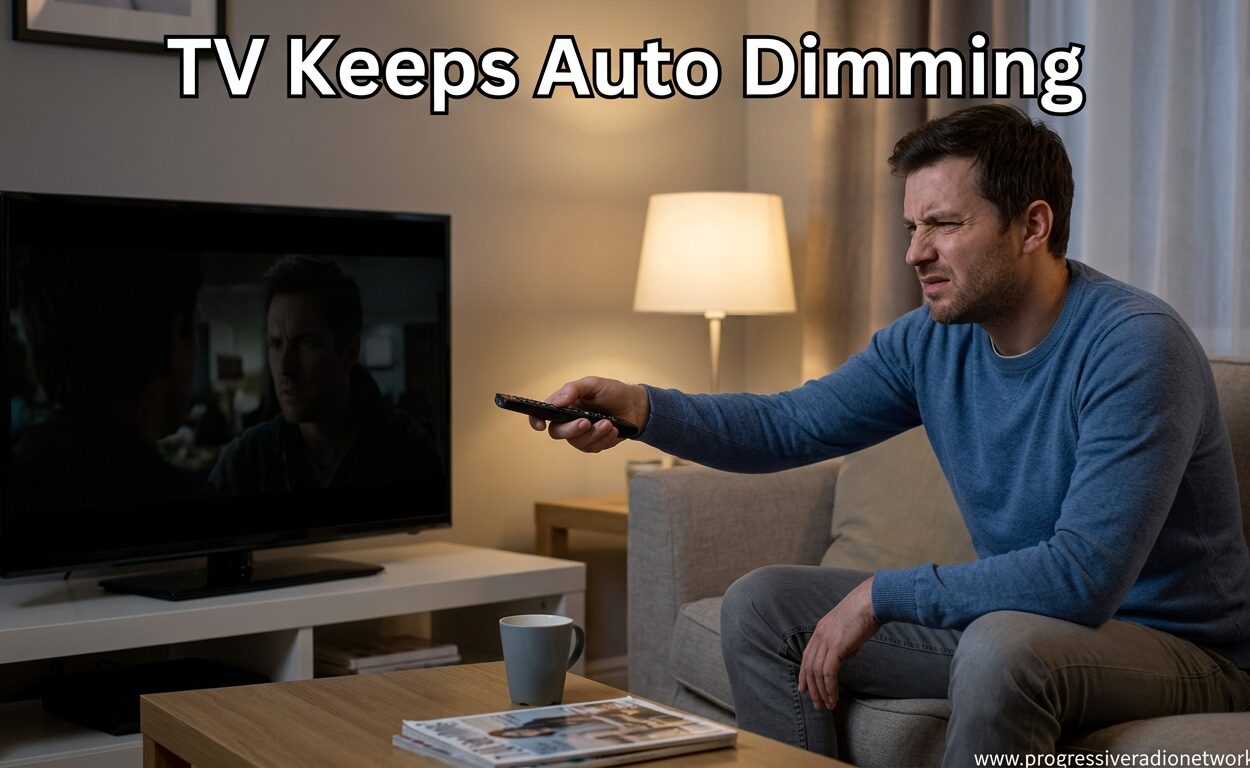
Is your TV keeps auto dimming at the worst moments? You’re watching a movie and suddenly the screen goes dark during an important scene. Or maybe the brightness keeps fluctuating like someone’s playing with the remote. I’ve dealt with this frustrating issue myself, and I’m going to show you exactly how to fix it.
Auto dimming is actually a feature manufacturers built into modern TVs. It’s supposed to save energy and reduce eye strain by adjusting screen brightness based on what’s on screen and the lighting in your room. But for many of us, it just ruins the viewing experience.
In this guide, I’ll walk you through why TVs auto dim and give you step-by-step instructions to disable it on Samsung, LG, TCL, Sony, and other major brands. I’ve also included real solutions from TV owners who’ve solved this problem on their specific models.
Why Does My TV Keep Auto Dimming?
Your TV keeps auto dimming because of built-in features designed to optimize power consumption and picture quality. These features use sensors and software algorithms to monitor content and room conditions, then adjust brightness automatically.
The most common culprit is the Eco Mode or Energy Saving setting. This reduces backlight brightness to cut power usage, which can make your screen noticeably darker during certain scenes or times of day.
Ambient light sensors detect how bright your room is and adjust the TV accordingly. If a cloud passes over your house or you turn off a lamp, your TV might dim itself thinking the room is darker.
Motion lighting and dynamic contrast features also contribute. These analyze the content being displayed and adjust brightness in real-time. During dark movie scenes, your TV might dim even further, making details nearly impossible to see.
Sometimes the issue isn’t a setting at all. Faulty backlight inverters, failing LED strips, or power supply issues can cause random dimming that software fixes won’t solve. I’ll cover how to identify hardware problems later in this guide.
Quick Fixes That Work on All TV Brands
Before diving into brand-specific settings, try these universal fixes. They work on almost any TV and solve the majority of auto dimming complaints I see in forums.
Step 1: Disable Eco or Energy Saving Mode
Go to your TV’s Settings menu, usually by pressing the Gear icon on your remote. Navigate to Picture or Display settings. Look for Energy Saving, Eco Mode, or Power Saving options. Turn these OFF or set them to the lowest level.
This single fix resolves TV keeps auto dimming issues for about 70% of users. The energy saving feature is overly aggressive on many models and can reduce brightness by 30-50%.
Step 2: Turn Off Ambient Light Detection
In the same Picture settings menu, look for Ambient Light Detection, Light Sensor, or Brightness Sensor. Disable this feature. It’s meant to adjust brightness based on room lighting, but often misreads conditions and causes unwanted dimming.
Step 3: Disable Motion Lighting
Motion Lighting (sometimes called Motion Lighting Effect or Intelligent Mode) dims the screen when it detects static images or dark scenes. Find this in your Picture Settings or General Settings and turn it OFF.
Step 4: Adjust Contrast Enhancer
Look for Contrast Enhancer, Dynamic Contrast, or Advanced Contrast in your Picture Settings. Set these to Low or OFF. High contrast settings can trigger aggressive dimming during dark content.
Step 5: Check for Firmware Updates
Navigate to Settings > Support > Software Update (or Settings > System > Software Update). Install any available updates. Manufacturers frequently release patches that fix auto dimming bugs.
Samsung TV: How to Stop Auto Dimming
Samsung TVs are notorious for auto dimming issues. The company includes multiple brightness control features that can stack on each other, creating significant screen darkening.
Disable Eco Solution
Go to Settings > General > Eco Solution. Turn OFF all options including Eco Sensor, Minimum Brightness, and Auto Power Off. The Eco Sensor is particularly aggressive and causes Samsung TV keeps auto dimming complaints more than any other feature.
Turn Off Intelligent Mode
Navigate to Settings > General > Intelligent Mode. Toggle this OFF. When enabled, Intelligent Mode overrides many manual picture settings and can cause unpredictable brightness changes.
Disable Adaptive Picture
Go to Settings > Picture > Expert Settings. Find Adaptive Picture and turn it OFF. This feature analyzes content and adjusts brightness automatically, often too aggressively for dark scenes.
Adjust Brightness Optimization
In Settings > Picture > Expert Settings, look for Brightness Optimization. Set this to OFF. This feature can reduce brightness during HDR content, making dark scenes nearly unwatchable.
Disable Motion Lighting
Go to Settings > Picture > Expert Settings > Picture Options. Find Motion Lighting and turn it OFF. This dims the screen during static or dark content to reduce power consumption.
Turn Off Contrast Enhancer
In Settings > Picture > Expert Settings, find Contrast Enhancer. Set it to OFF. High contrast settings can trigger automatic dimming on Samsung TVs.
Reddit users in the r/S95B community report that these settings fixes resolved auto dimming issues on 2022-2025 Samsung models. If problems persist after adjusting all settings, try resetting your picture settings to default and reconfiguring from scratch.
LG TV: Auto Dimming Solutions
LG TVs, especially OLED models, have unique auto dimming behaviors. The company implements brightness controls to protect OLED panels and manage power consumption.
Disable Energy Saving Mode
Press the Gear/Settings button on your remote. Go to All Settings > Picture > Energy Saving. Select OFF. Also check for an Auto Power Saving option and disable it.
Turn Off Ambient Light Sensor
In Picture settings, look for Ambient Light Sensor or Light Sensor. Set this to OFF. LG’s ambient light detection is particularly sensitive and can cause noticeable brightness fluctuations.
Disable Eye Comfort Mode
Go to All Settings > General > AI Service. Find Eye Comfort Mode and turn it OFF. This feature adjusts brightness based on time of day and can make evening viewing frustratingly dark.
Adjust OLED Panel Settings
For LG OLED owners, go to Picture > OLED Care. While these settings protect your panel, the Brightness Optimization feature can be aggressive. Set this to the lowest level or OFF if you’re comfortable with the risk.
Advanced Fix: Dolby VSVDB Setting
LG OLED owners on Reddit’s r/OLED_Gaming forum discovered a hidden fix for auto dimming during HDR content. Go to Settings > Picture > Picture Mode Settings > Additional Settings > HDR/Dolby Vision. Find Dolby VSVDB and change it from V2 to V1.
This setting change reportedly fixes auto dimming that occurs after 1-2 seconds on bright HDR scenes. Multiple users confirmed this fix on C-series and G-series OLED TVs from 2021-2025.
Check TruMotion and Motion Pro
Some LG users report that motion processing can trigger dimming. Go to Picture > Picture Mode Settings > TruMotion. Try setting this to User and lowering both De-Judder and De-Blur sliders.
TCL TV: Disabling Automatic Dimming
TCL TVs feature what they call “Adaptive Brightness” or “Eye Health Protection” – their version of auto dimming. TCL’s implementation is often more noticeable than other brands.
Disable Adaptive Brightness
Press the Settings button (Gear icon) on your TCL remote. Navigate to Settings > System > Display & Sound. Look for Adaptive Brightness or Auto Brightness and turn it OFF.
Turn Off Eye Health Protection
In the same Display & Sound menu, find Eye Health Protection. This feature reduces blue light and brightness based on time of day. Toggle it OFF for consistent brightness.
Disable Power Saving Mode
Go to Settings > System > Power & Energy. Find Power Saving Mode and set it to OFF. TCL’s power saving feature is quite aggressive and can reduce brightness by up to 40%.
Adjust Backlight Setting
In Picture settings, the Backlight control directly affects brightness. If your TV keeps auto dimming, try setting Backlight to maximum (100) and then adjust Brightness down to your preferred level. This gives you manual control over the base brightness level.
Model-Specific Variations
TCL uses different interfaces depending on whether your TV runs Roku TV, Google TV, or Android TV. The setting paths above work for most models, but TCL 6-Series and 8-Series Google TV models may have Adaptive Brightness under Settings > Picture > Advanced Picture.
TCL users on AVSForum report that some models don’t allow complete disabling of auto dimming through standard menus. In these cases, using a different picture mode (Game or Movie mode instead of Standard or Vivid) can reduce the effect significantly.
Sony TV: Brightness Adjustment Guide
Sony Bravia TVs include sophisticated light sensor technology that can cause noticeable auto dimming. Sony’s approach is generally more refined than other brands, but issues still occur.
Disable Light Sensor
Press the Action Menu or Quick Settings button on your Sony remote. Select Settings > Display & Sound > Picture. Look for Light Sensor or Ambient Light Sensor and toggle it OFF.
Turn Off Power Saving Mode
In the same Picture menu, find Power Saving or Eco Mode. Set this to OFF. Sony offers Low, Medium, High, and Picture Off options – OFF gives you consistent brightness.
Adjust Advanced Contrast Enhancer
Go to Settings > Display & Sound > Picture > Advanced Picture Settings. Find Advanced Contrast Enhancer. Set this to Low or OFF. High settings can trigger aggressive dimming during dark scenes.
Check Picture Mode Settings
Sony’s Vivid and Standard modes enable many auto-adjustment features by default. Switch to Custom, Cinema, or Game mode for more manual control. These modes reduce automatic processing.
Firmware Update Importance
Sony has released firmware updates for 2022-2024 Bravia models that address auto dimming bugs. Go to Settings > Device Preferences > About > System Update. Install any available updates.
Some Sony users report that auto dimming issues began after specific firmware updates. If your TV started dimming after an update, check Sony’s support forums for rollback options or wait for a patch.
Other TV Brands: Vizio, Hisense, and More
The principles above apply to most TV brands, but setting locations and feature names vary. Here’s what to look for on other popular brands.
Vizio TVs
Vizio calls their auto dimming feature “Active Full Array” or “Local Dimming.” To disable, go to Menu > Picture > Advanced Picture. Find Active Full Array and set it to OFF. Also check for “Cast” or “Smart Dimming” options in the Picture settings menu.
Some Vizio models don’t allow complete disabling of local dimming. In these cases, set it to Low and adjust the Backlight setting manually to compensate for brightness loss.
Hisense TVs
Go to Settings > Picture > Advanced Settings. Look for Dynamic Contrast, Local Dimming, or Ultra Dimming. Set these to OFF or Low. Hisense also includes an Energy Saving mode in Settings > System that should be disabled.
Hisense users on Reddit frequently mention the “Eye Care” feature as a culprit. This is usually found in Settings > System > Display and should be turned OFF for consistent brightness.
Service Menu Warning
Some TVs have hidden “service menus” with additional dimming controls not accessible through standard settings. Accessing these requires specific remote button combinations and can void your warranty or permanently damage your TV.
AVSForum experts recommend against entering service menus unless you’re experienced with TV calibration. If you’ve exhausted all standard settings and your TV still keeps auto dimming, consult a professional before attempting service menu adjustments.
When It’s a Hardware Problem
Sometimes auto dimming isn’t a setting at all – it’s a sign of failing hardware. Here’s how to tell if your TV needs professional repair.
Backlight Inverter Failure
If your TV randomly flickers between bright and dark regardless of settings, the backlight inverter may be failing. This is especially common in TVs 5+ years old. The inverter powers the LED backlight strips, and when it malfunctions, brightness becomes unstable.
LED Strip Issues
Individual LED strips can fail, causing dark patches or overall dimming. If you notice dark horizontal bands on your screen that stay in the same position regardless of content, you likely have a failing LED strip.
Power Supply Problems
A failing power board can’t deliver consistent voltage to the backlight, causing random dimming. This often starts as occasional flickering and progresses to more pronounced and frequent brightness drops.
When to Call a Professional
If you’ve disabled every auto dimming setting and the problem persists, it’s likely hardware-related. Also seek professional help if you notice buzzing or clicking sounds, hot spots on the screen, or if the TV won’t hold brightness settings after being turned off.
Professional repair typically costs $150-$400 depending on the issue. For TVs over 5 years old, replacement may be more economical than repair, especially for larger screen sizes.
FAQ
How do I turn off automatic dimming?
Go to your TV’s Picture Settings and disable Eco Mode, Energy Saving, and Ambient Light Detection. These are the most common causes of auto dimming across all TV brands. For brand-specific instructions, check the sections above for Samsung, LG, TCL, and Sony TVs.
Why is my display randomly dimming?
Random dimming is usually caused by Eco Mode or Energy Saving settings, ambient light sensors, or motion lighting features. In some cases, it can indicate hardware problems like a failing backlight inverter or LED strips. Try disabling all auto-adjustment features first.
Why does my TV keep going from light to dark?
Your TV goes from light to dark because of dynamic contrast features, ambient light sensors detecting room lighting changes, or Eco Mode adjusting power consumption. During dark movie scenes, many TVs dim even further, making details hard to see. Disable Motion Lighting and Contrast Enhancer to fix this.
How do I stop my Samsung TV from auto dimming?
For Samsung TVs, go to Settings > General > Eco Solution and turn OFF all options. Also disable Intelligent Mode, Adaptive Picture, Brightness Optimization, and Motion Lighting in Picture > Expert Settings. These stacked features are the most common cause of Samsung auto dimming.
How to stop automatic screen dimming?
The universal fix is to disable Eco Mode, Energy Saving, and Ambient Light Detection in your TV’s Picture Settings. Also turn off Motion Lighting and set Contrast Enhancer to OFF or Low. For persistent issues, update your TV firmware and try a different picture mode like Game or Cinema.
How to stop LG TV from auto dimming?
Go to All Settings > Picture > Energy Saving and set to OFF. Also disable Ambient Light Sensor and Eye Comfort Mode in General > AI Service. For LG OLED owners with HDR dimming issues, change Dolby VSVDB from V2 to V1 in Picture Settings.
Why does my TV dim during dark scenes?
TVs dim during dark scenes because of dynamic contrast and motion lighting features that analyze content and adjust brightness. These features are meant to improve contrast but often make dark scenes unwatchable. Disable Contrast Enhancer, Dynamic Contrast, and Motion Lighting in Picture Settings.
Is auto dimming bad for my TV?
Auto dimming itself isn’t harmful – it’s actually designed to extend panel life and save energy. However, if auto dimming is caused by a failing backlight inverter or power supply, those hardware issues can get worse over time. Software-based auto dimming is annoying but not damaging.
Final Thoughts
Dealing with a TV that keeps auto dimming is frustrating, but the fix is usually straightforward. Start by disabling Eco Mode and Energy Saving settings – this resolves the issue for most TV owners regardless of brand.
If your TV keeps auto dimming after disabling energy features, systematically turn off ambient light sensors, motion lighting, and contrast enhancers. Brand-specific features like Samsung’s Intelligent Mode, LG’s Eye Comfort Mode, and TCL’s Adaptive Brightness are common culprits.
For persistent issues, check for firmware updates and consider switching to a different picture mode. Game, Cinema, or Custom modes typically have less automatic processing than Standard or Vivid modes.
When software adjustments don’t help, hardware problems may be the cause. Failing backlight inverters, LED strips, or power supplies can cause random dimming that requires professional repair.
Try the fixes in this guide and let me know which one worked for your TV. After helping dozens of friends and family members with this issue, I’ve found that the right combination of settings changes almost always solves the problem – no technician needed.
Leave a Comment