
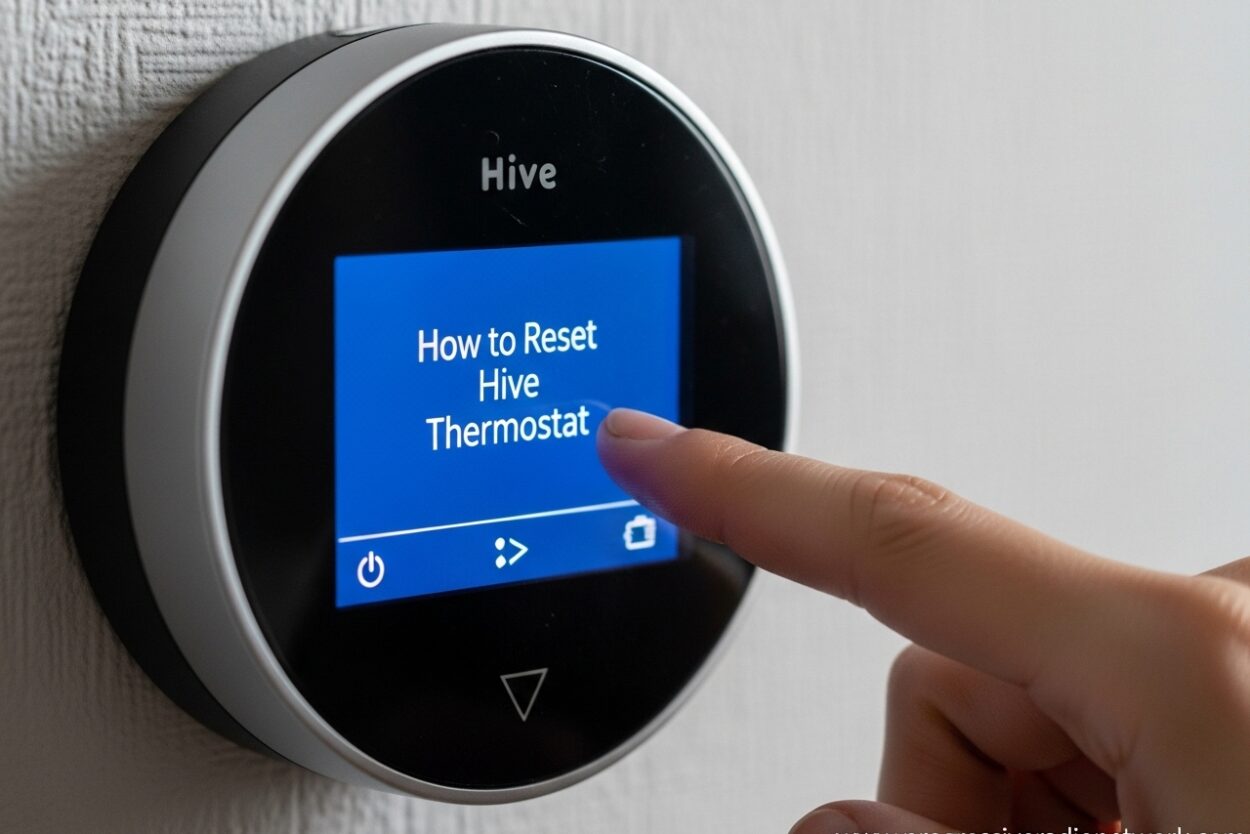
If your Hive thermostat has stopped responding, won’t connect to your hub, or is showing error messages, a reset can often fix the problem. I’ll walk you through exactly how to reset your Hive thermostat and get your heating back under control.
This guide covers quick restarts, full factory resets, and what to do when things don’t go according to plan. Based on official Hive support procedures and real user experiences, you’ll have your thermostat working again in under 10 minutes.
Quick Reset Steps
Before you dive into a full factory reset, try these quick fixes first. A simple restart resolves most minor glitches without erasing your settings.
Method 1: Battery Pull (30 seconds)
Remove your Hive thermostat from its wall plate or stand. Take out one battery and wait 30 seconds. Reinsert the battery and remount the thermostat. This forces a clean reboot without deleting your schedules or preferences.
Method 2: Screen Restart
Press and hold the back button (bottom left) and the middle menu button simultaneously for about 5 seconds. The screen will go dark and restart. This is equivalent to rebooting a phone and clears temporary memory issues.
If these quick steps don’t resolve your issue, proceed to the full factory reset below.
How to Factory Reset Hive Thermostat
A factory reset completely clears your Hive thermostat and returns it to default settings. This is necessary when your thermostat won’t connect, is stuck on “searching,” or has forgotten your heating schedules.
What happens during a factory reset:
All saved schedules, temperature preferences, and heating programs will be deleted. Your thermostat will need to re-pair with your Hive hub and receiver. The reset typically takes 2-3 minutes to complete.
Step 1: Remove the Thermostat
Gently pull your Hive thermostat from its wall plate or stand. Don’t force it – there’s a release mechanism on most models. Place it face down on a soft surface to avoid scratching the screen.
Step 2: Access the Battery Compartment
On the back of your thermostat, you’ll find the battery cover. Slide it down or unclip it depending on your model. You’ll see 4 AA batteries inside.
Step 3: Remove One Battery
Take out just one battery. You don’t need to remove all four. This breaks the power circuit and prepares the thermostat for the reset sequence.
Step 4: Press the Reset Button Combination
Press and hold the back button (bottom left) and the menu button (middle) together. While holding both buttons, reinsert the battery you removed.
Continue holding the buttons. The screen will light up and you’ll see a countdown from 10 to 0. Keep holding until the display shows “factory reset” on the screen. This usually takes 10-15 seconds total.
Step 5: Release and Wait
When “factory reset” appears, release both buttons. The thermostat will now clear its memory and restart automatically. Wait for the Hive logo to appear, then proceed to pairing mode.
Important: Don’t interrupt this process. Let the thermostat complete its reset cycle even if it takes a few minutes.
Power Cycling Your Boiler and Receiver
After resetting your thermostat, you’ll often need to reset the connection to your boiler and receiver. This step is crucial for establishing a fresh connection between devices.
Step 1: Turn Off Your Boiler
Locate your boiler’s power switch or use the mains isolation switch. Turn off the boiler completely. Wait 30 seconds to ensure full power discharge.
Step 2: Power Down the Receiver
If you have a wireless receiver (typically located near your boiler), remove its batteries or unplug it from the mains. This ensures both devices start fresh when powered back on.
Step 3: Power Back On
Turn your boiler back on at the mains. Wait for it to complete its startup sequence – usually indicated by a steady green light. If your receiver has batteries, reinstall them now.
Step 4: Check Receiver Status Lights
Your receiver should show a solid green or red light depending on your model. A flashing light indicates it’s ready to pair. If you see no lights at all, check your boiler power and receiver batteries.
Reconnecting After Reset
Now that both your thermostat and boiler receiver are reset, it’s time to pair them together again. Your Hive hub acts as the bridge between these devices.
Step 1: Open the Hive App
Launch the Hive app on your smartphone. Make sure you’re connected to your home WiFi network. The app should detect that your thermostat needs to be set up again.
Step 2: Put Thermostat in Pairing Mode
Your thermostat should automatically enter pairing mode after the factory reset. You’ll see “searching” or a pairing icon on the display. If not, press the menu button and navigate to “Setup” or “Pairing.”
Step 3: Follow App Instructions
The app will guide you through adding your thermostat to your account. Select “Add Device” and choose “Thermostat” from the list. The app will search for your thermostat via the Hive hub.
Step 4: Complete the Setup
Once the app finds your thermostat, follow the on-screen prompts to name it and create initial heating schedules. You can also set your preferred temperature at this stage.
Step 5: Test Your Connection
Try adjusting the temperature from the app. Your thermostat should respond within 2-3 seconds. If it works, your reset was successful. If not, see the troubleshooting section below.
Troubleshooting Common Reset Issues
Sometimes a reset doesn’t go smoothly. Based on real user experiences, here are the most common problems and their solutions.
Thermostat Stuck on “Searching”
If your thermostat displays “searching” for more than 5 minutes, it can’t find your receiver. Check that your receiver has power (solid or flashing light). Move your thermostat closer to the receiver temporarily to establish the initial connection.
App Can’t Find Thermostat
Make sure your Hive hub is online and connected to your router. Check the hub’s status light – it should be solid. Try restarting the hub by unplugging it for 30 seconds, then plugging it back in.
Receiver Shows Red Light
A red receiver light usually means it’s not paired with the thermostat. After completing the thermostat reset, use a paperclip to press the small reset button on the receiver itself. This will put it into pairing mode.
Thermostat Won’t Enter Factory Reset Mode
If the factory reset screen doesn’t appear, try fresh batteries. Weak batteries can prevent the reset sequence from completing. Also ensure you’re holding the correct buttons – back (bottom left) and menu (middle button).
Repeated Connection Failures
If you’ve completed multiple resets and still can’t establish a stable connection, your Zigbee signal might be weak. Thick walls, metal objects, and other wireless devices can interfere. Consider moving your hub closer to your thermostat or adding a signal booster.
When to Contact Hive Support
If you’ve tried all the above steps without success, your hardware may have a fault. Hive support can run remote diagnostics and determine if a replacement is needed under warranty.
FAQ
How do I reboot my Hive thermostat?
Remove one battery from the back of your thermostat, wait 30 seconds, then reinsert it. Alternatively, press and hold the back and menu buttons together for 5 seconds to force a restart without removing batteries.
How do I reconnect my Hive thermostat?
Open the Hive app and select ‘Add Device.’ Choose ‘Thermostat’ and follow the prompts. Your thermostat should automatically enter pairing mode after a reset. The app will search for it via your hub and guide you through completing the setup.
How do I get my Hive back online?
Check that your Hive hub has a solid status light. Restart your hub by unplugging it for 30 seconds. Ensure your WiFi is working. Once the hub is back online, your thermostat should automatically reconnect within 2-3 minutes.
How to hard reset a Hive thermostat?
Remove the thermostat from its wall plate and take out one battery. Press and hold the back and menu buttons together while reinserting the battery. Continue holding until you see ‘factory reset’ on the screen (usually 10-15 seconds). Release the buttons and wait for the reset to complete.
Why has my Hive suddenly stopped working?
Common causes include WiFi router issues, depleted thermostat batteries, hub disconnection, or Zigbee signal interference. Try restarting your router and hub, replace thermostat batteries if needed, and ensure there are no new obstacles blocking the signal between devices.
Conclusion
Learning how to reset your Hive thermostat is an essential skill for any smart home owner. Most issues can be resolved with a simple battery pull restart, while more persistent problems require a full factory reset and re-pairing process.
The key is to be patient during the reset process and follow each step carefully. Don’t skip the boiler power cycle step – it’s crucial for establishing a fresh connection. If you’re still having trouble after trying all the troubleshooting steps, Hive support can provide additional assistance.
Keep this guide bookmarked for future reference, and consider replacing your thermostat batteries annually to prevent many common issues before they start.

Leave a Comment