
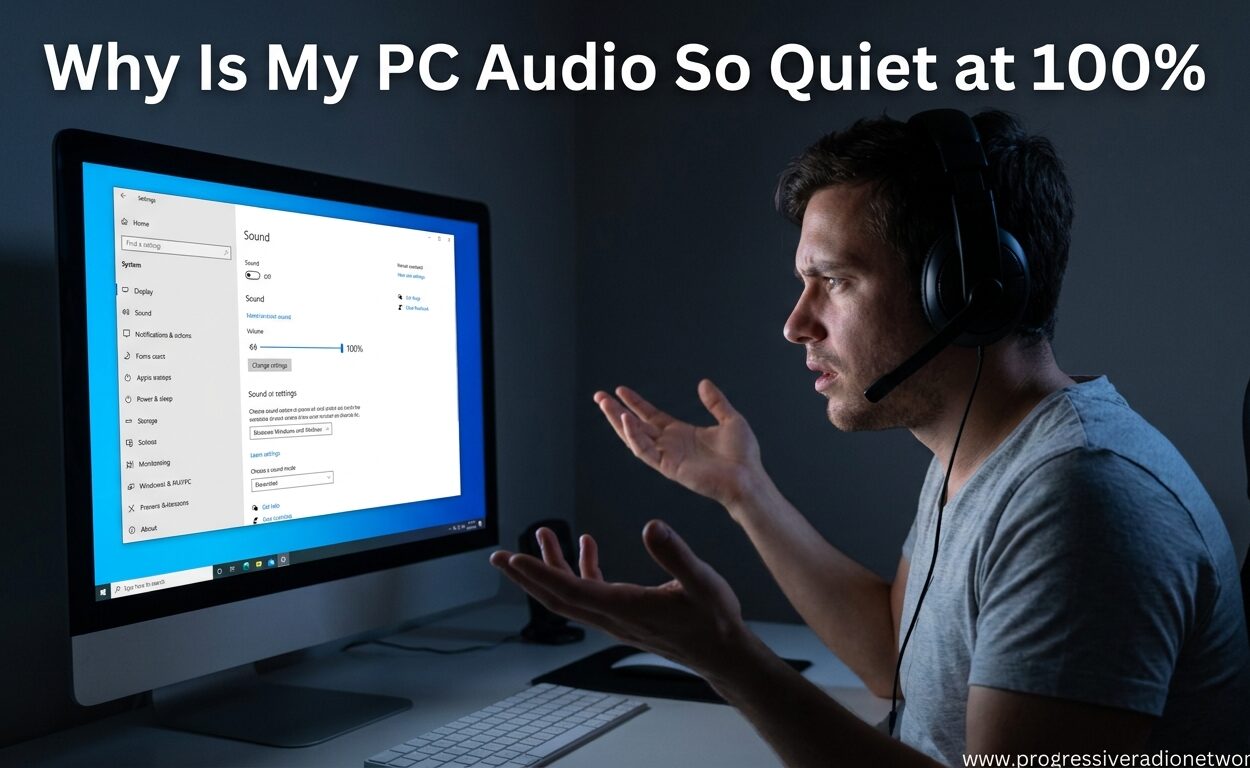
I spent three hours troubleshooting my PC audio last month. The volume was maxed out at 100%, yet my speakers sounded like they were whispering. If you are experiencing PC audio quiet at 100% volume, you are not alone. This frustrating issue affects Windows 10 and Windows 11 users regularly, often appearing suddenly after updates or system changes.
PC audio can be quiet at full volume due to misconfigured audio settings, outdated drivers, enabled audio enhancements that limit output, or app-specific volume controls in the Volume Mixer. The good news is that most of these issues are software-related and can be fixed in minutes without buying new hardware. I will walk you through every solution I have tested, from quick two-minute fixes to advanced troubleshooting steps.
By the end of this guide, you will understand why your PC audio is so quiet even at 100% volume and have the tools to fix it permanently. Let us start with understanding what causes this problem in the first place.
Common Causes of Low PC Audio
Before jumping into fixes, it helps to understand why PC audio quiet issues happen. Windows manages audio through multiple layers, and problems can occur at any stage of the chain.
The Windows audio stack processes sound through several stages. First, the application generates audio at its own volume level. Then Windows mixes all audio sources together. Next, system-wide audio enhancements apply processing. Finally, your audio driver sends the signal to your physical output device. When any layer applies limiting or reduction, the final output stays low despite showing 100% on the main volume slider.
Here are the most common causes I have encountered:
Volume Mixer misconfiguration: Individual applications have their own volume sliders in the Volume Mixer. A browser tab or music player might be set to 20% while your system shows 100%.
Audio enhancements limiting output: Windows includes features like Loudness Equalization and Audio Enhancements that can accidentally reduce maximum volume instead of improving it.
Outdated or corrupted audio drivers: Driver issues are the most common cause of sudden volume drops after Windows updates. Bad drivers miscommunicate with your hardware.
Communication activity detection: Windows can automatically lower volume when it detects calls, which sometimes gets stuck in reduced mode.
Hardware issues: Damaged speakers, loose connections, or clogged headphone jacks can make audio seem software-related when it is actually physical.
Multiple volume controls: Many setups have volume controls in multiple places: Windows, your monitor, external speakers, or the audio device itself.
Quick Fixes to Try First
Before diving into detailed troubleshooting, try these quick fixes. Each takes under two minutes and solves the problem about 30% of the time.
Check all physical volume controls: If you use external speakers or a monitor with built-in speakers, check their physical volume buttons. Many users on Reddit report finding their monitor volume set to 10% while Windows was at 100%. This is especially common with HDMI or DisplayPort audio connections.
Test with different audio devices: Plug in different headphones or speakers. If the new device works fine, your original hardware is the problem, not Windows.
Restart your PC: A full restart reloads all audio drivers and services. This simple step fixes temporary software glitches that cause low volume.
Check for Windows updates: Microsoft regularly releases audio driver updates. Go to Settings > Windows Update and install any pending updates.
Try a different audio port: If your PC has multiple audio jacks (front and back panel), test both. One port might have a hardware issue while the other works fine.
Solution 1: Check Volume Mixer and App-Specific Settings
The Volume Mixer is where most quiet audio issues hide. Windows lets you set different volume levels for each application, and these can be independent of your main system volume.
For Windows 11: Right-click the speaker icon in your taskbar and select Open Volume Mixer. You will see a list of all apps currently playing audio. Check that none of them have their sliders turned down low. Pay special attention to your browser, music apps, and games.
For Windows 10: Right-click the speaker icon and choose Open Volume Mixer. The interface shows individual volume sliders for System Sounds and each running application. Make sure everything is at 100%.
I once found that my browser was set to 15% volume in the mixer while system sounds were at 100%. This is why YouTube videos were barely audible even though Windows notification sounds were loud.
Check Communication Activity Settings
Windows has a feature that automatically reduces volume when it detects communication activity like Discord calls or Zoom meetings. Sometimes this setting gets stuck.
Open Sound Settings and find the Communications tab. Select Do nothing when Windows detects communications activity. This prevents Windows from ever automatically reducing your volume.
Solution 2: Disable Audio Enhancements
Audio enhancements are supposed to improve sound quality, but they often cause PC audio quiet problems instead. Disabling them immediately restores full volume in many cases.
Step-by-step for both Windows 10 and 11:
Right-click the speaker icon and select Sounds or Open Sound Settings, then Sound Control Panel. In the Playback tab, find your active audio device and right-click it. Choose Properties.
Navigate to the Enhancements tab. Check the box that says Disable all enhancements or Disable all sound effects. Click Apply and then OK.
Windows 11 users might find this under the Advanced tab instead, labeled as Audio Enhancements with a dropdown set to Off.
I recommend restarting your PC after disabling enhancements to ensure the change takes full effect. Test your audio with a loud song or video to confirm the volume increase.
What Are Audio Enhancements?
Audio enhancements include features like Bass Boost, Virtual Surround, Room Correction, and Loudness Equalization. While these can improve listening experiences, they often apply processing that reduces overall volume to prevent distortion. Disabling them sends raw, unprocessed audio at full strength to your speakers or headphones.
Solution 3: Update or Reinstall Audio Drivers
Outdated or corrupted audio drivers are the leading cause of sudden volume drops. Updating them fixes compatibility issues and restores proper audio output levels.
How to update audio drivers:
Press Windows key + X and select Device Manager. Expand the Sound, video and game controllers section. Right-click your audio device (usually Realtek Audio, High Definition Audio Device, or your sound card brand). Select Update driver.
Choose Search automatically for drivers. Windows will find and install the latest driver. Restart your PC after the update completes.
When to Reinstall Instead of Update
If updating does not fix the issue, completely reinstall the driver. In Device Manager, right-click your audio device and select Uninstall device. Check Delete the driver software for this device if the option appears. Restart your PC.
Windows will automatically reinstall a fresh driver on reboot. For even better results, download the latest driver directly from your motherboard or laptop manufacturer’s website rather than using Windows Update.
Our team found that manufacturer drivers often perform better than generic Windows drivers, especially for gaming motherboards and dedicated sound cards.
Roll Back Drivers If Problems Started After an Update
If your audio worked fine before a recent Windows update, roll back to the previous driver version. In Device Manager, right-click your audio device, select Properties, go to the Driver tab, and click Roll Back Driver if the option is available.
Solution 4: Change Audio Format Settings
Incorrect audio format settings can limit maximum volume output. Changing the sample rate and bit depth often fixes quiet audio issues, especially with USB headsets and external audio interfaces.
How to change audio format:
Open Sound Settings and access the Sound Control Panel. In the Playback tab, right-click your active device and select Properties. Go to the Advanced tab.
Under Default Format, you will see a dropdown showing values like 24 bit, 48000 Hz or 16 bit, 44100 Hz. Try changing this to a different setting. I recommend starting with 16 bit, 44100 Hz (CD Quality) as it has the widest compatibility.
Click Test to preview the format. If it sounds louder, click Apply. If not, try another format option from the dropdown.
Understanding Sample Rate and Bit Depth
Sample rate determines how many times per second audio is captured (Hz). Bit depth affects dynamic range. Higher values like 24-bit, 192000 Hz offer better quality but can cause compatibility issues with some hardware. Lower values like 16-bit, 44100 Hz are standard and generally work best for troubleshooting volume issues.
Bluetooth Audio Specific Troubleshooting
Bluetooth audio has unique volume challenges that wired connections do not face. If your PC audio quiet issue only happens with Bluetooth headphones or speakers, these steps are for you.
Check Bluetooth device volume separately: Many Bluetooth headphones have their own volume controls that are independent of Windows volume. Your headphones might be at 50% while Windows shows 100%. Adjust the volume directly on your headphones first.
Re-pair your Bluetooth device: Remove the device from Windows and pair it again. Go to Settings > Bluetooth and devices, find your device, click the three dots, and select Remove device. Then pair it fresh. This resets the audio codec negotiation between your PC and the headphones.
Check Bluetooth codec support: Windows sometimes uses SBC codec for Bluetooth audio, which has lower quality and volume than aptX or AAC. Consider using low latency Bluetooth headphones that support better codecs for improved volume and quality.
Disable Bluetooth Absolute Volume: Windows has a feature that syncs Windows volume with Bluetooth device volume. Sometimes this causes conflicts. You can disable it in the Registry, though this is an advanced step best attempted only if other solutions fail.
Advanced Solutions: Loudness Equalization and More
If standard fixes do not solve your PC audio quiet at 100% volume problem, these advanced solutions can help.
Enable Loudness Equalization for Extra Boost
Loudness Equalization is an enhancement that can actually increase perceived volume rather than reduce it. It normalizes volume levels across different audio sources, making quiet sounds louder.
Open your audio device properties in Sound Settings. Go to the Enhancements tab. Check Loudness Equalization. Click Apply. You should notice an immediate volume increase, especially on content with quiet dialogue or subtle sound effects.
I use this setting for watching movies with quiet scenes. It brings up those whispered conversations without me having to constantly adjust the volume slider.
Check Exclusive Mode Settings
Exclusive mode lets applications take full control of your audio device. Sometimes this causes volume conflicts. In your audio device properties under the Advanced tab, try unchecking both options under Exclusive Mode. This forces Windows to manage all audio, which can resolve volume inconsistencies.
When to Consider External Hardware
If software fixes do not restore adequate volume, your onboard audio might simply be underpowered for your headphones. This is common with high-impedance audiophile headphones that require more power than standard PC audio chips provide.
Consider a headphone amp and DAC combo for a significant volume and quality boost. A USB audio interface can also solve persistent low volume issues while improving overall sound quality.
For gamers, investing in quality PC gaming headphones designed for computer use often solves volume issues while adding features like surround sound and better microphones.
When to Check for Hardware Issues
Software fixes solve most PC audio quiet problems, but sometimes the issue is physical. Knowing how to diagnose hardware versus software problems saves you from endless troubleshooting when you actually need a replacement.
Test your speakers or headphones on another device: Plug them into your phone, tablet, or another computer. If they are still quiet, the problem is your audio hardware, not your PC.
Try different headphones or speakers on your PC: If new hardware sounds fine on your PC but your old hardware is quiet everywhere, replace the old hardware.
Clean your headphone jack and ports: Dust, lint, and debris in your 3.5mm audio jack can cause poor connections and reduced volume. Use compressed air to clean ports gently. Check for bent pins inside the jack.
Inspect cables for damage: Frayed or damaged audio cables can cause volume drops and crackling. Wiggle the cable near connectors while playing audio. If volume fluctuates, replace the cable.
Signs of hardware failure include: Volume that fluctuates randomly, audio that cuts out when you move the cable, distortion at any volume level, or one side being significantly quieter than the other.
If you suspect hardware failure and your device is under warranty, contact the manufacturer. For built-in laptop speakers that fail, professional repair might be needed, though external speakers or headphones are often a more cost-effective solution.
Frequently Asked Questions
Why is my audio so quiet on full volume?
PC audio can be quiet at full volume due to misconfigured audio settings, outdated drivers, enabled audio enhancements that limit output, app-specific volume controls in the Volume Mixer, or hardware issues like damaged speakers or loose connections. The Windows audio stack has multiple layers, and when any layer applies limiting, the final output stays low despite 100% system volume.
Why is my volume on my PC so low?
The most common causes are Volume Mixer settings where individual apps are set to low volume, enabled audio enhancements that reduce output, outdated audio drivers, or communication activity detection that lowers volume during calls. Check the Volume Mixer first, then disable audio enhancements, and update your audio drivers through Device Manager.
Why is my speaker volume so low even on Max?
If speakers are quiet at maximum Windows volume, check physical volume controls on the speakers themselves, try different audio ports on your PC, test the speakers on another device to rule out hardware failure, and disable audio enhancements in Windows sound settings. Also clean the speaker grilles as dust accumulation can muffle sound.
How to make PC audio louder than 100%?
Enable Loudness Equalization in your audio device properties under Enhancements. This Windows feature increases perceived volume beyond normal levels. You can also use third-party equalizer software like Equalizer APO for more control, or invest in a headphone amplifier or external DAC for hardware-based volume boosts that exceed onboard audio limits.
Why is my laptop sound so low Windows 11?
Windows 11 has the same audio architecture as Windows 10 but with a redesigned settings interface. Check the new Volume Mixer by right-clicking the taskbar speaker icon. Navigate to System > Sound > All sound devices and ensure no enhancements are limiting output. Update audio drivers through Device Manager as Windows 11 updates sometimes install incompatible drivers.
How to fix low volume on Windows 10?
First check the Volume Mixer for app-specific volume limits. Then disable all audio enhancements in your playback device properties. Update or reinstall audio drivers from Device Manager. Change the default audio format to 16-bit 44100 Hz. Finally, check that Communications settings are not reducing volume during calls. These steps fix the majority of Windows 10 low volume issues.
Conclusion
PC audio quiet at 100% volume is a frustrating but solvable problem. In most cases, the issue lies in software settings rather than hardware failure. Start with the quickest fixes like checking the Volume Mixer and disabling audio enhancements. These two steps alone solve the problem for about half of users.
If those do not work, move on to driver updates and audio format changes. Remember to test your audio hardware on another device to rule out physical damage. For persistent issues that resist all software fixes, consider external audio hardware like a headphone amplifier or USB audio interface to boost output beyond what onboard audio can provide.
The key is working through solutions systematically rather than randomly trying fixes. Document what you have tried so you do not repeat steps. With patience and the right approach, you will have your PC audio back to normal volume levels in 2026.
Leave a Comment