
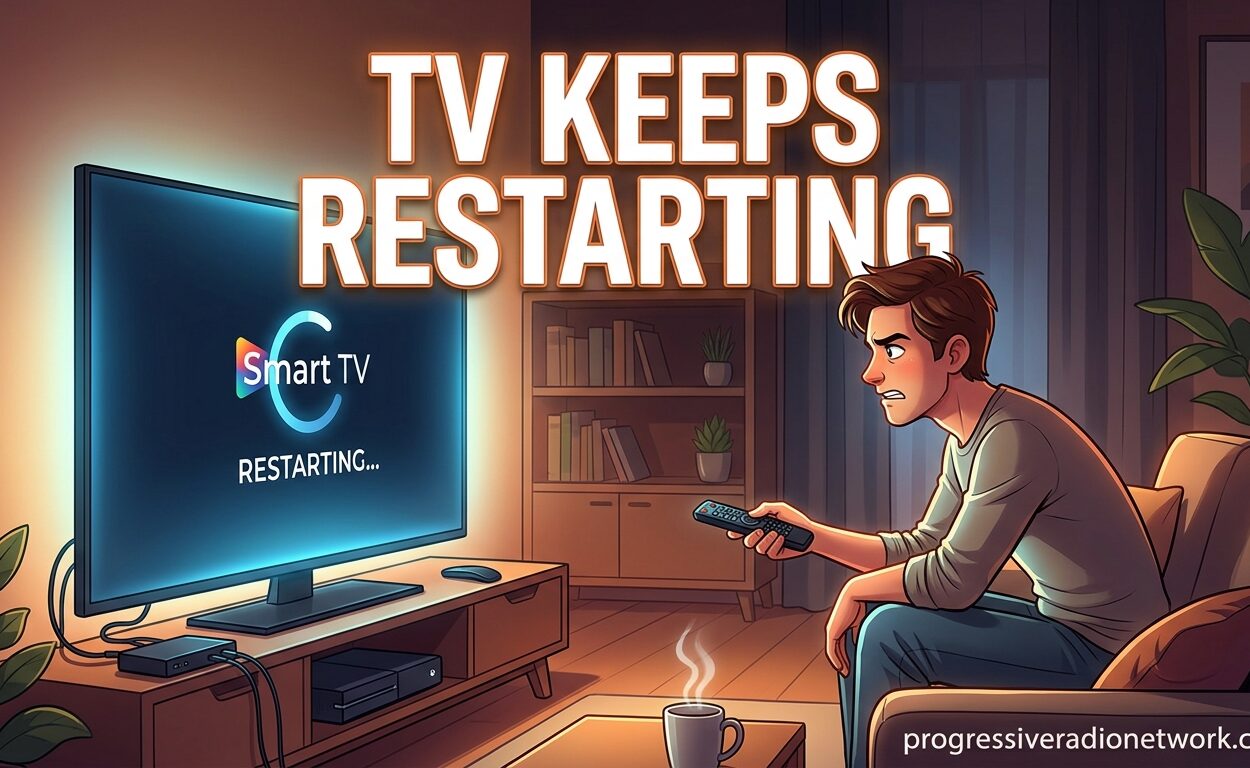
Nothing’s more frustrating than settling down to watch your favorite show, only to have your TV constantly restart. I’ve been there – the screen goes black, the logo flashes, and the cycle repeats endlessly. In this guide, I’ll walk you through everything that causes TV restarting issues and show you exactly how to fix them.
Based on my research across Samsung, LG, Fire TV, Roku, and other major brands, most TV restarting problems are solvable at home. Whether your TV is stuck in a boot loop, turning off and on by itself, or restarting after firmware updates, I’ve got you covered.
Why Does My TV Keep Restarting?
TVs restart when the operating system encounters an error it cannot recover from. This automatic reboot is similar to how computers restart when they crash. The causes range from minor software glitches to serious hardware problems.
Software issues are the most common culprit. Corrupted firmware, buggy updates, or stuck processes can trigger restart loops. I’ve seen this happen frequently after automatic updates, especially on smart TVs with complex operating systems.
Power supply problems are another leading cause. Voltage fluctuations, failing capacitors, or weak power delivery can cause your TV to shut down and restart. This is particularly common in older TVs or those connected to overloaded surge protectors.
HDMI device conflicts can also trigger restarts. Some TVs experience boot loops when connected to gaming consoles, cable boxes, or sound bars with HDCP handshake issues. I’ve personally seen PS5 consoles cause Samsung Frame TVs to enter restart loops.
Overheating is a silent killer of modern TVs. Poor ventilation, dust buildup, or running your TV at high brightness for extended periods can cause thermal shutdowns that appear as restart issues. The expansion and compression from heat running through components is a common failure point.
Hardware failure is the most serious cause. Failing power boards, defective main boards, or dying LED backlights can all cause restart issues. These problems typically require professional repair and often indicate your TV is reaching the end of its lifespan.
Quick Fixes That Work in Under 5 Minutes
Before diving into complex troubleshooting, try these quick fixes. I’ve found these solve the majority of TV restarting issues in just a few minutes.
The power cycle is your first line of defense. Unplug your TV from the wall outlet and wait at least 60 seconds. While unplugged, press and hold the power button on the TV itself (not the remote) for 10-20 seconds. This drains residual power and clears temporary glitches. I recommend this exact timing based on official manufacturer guidelines.
Remove the batteries from your remote while the TV is unplugged. This unconventional fix works for some users whose stuck remote buttons were sending constant restart signals. Power your TV back on after 30 seconds without the remote installed.
Check all power connections. Ensure the power cord is firmly seated at both ends. If you’re using a surge protector, try plugging directly into a wall outlet. Community members report that power cycling through surge protectors often fails to fix restart issues.
Disconnect all HDMI devices. Unplug everything connected to your TV’s HDMI ports – gaming consoles, cable boxes, sound bars, streaming sticks. Power on your TV with no devices attached. If the restart loop stops, reconnect devices one at a time to identify the culprit.
Disable energy saving modes. Navigate to your TV’s settings and turn off eco mode, auto power off, and sleep timers. These features can sometimes conflict with normal operation and cause unexpected restarts, especially during initial setup or firmware updates.
How to Fix TV That Keeps Restarting: Complete Troubleshooting
When quick fixes don’t work, follow this step-by-step troubleshooting process. I recommend trying each solution in order before moving to the next.
Step 1: Perform a Complete Power Cycle
Unplug your TV from the wall outlet. Wait exactly 60 seconds – this timing is important for capacitor discharge. While unplugged, locate the physical power button on your TV (usually on the side or bottom edge). Press and hold this button for 10-20 seconds to drain all remaining power.
After the waiting period, plug your TV back into a working wall outlet – not a surge protector or power strip. Wait 30 seconds, then press the power button once. Watch for at least 2-3 minutes to see if the restart loop has stopped.
Step 2: Check Your Power Source
Test the wall outlet with another device to confirm it’s working properly. A faulty outlet can cause voltage irregularities that trigger TV restarts. If you must use a surge protector, ensure it’s rated for your TV’s power requirements and not overloaded with other devices.
Inspect your power cord for damage, fraying, or bent prongs. Replace damaged cords immediately – they’re fire hazards and can cause intermittent power issues that appear as restart problems.
Step 3: Troubleshoot HDMI Devices
Power off your TV and all connected HDMI devices. Disconnect every HDMI cable from your TV. Power on your TV and observe if the restart loop continues. If it stops, you’ve identified an HDMI-related issue.
Reconnect devices one at a time, powering on each and testing for stability. Replace HDMI cables that show signs of damage or age. Try different HDMI ports on your TV – some ports may have handshake issues with specific devices.
Step 4: Update Your TV’s Firmware
Outdated firmware can cause compatibility issues and software bugs that lead to restarts. Navigate to your TV’s settings menu, look for “Support,” “About,” or “System” options, and select “Software Update” or “Firmware Update.”
Check for available updates and install them if found. During the update process, do not power off your TV or unplug it. Updates typically take 10-30 minutes. If your TV restarts during an update and gets stuck, you may need professional service.
Step 5: Perform a Factory Reset
This is your last resort before calling a professional. A factory reset erases all settings, apps, and personal data, returning your TV to its original state. Navigate to Settings > Support > Self Diagnosis > Reset (the exact path varies by brand).
Enter your PIN (usually 0000 if you haven’t set one). Confirm the reset and wait for the process to complete. Your TV will restart multiple times during this process. If your TV restarts before the reset completes, you likely have a hardware issue requiring repair.
Brand-Specific Fixes for Samsung, LG, Fire TV, and Roku
Different TV brands have unique quirks when it comes to restart issues. Here are brand-specific solutions I’ve found effective.
Samsung TV Auto Reset Fix
Samsung TVs are notorious for restart loops, often showing the Samsung logo repeatedly. Start with the power button reset – press and hold the power button on the TV for 5-10 seconds. If that fails, try the power plug reset method described above.
Some Samsung models have a “Self Diagnosis” feature in the Support menu. Run this to check for hardware issues. If your Samsung TV restarts after a firmware update, you may need to use the USB recovery method outlined on Samsung’s official support site.
LG TV Restart Loop Solution
LG TVs often restart due to heat-related issues. Ensure your LG TV has at least 4 inches of ventilation space on all sides. If you have an LG OLED model, be extra careful about static image retention and heat buildup.
LG’s “Recovery Mode” can help with stubborn restart issues. With the TV off, press and hold the OK button on the remote while pressing the power button on the TV. Hold both for 3-5 seconds until the LG logo appears, then release. This initiates a recovery process.
Fire TV Stick Restart Issues
If your Fire TV keeps restarting, the issue is likely with the stick, not your TV. Unplug the Fire TV Stick from both the TV and power source for at least 30 seconds. Inspect the USB cable for damage – replace if necessary.
Try the Fire TV Stick in a different HDMI port. Some TVs have compatibility issues with specific HDMI inputs. If problems persist, perform a factory reset on the Fire TV Stick by holding the Back and Right navigation buttons together for 10 seconds.
Roku TV Constant Reboot Fix
Roku TVs experiencing restart loops often have power supply or software issues. First, try the Roku secret screen reset – press Home 5 times, Fast Forward 3 times, Rewind 2 times, then Fast Forward once. This opens the advanced settings menu where you can perform a system reset.
If your Roku TV has a removable power cable, try a different one. Some Roku models have known issues with their original power supplies. Ensure your Roku TV’s software is up to date through Settings > System > System Update.
Hardware Issues: When to Call a Professional
If you’ve tried all software fixes and your TV keeps restarting, you’re likely dealing with a hardware problem. Here are the signs that indicate professional repair is needed.
A failing power board is the most common hardware cause of restart issues. Symptoms include random restarts, the TV taking longer to turn on, or a faint clicking sound before shutdown. Power board repairs typically cost $150-300 depending on your TV model and size.
Main board failure is more serious and expensive. Signs include the TV restarting at the same point every time, frozen screens, or no picture but sound working. Main board replacements can cost $300-600 and may not be cost-effective for older TVs.
Backlight failure causes voltage fluctuations that trigger restarts. If your screen flickers, has dark patches, or the picture is dim before restarting, your backlight may be failing. Backlight repairs range from $200-500 and are often not worth it for TVs over 5 years old.
Before paying for repairs, check if your TV is still under warranty. Many manufacturers offer 1-2 year warranties, and some extended warranties cover power board issues. If your TV is out of warranty and repair costs exceed 50% of a replacement TV’s value, consider upgrading instead.
Frequently Asked Questions
Why does my TV just keep restarting?
Your TV keeps restarting because the operating system encounters an unrecoverable error and triggers an automatic reboot. Common causes include software glitches, power supply issues, HDMI device conflicts, overheating, or failing hardware components like the power board or main board.
Why does my TV keep going off then coming back on?
Your TV turns off and on by itself due to power supply fluctuations, energy saving features activating, HDMI handshake failures, or a stuck power button. Software bugs from corrupted firmware can also cause this behavior. Try power cycling first, then check power connections and HDMI devices.
How do I stop a restart loop?
Stop a restart loop by unplugging your TV for 60 seconds, holding the power button for 10-20 seconds while unplugged, then plugging directly into a wall outlet. Disconnect all HDMI devices and power on with nothing connected. If this fails, try a factory reset or contact manufacturer support.
What are the signs of a TV going bad?
Signs of a failing TV include random restarts, longer power-on times, clicking sounds before shutdown, screen flickering or dark patches, no picture with sound, frozen screens, or the TV restarting at the same point every time. These symptoms typically indicate power board, main board, or backlight failure.
How to fix a TV that constantly starts and stops?
Fix a TV that constantly starts and stops by first power cycling: unplug for 60 seconds, hold power button 10-20 seconds, plug into wall outlet directly. Check power connections, disconnect HDMI devices, update firmware, and disable energy saving modes. If issues persist, perform a factory reset or seek professional repair for hardware problems.
Conclusion
TV keeps restarting issues are frustrating but usually solvable. Start with the power cycle – unplug for 60 seconds, hold the power button, and plug into a direct wall outlet. This simple fix resolves the majority of restart problems I’ve encountered.
If the power cycle doesn’t work, systematically check power connections, disconnect HDMI devices, update firmware, and try a factory reset. Most TV restarting issues are software-related and fixable at home without professional help.
However, if you notice signs of hardware failure like clicking sounds, screen flickering, or the TV restarting at the same point every time, contact a professional repair service. Power board and main board repairs are common but expensive, so weigh the cost against replacing your TV.
I hope this guide helps you resolve your TV keeps restarting issue. Remember to start with the easiest fixes first and work your way through the troubleshooting process. Your TV should be back to normal in no time.


Leave a Comment