
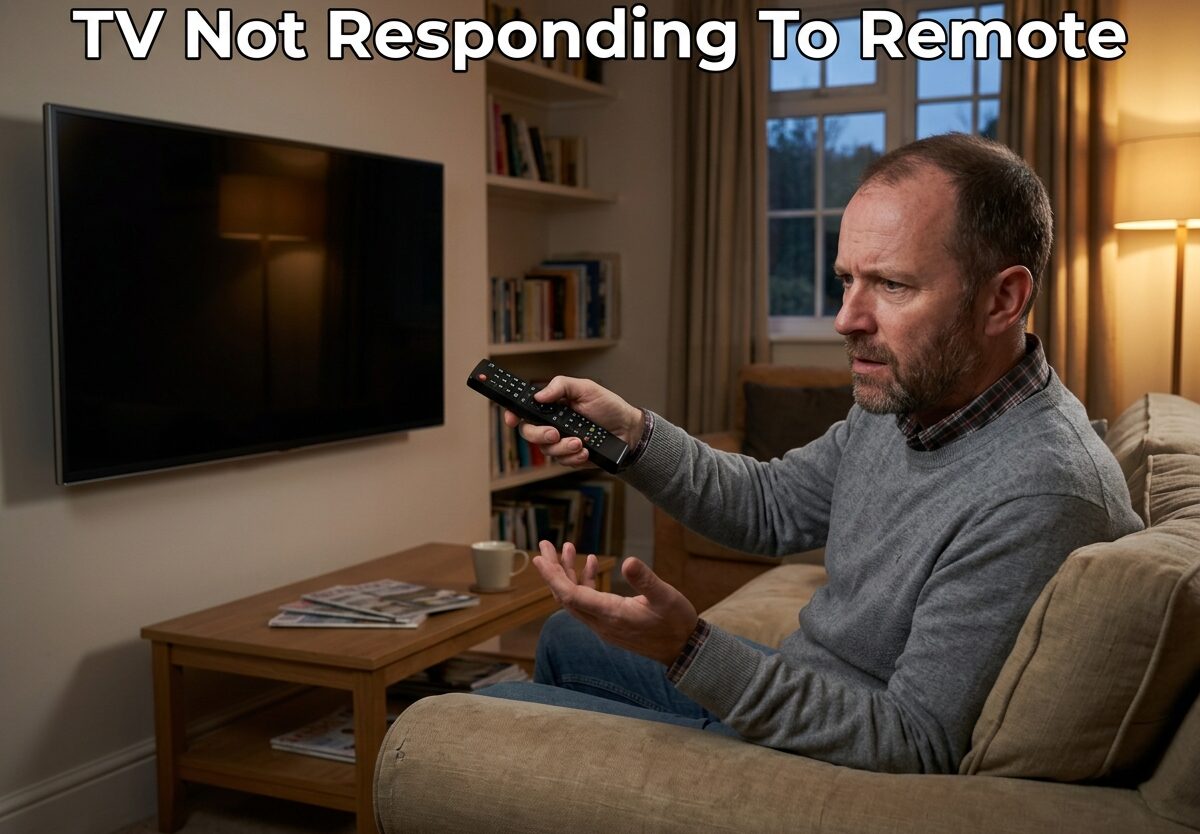
Sitting down to watch your favorite show only to find your TV not responding to remote commands is one of the most frustrating modern inconveniences. I’ve been there, and I know how annoying it can be when you’re settled in on the couch and suddenly realize your remote control has stopped working completely.
The good news is that most TV remote issues are fixable at home in just a few minutes. After troubleshooting dozens of remotes over the years, I’ve found that 90% of unresponsive remote problems come down to a handful of common causes: dead or incorrectly installed batteries, stuck buttons, signal interference, or pairing issues with smart remotes.
In this guide, I’ll walk you through everything you need to know to get your remote working again. You’ll learn quick fixes you can try right now, how to test if your remote is actually sending signals, brand-specific troubleshooting steps, and when it’s time to replace your remote altogether.
Quick Troubleshooting Checklist
Before diving into detailed troubleshooting, try these fast fixes. These steps solve most TV not responding to remote issues in under 2 minutes.
- Remove and reinsert batteries – Take out all batteries, wait 10 seconds, then reinstall them making sure the positive and negative ends match the markings inside the battery compartment.
- Check for stuck buttons – Press every button on your remote to ensure none are physically stuck or depressed. A single stuck button can cause the entire remote to become unresponsive.
- Replace batteries with fresh ones – Even if the old batteries look fine, try a brand new pair. Weak batteries are the number one cause of remote issues.
- Point directly at the TV sensor – Make sure you’re aiming the remote at the TV’s IR receiver (usually a small dark window on the front or bottom edge of the screen).
- Remove any obstacles – Clear any objects between your remote and the TV that could be blocking the signal.
How to Test IR Signal with Smartphone Camera
One of the most useful tricks I’ve learned is using your smartphone camera to check if your remote is actually sending signals. This simple test can tell you immediately whether the problem is with your remote or your TV.
Here’s how to test your remote’s IR signal:
- Open the camera app on your smartphone (either front or back camera works)
- Point your TV remote at the camera lens
- Press and hold any button on the remote while looking at your phone screen
- If the remote is working, you’ll see a purple or pinkish light flashing from the IR emitter at the top of your remote
The human eye can’t see infrared light, but smartphone cameras can detect it. If you see that purple light flashing when you press buttons, your remote is functioning properly and the issue is likely with your TV’s IR receiver. If you see no light at all, your remote isn’t sending signals and needs to be reset or replaced.
This test works because IR light has a longer wavelength than visible light, but digital camera sensors are sensitive to infrared radiation. I’ve used this method countless times to quickly diagnose whether a remote or TV is at fault.
Complete Power Reset Procedure
Sometimes your remote or TV just needs a full power cycle to clear any temporary glitches. This is especially helpful for smart remotes that use Bluetooth or WiFi connectivity.
Remote Power Reset
- Remove all batteries from the remote
- Press and hold the power button for 30 seconds to discharge any remaining power
- Leave the batteries out for at least 1 full minute
- Reinsert fresh batteries and test the remote
TV Power Cycle
- Unplug your TV from the wall outlet
- Wait at least 60 seconds – a full minute is important for clearing the capacitors
- Press and hold the physical power button on the TV itself for 15 seconds while it’s unplugged
- Plug the TV back in and turn it on using the physical power button
- Test your remote again
This full power reset sequence clears any temporary software issues that might be preventing your TV from receiving remote commands. I’ve seen this fix work countless times, especially after power outages or electrical surges.
Smart and Bluetooth Remote Pairing Issues
Modern smart TVs often use advanced remotes that connect via Bluetooth or WiFi instead of traditional infrared. These smart remotes need to be paired with your TV and can lose their connection just like other Bluetooth devices.
Signs you have a smart or Bluetooth remote include:
- No clear window or bulb at the top of the remote
- Microphone button for voice commands
- Touchpad or cursor control features
- Works without pointing directly at the TV
How to Re-pair Your Smart Remote
The exact pairing process varies by brand, but here are the most common methods:
Samsung Smart Remotes: Hold down the Return and Play/Pause buttons simultaneously for 3 seconds until the remote blinks. The pairing indicator on your TV should appear.
LG Magic Remotes: Press the OK button and the Mute button together for 5 seconds. Register the remote when prompted on screen.
Universal method: Go to your TV’s settings menu, look for Connection or Bluetooth settings, select your remote from the list, and choose “Pair” or “Connect.”
Solar Remote Considerations
If you have a Samsung Solar Remote from 2021 or later, these eco-friendly remotes charge from indoor light or sunlight. Try leaving the remote in a well-lit room for at least 3 hours before attempting to use it again. These remotes also have a USB-C charging port for emergency charging.
IR Receiver Obstruction and Damage
Sometimes the problem isn’t your remote at all – it’s your TV’s infrared receiver. The IR sensor on your TV can become blocked, dirty, or damaged, preventing it from receiving signals from any remote.
Common IR Receiver Issues
Physical blockage: Check that nothing is covering the IR receiver window on your TV. This could be a soundbar, a decorative item, or even a thick layer of dust. The IR sensor is typically a small dark plastic window located at the bottom center or bottom edge of your TV screen.
Dirt and grime: Use a soft, dry cloth to gently clean the IR receiver window. Avoid using harsh chemicals or spraying cleaning fluids directly on your TV. A buildup of dust or residue can interfere with signal reception.
Bright light interference: Strong sunlight or direct light from lamps can sometimes overwhelm the IR sensor, making it difficult to detect remote signals. Try closing curtains or repositioning lamps to see if this improves responsiveness.
Internal sensor failure: If you’ve confirmed your remote is sending signals (using the camera test above) but your TV still won’t respond, the internal IR receiver hardware may have failed. This is especially common in TVs that are 5+ years old. In this case, you may need to use alternative control methods or contact a repair technician.
Physical Button Panel and Control Board Issues
Here’s a lesser-known issue that many people don’t realize: if BOTH your remote AND the physical buttons on your TV stop working at the same time, the problem is likely the TV’s control board, not your remote.
This happens when the button panel circuit board develops a short circuit or stuck button connection. When the button board malfunctions, it can effectively “jam” the entire control system, preventing both physical buttons AND remote commands from working.
Based on community troubleshooting insights from electronics repair forums, here’s how to diagnose this issue:
- Try your remote camera test – if the remote is sending signals but nothing works, proceed
- Attempt to use the physical buttons on the TV – if they also don’t respond, you likely have a control board issue
- Unplug the TV for 5 minutes and plug it back in – sometimes this temporary reset clears the fault
For advanced DIYers, some technicians have successfully disconnected the button board ribbon cable from the mainboard as a workaround. This allows the remote to function again, though you’ll lose the physical TV buttons. The button board can typically be replaced, though finding the exact replacement part for older TV models can be challenging.
Deep Cleaning Your Remote Control
Over time, dirt, food residue, and oxidation can build up inside your remote control, causing buttons to become unresponsive or sticky. A thorough cleaning can restore functionality to remotes that you might think are broken.
What You’ll Need
- Small Phillips screwdriver
- Isopropyl alcohol (90% or higher)
- Cotton swabs
- Compressed air (optional)
- Dielectric contact cleaner (for tough oxidation cases)
Cleaning Steps
- Remove the batteries from your remote
- Locate and remove any screws holding the remote together (often hidden under the batteries or in the battery compartment)
- Carefully separate the two halves of the remote casing
- Remove the rubber button pad and circuit board
- Clean the circuit board contacts with isopropyl alcohol using a cotton swab
- Clean the inside of the rubber button pad where it contacts the circuit board
- Use compressed air to blow out any dust or debris from the button holes
- Let everything dry completely (at least 30 minutes)
- Reassemble the remote and test with fresh batteries
I’ve personally saved several “dead” remotes using this cleaning method. The carbon contacts on the back of rubber buttons can oxidize over time, preventing electrical contact with the circuit board. Alcohol cleaning removes this oxidation and restores conductivity.
Brand-Specific Troubleshooting
While most remote issues are universal, some TV brands have unique features or known issues that require specific troubleshooting approaches.
Samsung TV Remote Issues
Samsung’s Smart Remote and Solar Remote have unique quirks. If your Samsung remote shows a blinking red light, it indicates the remote is trying to pair with the TV. Press the Return and Play/Pause buttons together for 3 seconds to initiate pairing.
For Samsung Solar Remotes (released 2021+), try charging via USB-C for at least 30 minutes or leaving in direct sunlight for 3 hours before use.
LG TV Remote Issues
LG’s Magic Remote uses Bluetooth and can sometimes lose its pairing. Hold the OK and Mute buttons simultaneously for 5 seconds to re-pair. If the pointer isn’t working, shake the remote gently to wake the gyroscope sensor.
Sony TV Remote Issues
Sony distinguishes between IR remotes (need line of sight) and Bluetooth remotes. For IR remotes, check that nothing is blocking the small IR window on the bottom of the TV. For Bluetooth touchpad remotes, try resetting by pressing the Home, Return, and Option buttons together.
Vizio TV Remote Issues
Vizio XRT remotes can sometimes become unpaired. Go to Menu > System > Reset & Admin > Reset Remote to re-pair. If your Vizio remote has a dedicated input button that’s not working, try holding it down for 5 seconds to force a rescan.
Alternative Control Methods
While troubleshooting your remote, here are some workarounds to keep watching your favorite shows:
Mobile apps: Most modern smart TVs have companion apps that turn your smartphone into a remote. Samsung’s SmartThings app, LG’s TV Plus app, and Sony’s Video & TV Sideview apps all provide full remote functionality via WiFi or Bluetooth. These apps actually work better than the physical remote in some cases, with voice search and text input features.
Physical TV buttons: If your TV’s physical buttons are working, you can navigate basic functions like power, volume, and channel changing directly from the TV. Look for a joystick-style button on the back or underside of the TV, or physical buttons on the side or bottom edge.
Universal remotes: As a last resort, universal remotes can be programmed to work with almost any TV. Basic models cost under $15 and can be programmed automatically, while advanced options like Logitech Harmony offer full smart home integration.
Cable/satellite remotes: If you have cable or satellite service, your provider’s remote can often be programmed to control your TV’s basic functions. Check your provider’s website for programming instructions.
When to Replace Your Remote
After trying all the troubleshooting steps above, you may determine that your remote is beyond repair. Here are the signs it’s time for a replacement:
- Camera test shows no IR signal being emitted
- Deep cleaning didn’t restore button functionality
- Physical damage like cracks, corrosion, or water damage is visible
- The remote is more than 5 years old and replacement parts aren’t available
- A manufacturer-specific smart remote costs less than $25 to replace
Replacement remotes are widely available. For brand-specific smart remotes, check the manufacturer’s website or major retailers. For standard IR remotes, universal options or even used remotes from the same brand will work perfectly. Just make sure to match your TV model number when ordering online.
Frequently Asked Questions
How do I unfreeze my TV remote?
First, remove the batteries and press every button to dislodge any stuck buttons. Wait 60 seconds, then reinsert fresh batteries. If that doesn’t work, remove batteries again and hold the power button for 30 seconds to discharge any remaining power. For smart remotes, try re-pairing by holding the pairing button combination (usually Return + Play/Pause for Samsung, OK + Mute for LG) for 3-5 seconds.
Why is my remote not working despite new batteries?
If new batteries don’t fix the issue, the problem is likely a stuck button, signal blockage, or a failed IR emitter. Check for stuck buttons by pressing each one multiple times. Test if the remote is sending signals using your smartphone camera – point the remote at your camera and press buttons while looking at the screen. If you see no purple/pink light, the IR emitter has failed. Also check that nothing is blocking the TV’s IR receiver window and clean it with a dry cloth.
Why is my LG TV not responding to the remote?
For LG Magic Remotes, the issue is often lost Bluetooth pairing. Hold the OK and Mute buttons simultaneously for 5 seconds to re-pair. If the pointer isn’t working, gently shake the remote to wake the gyroscope sensor. For standard LG remotes, try the camera test to verify the IR signal is working. Also check that the TV’s IR receiver window isn’t blocked – on LG TVs it’s typically located at the bottom center of the screen.
How do I know if my TV remote sensor is bad?
Test your remote with a smartphone camera – point it at your phone’s camera and press buttons. If you see a purple/pink light flashing but the TV still doesn’t respond, your remote is working and the TV’s IR sensor is likely bad. Another sign is if multiple different remotes won’t work with your TV. A bad IR sensor typically requires professional repair, but you can work around it by using the TV manufacturer’s mobile app or a universal remote that uses Bluetooth instead of IR.
Can I use my phone as a TV remote?
Yes! Most modern smart TVs have official companion apps that provide full remote functionality. Download your TV manufacturer’s app (Samsung SmartThings, LG TV Plus, Sony Video & TV Sideview, etc.) and connect to the same WiFi network as your TV. These apps typically offer more features than physical remotes, including voice search, text input, and gesture controls. This is also a great workaround while you’re troubleshooting your physical remote.
Conclusion
Dealing with a TV not responding to remote issues is frustrating, but as you’ve learned, most problems are solvable at home without expensive repairs or replacements. Start with the quick fixes – battery replacement, stuck button checks, and the power reset procedure. These simple steps solve the majority of remote problems.
Remember the smartphone camera trick for testing IR signals. This one diagnostic step can save you hours of frustration by quickly telling you whether the problem is your remote or your TV. For smart remotes, pairing issues are common and usually resolved with a simple button combination reset.
If you’ve tried everything and your remote still isn’t working, don’t despair. Mobile apps provide excellent temporary (or even permanent) alternatives, and replacement remotes are affordable and widely available. In most cases, you’ll be back to watching your favorite shows in no time.






Leave a Comment